
Swiftflip guides.
One task, every supported Apple device.
Shared steps stay together. When controls differ, each guide shows the iPhone, iPad, Mac or Apple Watch route on the same page.
Featured guides.
How Swiftflip helps you memorize and learn
Create your first deck, import existing cards and build a daily study habit across all your Apple devices.
Open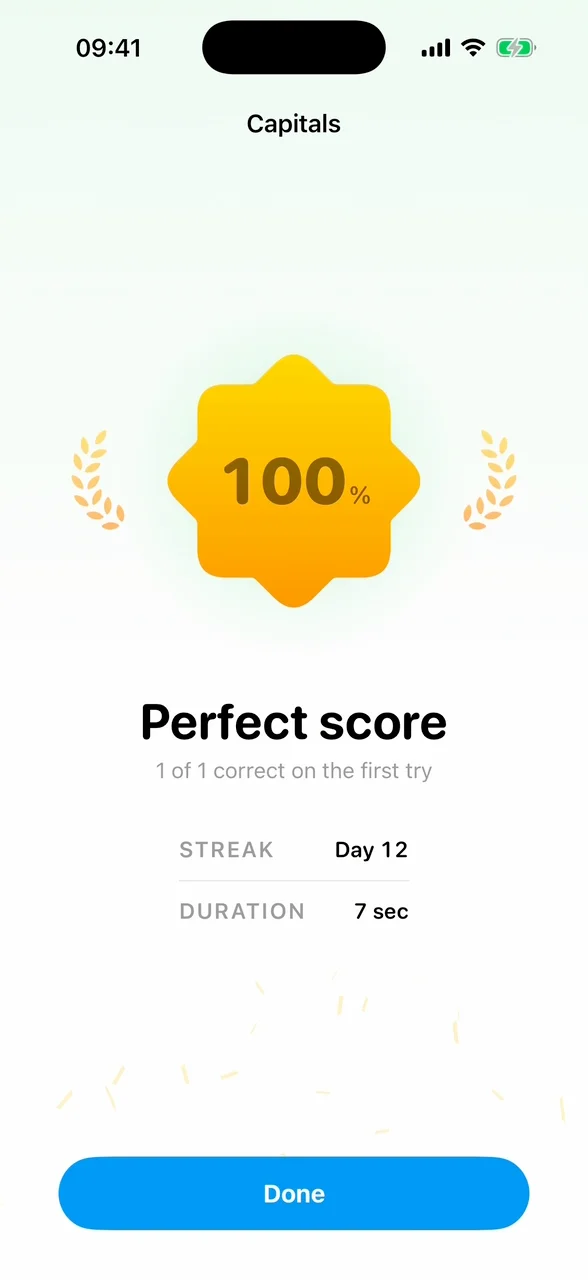
Import an Anki deck
Bring Anki decks into Swiftflip from apkg or colpkg files, including images, audio, formatting and review progress, and learn what does and does not transfer.
Open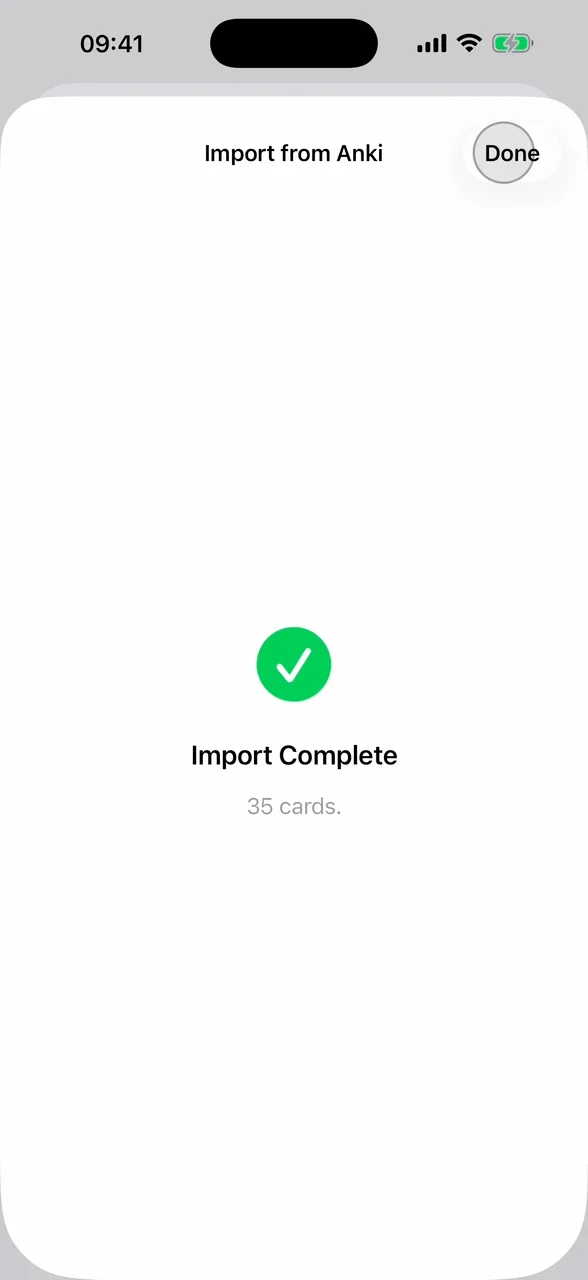
Use Swiftflip on Mac
Manage your library, edit cards and practice from one Mac window, with keyboard shortcuts for the actions you use most.
Open
Use Swiftflip on Apple Watch
Install Swiftflip on Apple Watch, browse decks and folders, review due cards and set wrist-specific image, audio and haptic options.
Open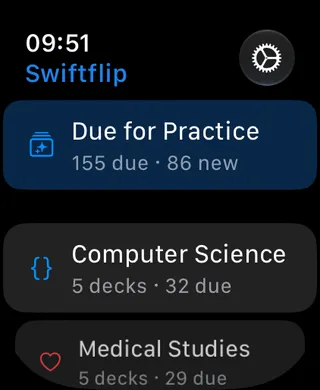
All Swiftflip guides.
Sync and recover your library with iCloud
Bring your library to another device, understand the first iCloud restore and recover safely when cards or recent changes have not appeared.
Understand your study and Card Insights
Read your streak, accuracy and study activity, inspect a deck or card and understand separate progress for reviews in both directions.
Use Siri and Shortcuts with Swiftflip
Add a card, open a deck, start practice or search your library with Siri, then combine Swiftflip actions in the Shortcuts app.
Pause reviews for a card or deck
Set a card or a whole deck aside so it stays in the library, keeps its schedule and leaves due counts until you resume.
Practice cards in both directions
Turn on Practice Both Ways for a deck, understand the separate schedules each direction keeps and choose which side a session shows first.
Set up a Custom Practice session
Build a practice session from chosen decks with your own session size, card order, study focus, first side and retry behavior.
Choose how answers appear
Preview answer reveal styles in Settings, compare motion options and switch to None when you want no animation.
Search your Swiftflip library
Find any deck or card from the Search tab, then narrow results with filters, suggestions and recent searches.
Add audio and images to cards
Add images and recorded audio to either side of a card, format text with bold and links, and know how media behaves on Apple Watch.
Add cards from other apps
Use the Swiftflip share sheet to turn selected text, a link or an image from another app into a flashcard without opening Swiftflip first.
Add widgets and the watch complication
Keep due cards visible with Swiftflip widgets on iPhone, iPad and Mac, plus the Due Cards complication on Apple Watch.
Build a Smart Deck
Create a Smart Deck that gathers cards by rules like due status, streak, last practiced, images, decks and folders, and updates itself.
Export and back up your library
Save a Swiftflip Archive or a CSV of your cards, preview a backup with Quick Look and restore it later through Import.
Generate flashcards with AI
Use the AI wizard to build a deck from a topic and add AI cards to a deck you already have.
Move your Quizlet sets to Swiftflip
Export a Quizlet set, turn it into a CSV with a front and back column and import it into Swiftflip with spaced repetition.
Organize decks with folders
Group related decks into folders, move decks in and out and see a combined due count, with Smart Decks for rule-based grouping.
Restore deleted decks and cards
Find Recently Deleted, restore a deck, card, folder or Smart Deck within 30 days and permanently remove anything you no longer need.
Set up study reminders
Turn on Swiftflip reminders, choose how often they arrive and understand why the on and off switch is set on each device.
How to import a CSV file into Swiftflip
Move existing flashcards into Swiftflip from a CSV file exported from Quizlet, Notion, a spreadsheet or another flashcard app.
Keyboard shortcuts in Swiftflip on Mac
A quick reference for practice, deck, card, formatting, file and Insights shortcuts in Swiftflip on Mac.
Use Handoff to continue practice across devices
Start a Swiftflip session on iPhone and pick it up on iPad or Mac without losing your place.