
Practice cards in both directions
Turn on Practice Both Ways for a deck, understand the separate schedules each direction keeps and choose which side a session shows first.
Swiftflip can schedule each card in a deck both ways, so you practice recalling either side instead of only recognizing one. This guide covers turning it on, what changes in practice and how to control the direction for a single session. For the reasoning behind the feature, see Practice Both Ways.
Edit Deck
iPhone
Practice Both Ways
Turn on the per-deck option to keep separate progress for each direction.
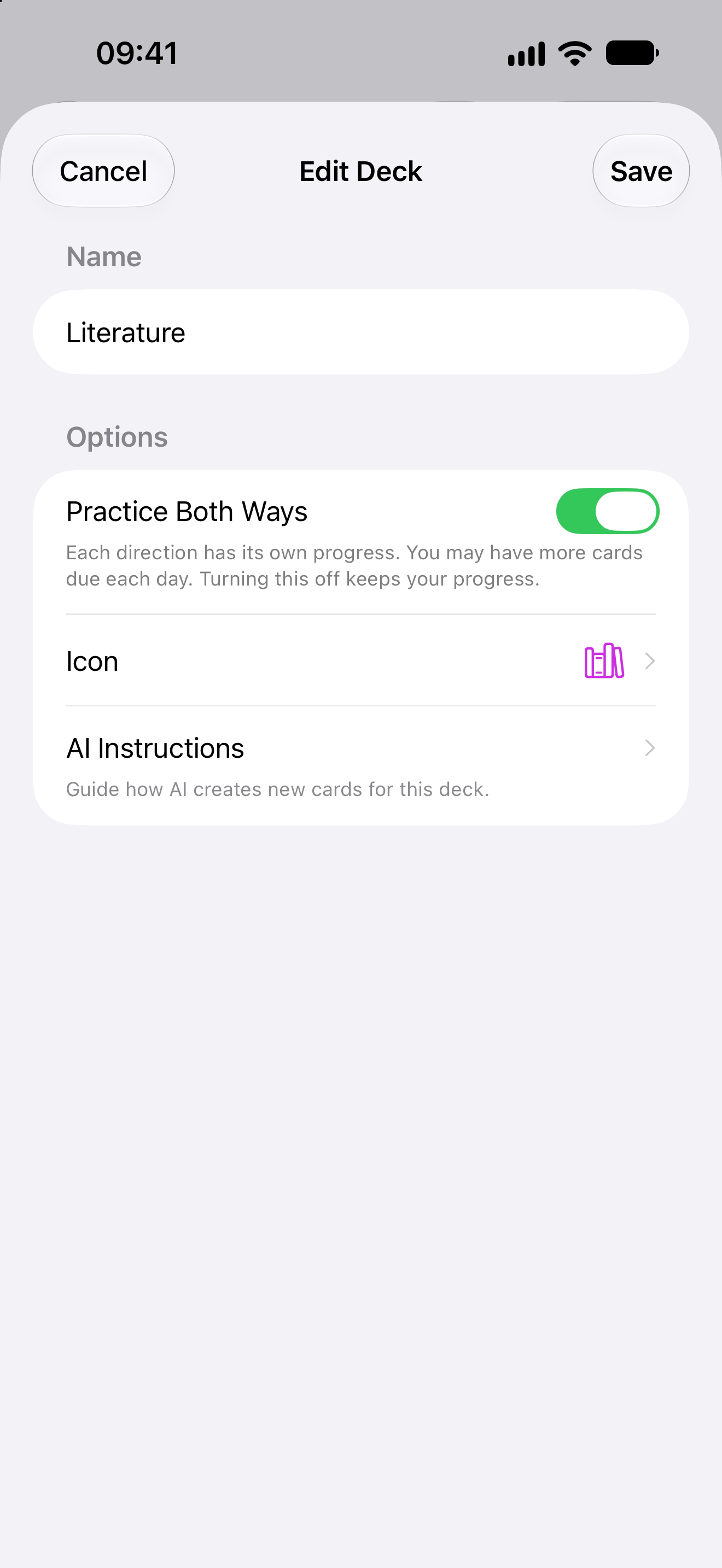
Turn it on for a deck
Practice Both Ways is a per-deck setting. Open the deck, choose Edit Deck and flip the Practice Both Ways toggle. The same toggle is available when you create a new deck.
Turning it on creates separate Front → Back and Back → Front schedules for every card in the deck. That may increase your daily reviews, since each direction earns its own intervals.
Vocabulary and terminology decks benefit most. Leave it off for decks where only one direction makes sense, like exam questions with long answers.
What changes in practice
Practice works exactly as before. The difference is which side opens a card: each card shows the side whose review is due, so the same card can open front first today and back first tomorrow.
Each direction keeps its own progress. Grading a card Front → Back does not move its Back → Front schedule, so the direction you struggle with keeps coming back until it sticks. Due counts, Smart Decks, notifications and mastery calculations follow both directions.
Where the progress shows up
Card insights report each direction separately, so you can see that a card is solid one way and shaky the other. Direction progress also syncs through iCloud, carries across Handoff mid-session and is included in Swiftflip Archive exports.
Turn it off without losing progress
Flip the toggle off in Edit Deck and the deck returns to Front → Back practice. The progress of both directions is kept, so turning it on again later picks up where each direction left off instead of starting over.
Force one direction for a session
Sometimes you want a whole sitting in one direction, like producing vocabulary before a test. Open Custom Practice and set First Side to the side you want, or to random for a per-card mix. Choose Back or Random for a drill that leaves due dates unchanged, whether Due Cards Only is on or off. Use Due Cards Only with Scheduled Side to follow and update each direction’s schedule.