
Keyboard shortcuts in Swiftflip on Mac
A quick reference for practice, deck, card, formatting, file and Insights shortcuts in Swiftflip on Mac.
Swiftflip on Mac is built around native menu commands, so most actions have a keyboard shortcut. This page is a quick reference, grouped by menu.
Mac guide
Mac
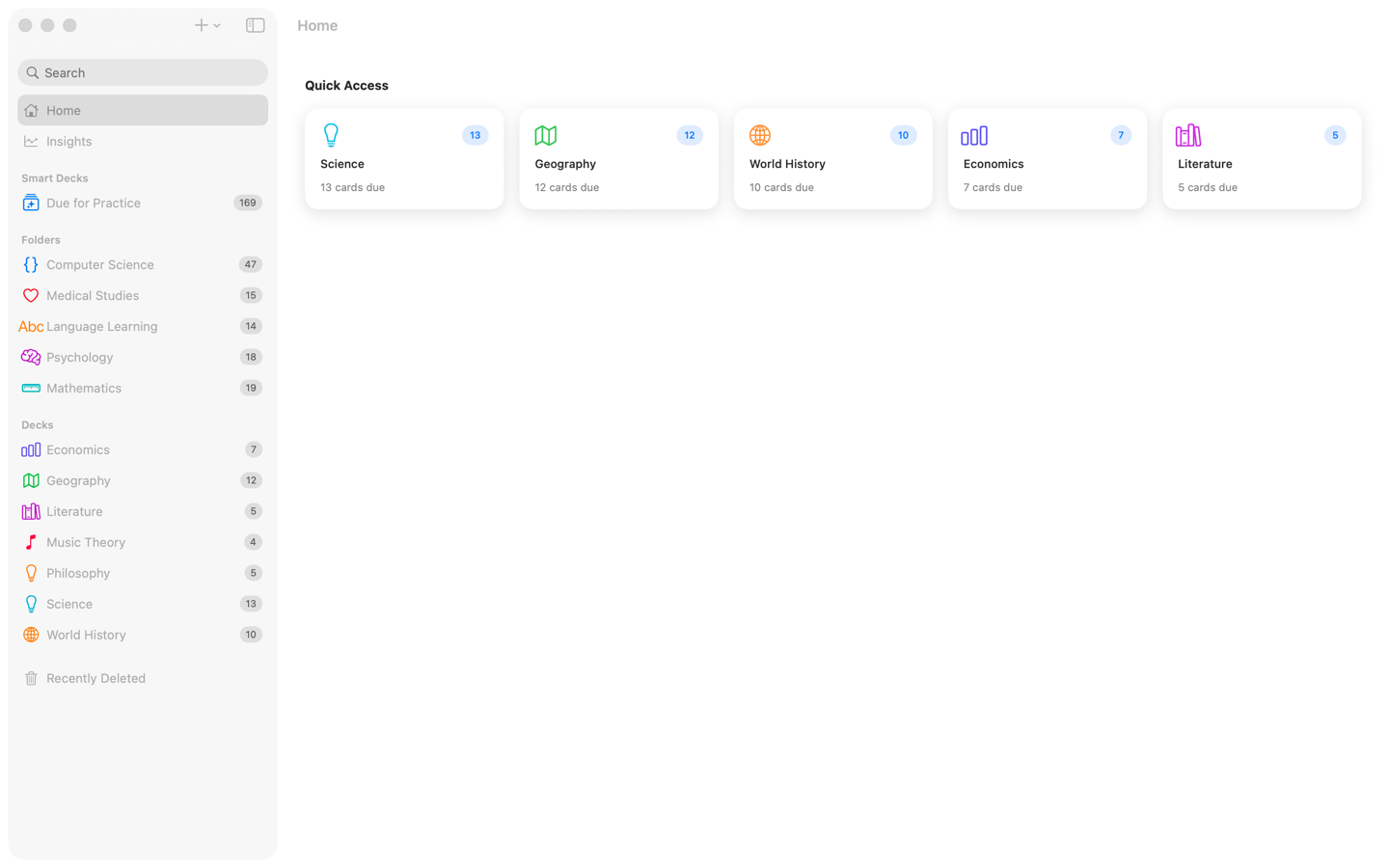
Work from the sidebar
Select a deck, folder or Insight without leaving the main window.
Mac
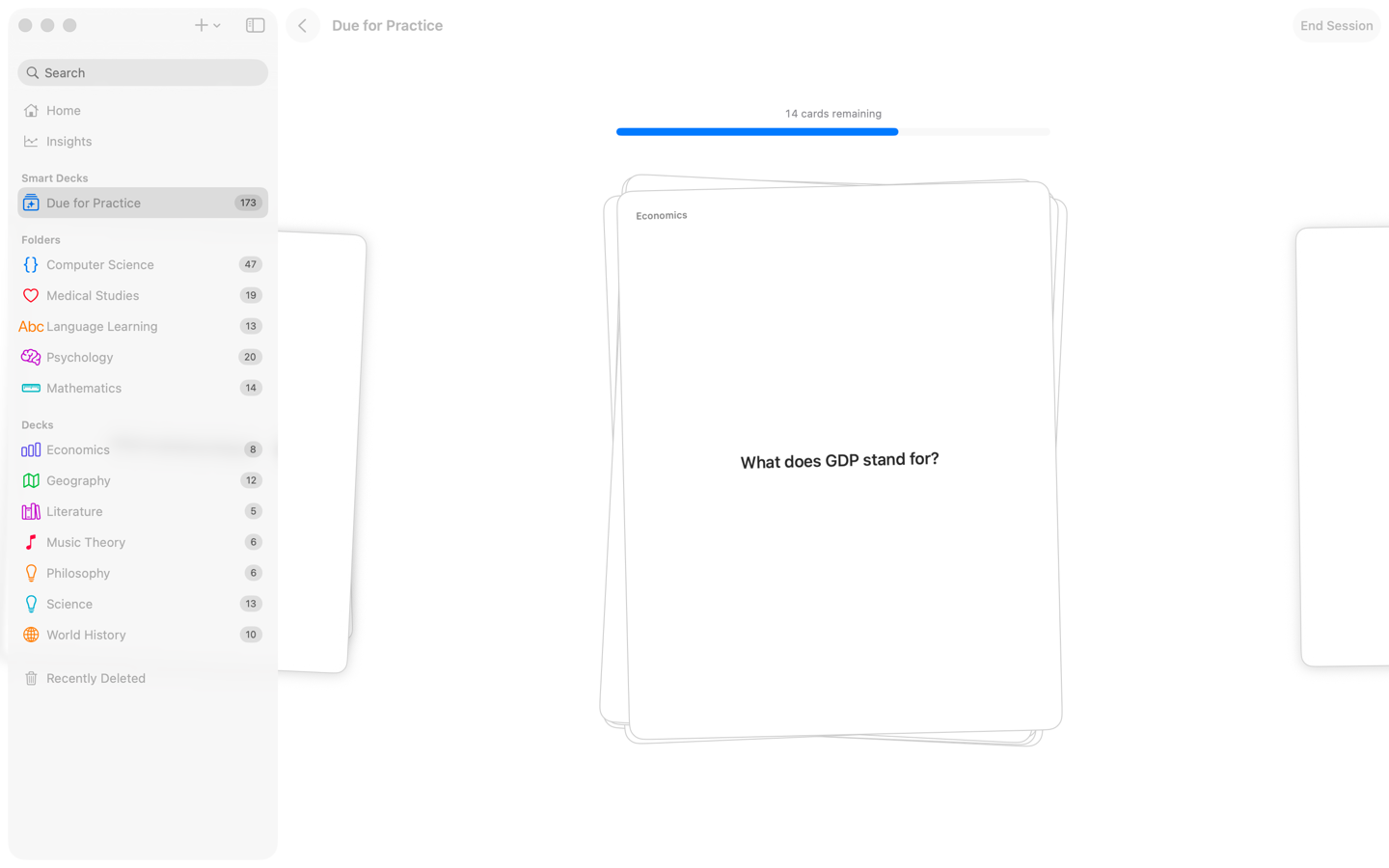
Grade by keyboard
Space flips the card. The arrow keys record whether you knew it.
Practice
- Space: flip the current card
- Right arrow: mark the current card correct
- Left arrow: mark the current card incorrect
- ⌘ Z: undo the last grade in the current session
- ⌘ .: end the current practice session
Decks, folders and cards
- ⌘ N: new deck
- ⌘ Shift N: new folder
- ⌘ Option N: new Smart Deck
- ⌘ Ctrl N: new card in the selected deck
- ⌘ Shift E: edit the selected deck
- ⌘ Shift S: share the selected deck
- ⌘ Shift G: generate cards with AI for the selected deck (needs Apple Intelligence)
- ⌘ Option I: Get Info for the selected deck
- ⌘ Shift R: Practice All on the selected deck
- ⌘ P: print a study sheet for the selected deck
- ⌘ Delete: move the selected deck to Recently Deleted
- Delete: move selected cards to Recently Deleted while the card table has focus
Formatting
These work only while you are editing a card field:
- ⌘ B: bold
- ⌘ I: italic
- ⌘ U: underline
- ⌘ K: add a link
Navigation and editing
- ⌘ F: find, or focus the search field
- ⌘ [: go back
- ⌘ Z: undo the last library change
- ⌘ Shift Z: redo
File menu
- ⌘ Shift I: import an Anki, CSV or Swiftflip file
Export has no shortcut. Find it in File then Export.
Insights
- ⌘ 1, ⌘ 2, ⌘ 3: switch between Insights sections
- ⌘ R: refresh the current Insights view
Sheets
Editor sheets for cards, decks, folders and Smart Decks follow the macOS standard:
- Esc: cancel and close the sheet
- Return: confirm the default action
In the editable card table, double-click a cell to edit it inline. The Front field is focused automatically on a new row.
For the full desktop workflow see Use Swiftflip on Mac.