
Generate flashcards with AI
Use the AI wizard to build a deck from a topic, add AI cards to a deck you already have and fill in the other side of a card.
Swiftflip can generate a starter deck for you with AI generation. On iPhone and iPad, Cloud AI writes the cards by default and on-device generation with Apple Intelligence stays one Settings switch away. Mac generates on device. This guide covers the three ways to use generation and how to get good results.
AI generation is a Premium feature. Cloud AI works on any supported iPhone or iPad, while on-device generation and the Mac need Apple Intelligence.
The AI wizard
iPhone
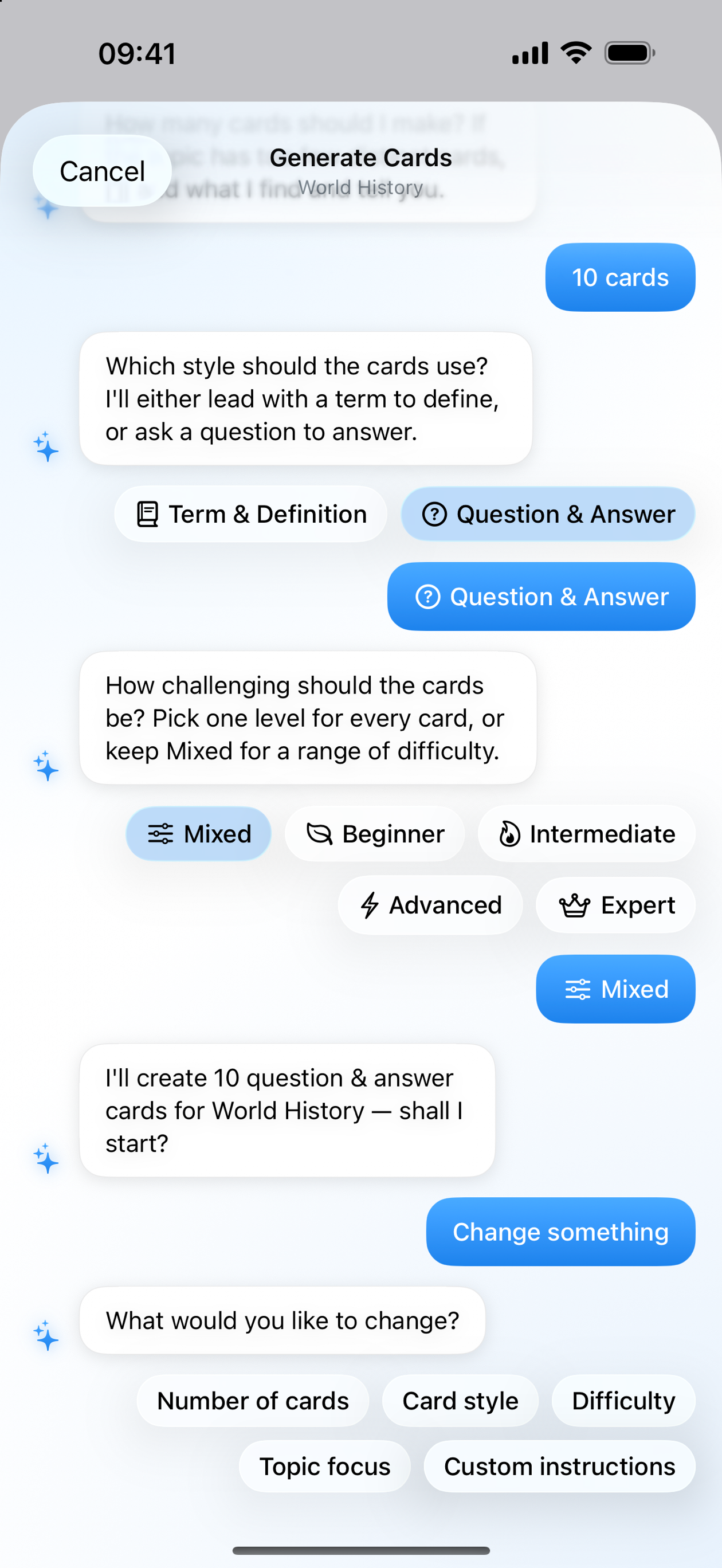
Review the conversation
The wizard keeps each choice in the transcript, so you can change one answer before generation.
iPad
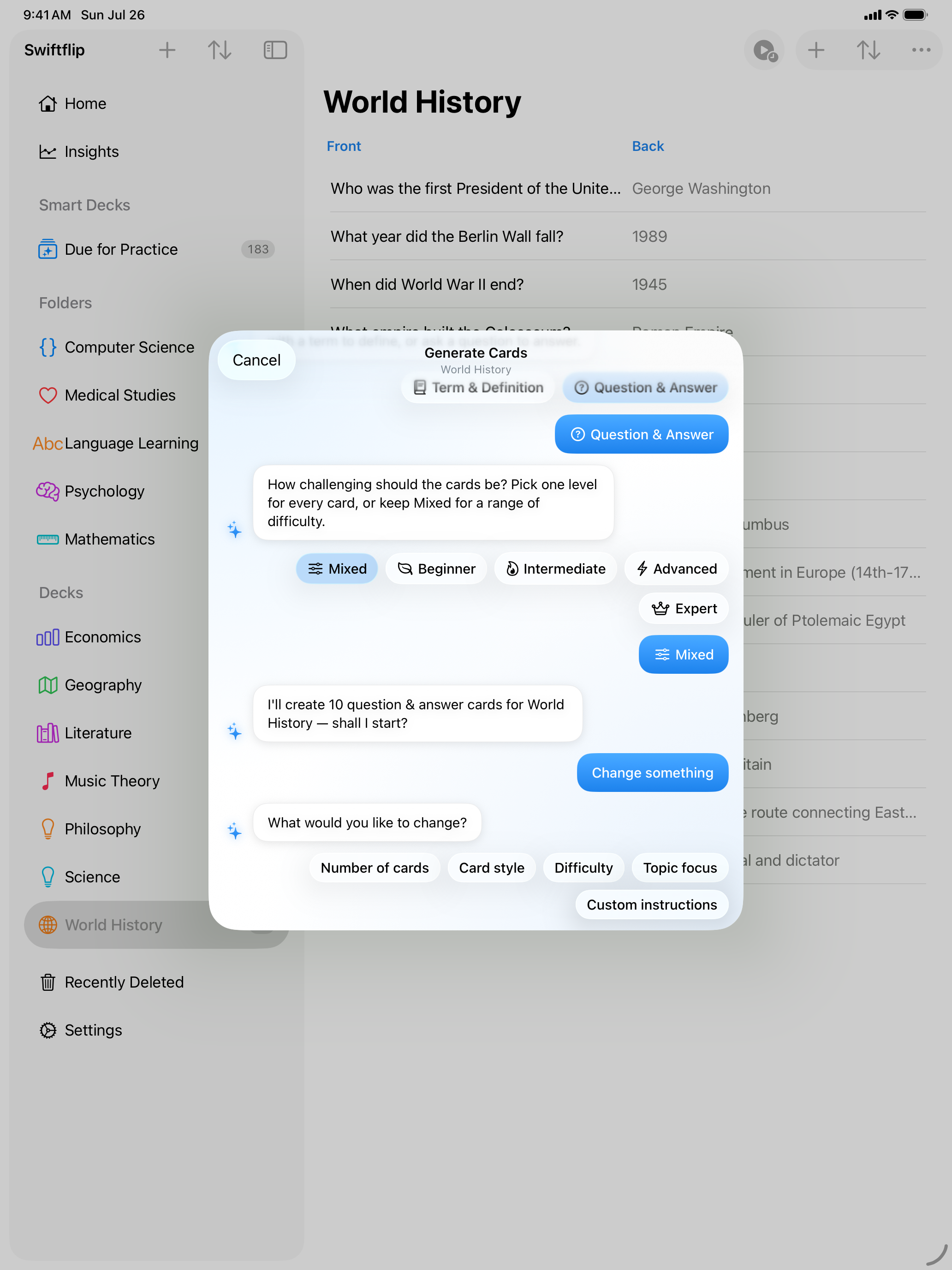
Keep the deck in view
The wizard opens over the deck while its cards and library remain visible.
The deck name is the topic
Swiftflip generates cards from the deck name, not from pasted notes or a document. So the name does the work, and a specific name gives better cards.
- Vague: Spanish
- Better: Spanish greetings and introductions
- Better: French verbs in the past tense
Think of the name as the prompt.
Create a new deck with AI
Tap the add button, choose New Deck and give it a descriptive name. Then tap Create with AI. Swiftflip opens a short conversational wizard that asks only what it cannot work out:
- Focus: choose one or more suggestions, type your own or use the whole topic. For vocabulary decks, Swiftflip may also ask which language should appear first.
- Number of cards: how many cards to generate. Cloud AI can make up to 100. On-device generation can make 50.
The card style comes from the deck itself. At the summary, select Change something to update one answer or Create Cards to start. Swiftflip shows live progress and each card front as it arrives.
When generation finishes, Review Cards lists the new cards. Keep the ones you want, remove the rest and regenerate replacements. Save adds them to the deck. Cancel discards unsaved cards. On iPhone and iPad, generation can continue in the background when the system allows it.
Add AI cards to an existing deck
Open a deck and choose Generate Cards. Swiftflip uses the deck name as the topic and looks at your existing cards so the new ones match the style and avoid repeats. Review them before they save. This is useful when a deck needs more coverage.
Fill in one side of a card
In the card editor, Generate with AI fills an empty side from the side you already wrote. Type the front of a card, leave the back blank and let Swiftflip suggest the answer. Check it before you save.
Give the deck its own AI Instructions
Each deck can carry its own AI Instructions, a Premium field for how generated cards should read. Ask for an example sentence on every back or a strict term-and-definition format, and every later generation into that deck follows it.
If Swiftflip asks for more detail
If a topic is broad, Swiftflip asks you to add detail. A name like Java could mean the language or the island. Describe the cards you want and it tries again.
Review for accuracy
AI gets things wrong sometimes. Review every card before saving. Select cards to regenerate or remove. Treat the result as a fast first draft, not a finished deck.
Choosing an engine
On iPhone and iPad, Cloud AI is the default engine for Premium. It writes cards on our servers instead of your device, so you can generate cards without an Apple Intelligence device, and it falls back to on-device generation when the cloud is unreachable. Swiftflip tells you before the first Cloud AI request, and Settings switches back to on-device generation whenever you want. Mac keeps generating on device with Apple Intelligence.
While Cloud AI is the engine, it sends the topic, any instructions you wrote and the existing cards in that deck so new cards do not repeat them. It does not send your images or your audio, and it never touches decks you are not generating into. We pass that text to OpenAI to write the cards. Switch to on-device generation and none of that happens. See the privacy policy for what we do with the text.
Where it works
You can generate cards on iPhone, iPad and Mac. On Mac the keyboard shortcut for Generate Cards is Command Shift G. Apple Watch is for practice, so build decks on a bigger device.
Once your deck exists, see how Swiftflip helps you memorize and learn to build a daily habit.