
Organize decks with folders
Group related decks into folders, move decks in and out and see a combined due count, with Smart Decks for rule-based grouping.
As your library grows, folders keep it tidy. Group decks by subject, course or language so the right cards are easy to find. This guide covers creating folders and moving decks around.
Folders are a Premium feature.
Create a folder
- On iPhone or iPad, tap the add button and choose New Folder.
- On Mac, press Command Shift N, or use the add menu in the sidebar.
Give the folder a name and an icon so it stands out. Search emoji and symbols together when you pick the icon.
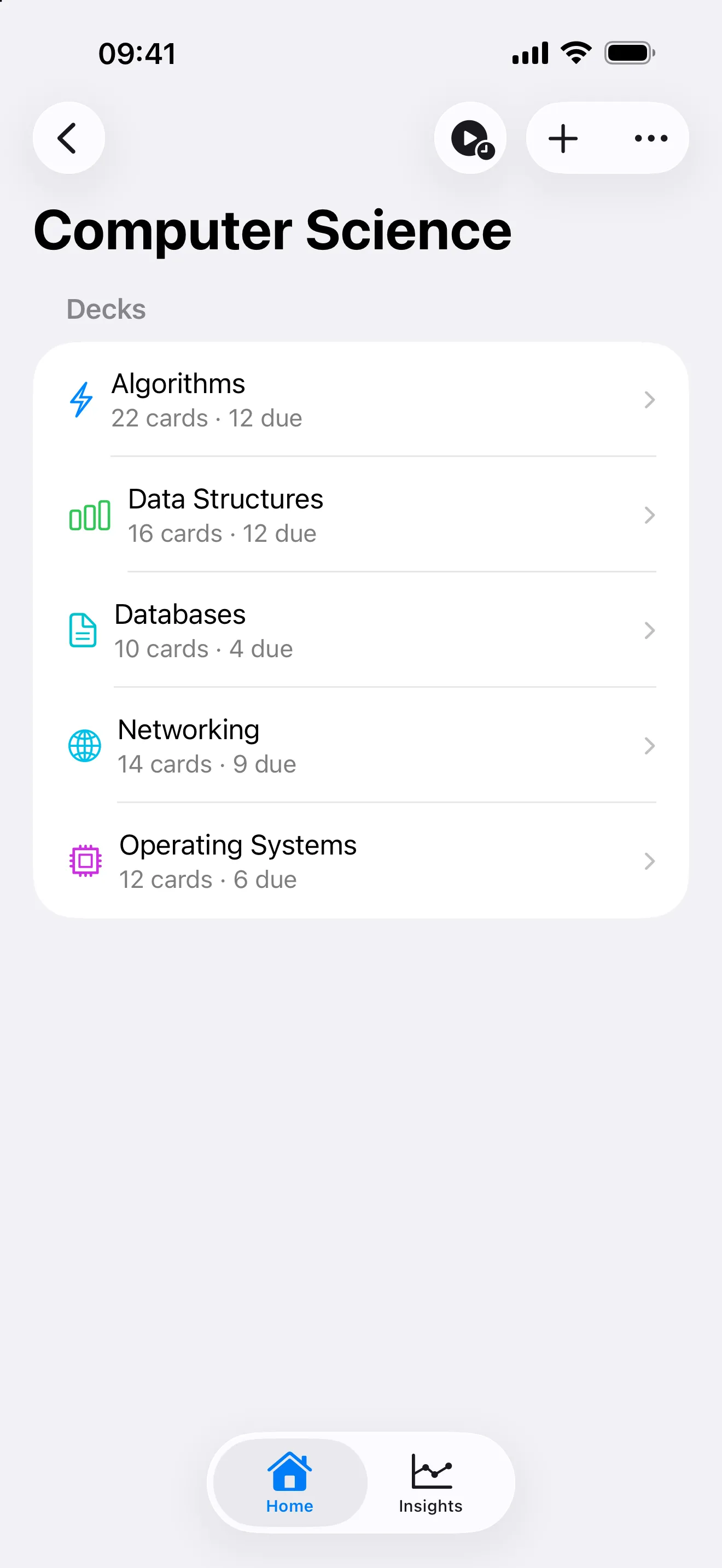
Group related decks under one folder.
Move decks into a folder
Open a deck’s menu and choose Move to Folder, then pick the folder. To take a deck back out, choose Move to Folder and select None. On Mac you can also drag a deck onto a folder.
See a combined count
A folder shows the total number of cards due across all the decks inside it. You can start a practice session for the whole folder, which is handy when a subject spans several decks. On Apple Watch, open a folder and practice its due cards.
Folders or Smart Decks
Folders are manual. You decide what goes where. If you would rather group cards by rules, like everything due or everything with a low streak, use a Smart Deck instead. Many people use both: folders for structure and Smart Decks for focus.