
Import an Anki deck
Bring Anki decks into Swiftflip from apkg or colpkg files, including images, audio, formatting and review progress, and learn what does and does not transfer.
Swiftflip imports Anki decks directly, so you can move years of cards across without retyping. This guide covers the export, the import and what carries over. For the bigger picture, see why people pick Swiftflip as an Anki alternative.
Export your deck from Anki
In Anki, export the deck you want as an .apkg file. Swiftflip also reads .colpkg collection files. If a package is damaged, Swiftflip reports a clearer error. Re-export as .apkg and try again.
Open Import in Swiftflip
On iPhone or iPad, open Settings then Import Decks. On Mac, use File then Import. Pick your Anki file, then choose which decks to bring in. If a deck name is already taken, Swiftflip offers to merge into the existing deck or keep both. Names stay separate by default.
If the package has suspended cards, choose Import them or Leave them out. Imported suspended cards arrive paused, with their review schedule.
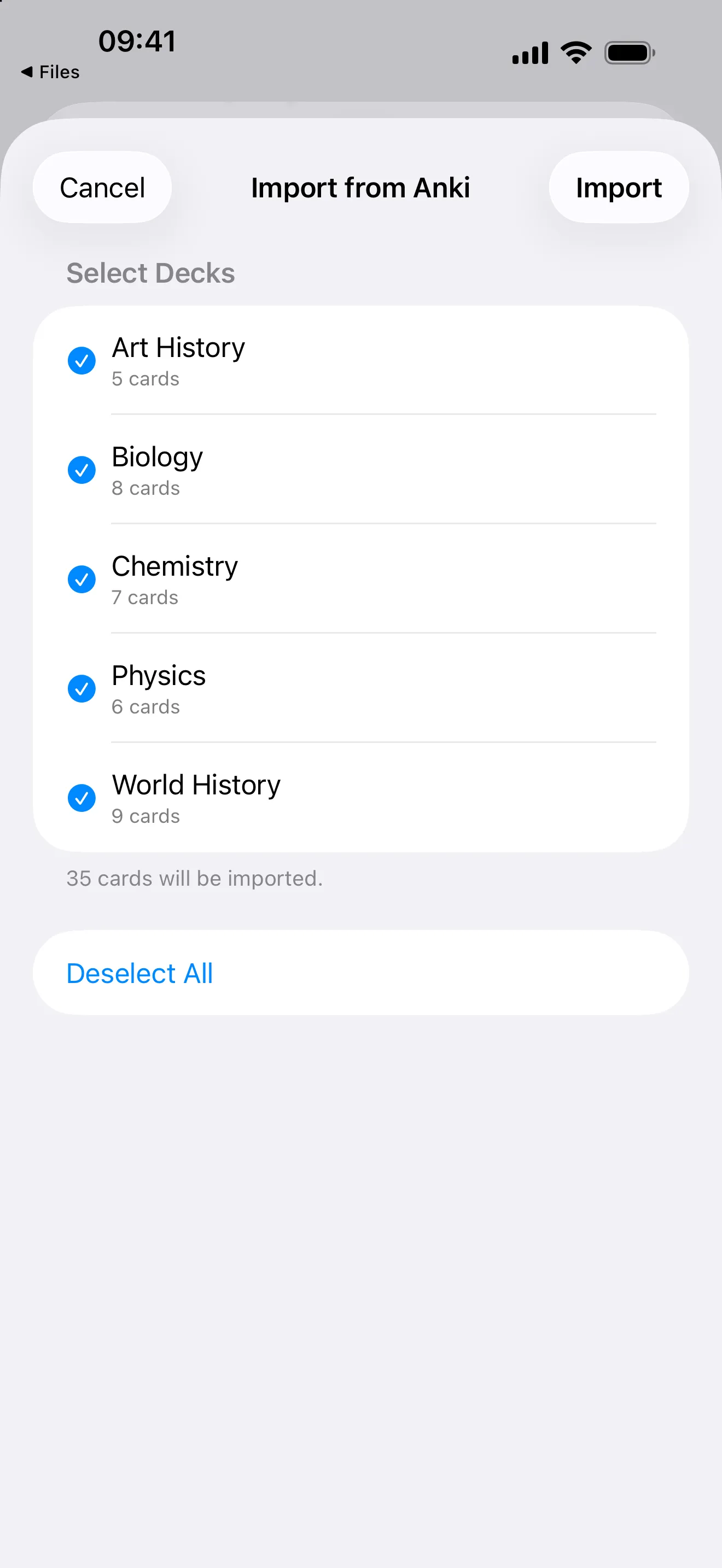
Choose which decks to import from the package.
What transfers
Swiftflip brings over the parts of a deck you rely on:
- decks and their names
- card fronts and backs
- images and audio on cards
- bold, italic, underline and links
- cloze deletions, with the hidden part marked
- review progress and next due dates, preserved or estimated from each card’s ease factor
- parked cards, and filtered cards returned to their home deck
- suspended cards, imported as paused if you choose to keep them
What does not transfer
A few things are left behind, on purpose or by limitation:
- Individual Anki grades. Card Insights history starts from practice in Swiftflip. The schedule still comes across.
- Video. Video files are skipped, and Swiftflip tells you how many.
- Tags, note types and LaTeX. Swiftflip cards are front and back. See Switching from Anki if you rely on those.
Cards without usable scheduling still start fresh.
Existing decks and duplicates
If a deck name is already taken, Swiftflip offers to merge into the existing deck or keep both. Names stay separate by default. Cards whose front and back already exist are skipped, so a repeat import will not flood a deck with duplicates.
After the import
Open a deck and skim a few cards to check the formatting, media and due dates. Confirm any paused cards from Anki. If you also have cards in spreadsheets or other apps, the CSV import guide covers that route.