
How Swiftflip helps you memorize and learn
Create your first deck, import existing cards and build a daily study habit across all your Apple devices.
Swiftflip is a flashcard app for iPhone, iPad, Mac and Apple Watch. It uses spaced repetition to show you cards right before you forget them, so short daily sessions build long-term memory.
Create a deck
Open Swiftflip and tap the + button. Choose New Deck and give it a name that describes what you are learning. If you are studying for a specific exam or course, use that name. You can also pick an icon to make the deck easier to spot at a glance. Search emoji and symbols together if you want a specific mark.
You can rename a deck or change its icon later.
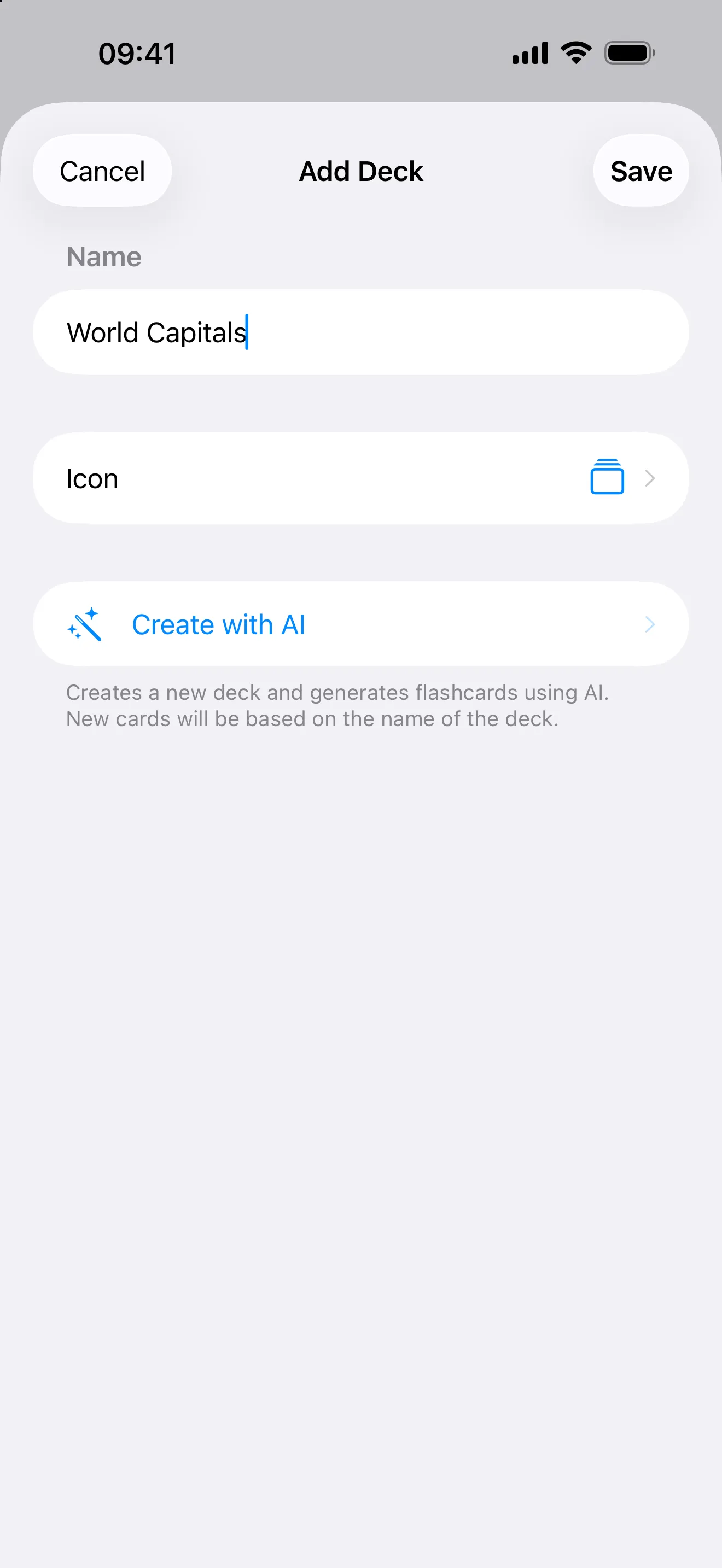
Name your deck after the subject you are studying.
Add cards
Open your deck and tap + to add a card. The front is the question or prompt, the back is the answer you want to recall.
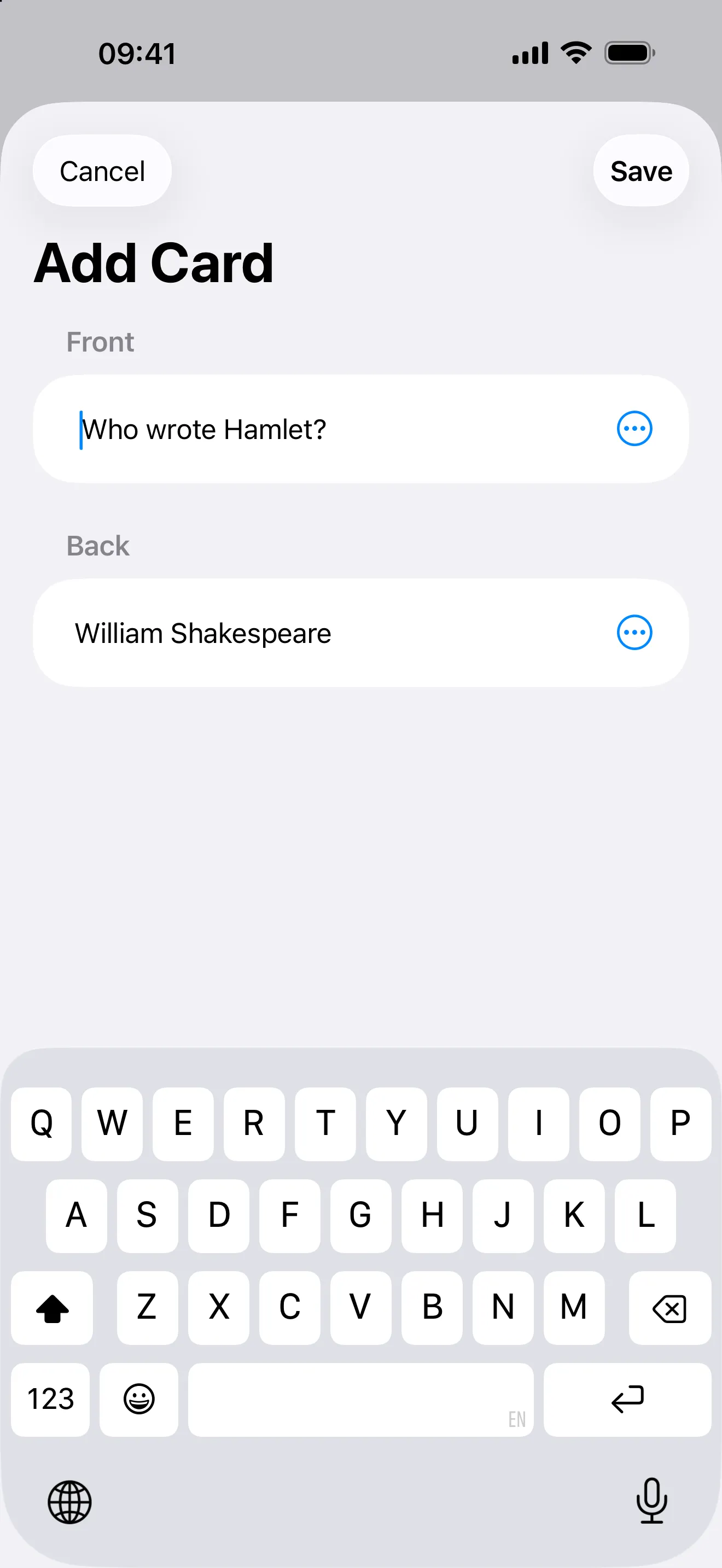
One question on the front, one answer on the back.
Keep each card focused on one idea. Five separate cards work better than one card with five items on it. Write clear, specific questions. “What is the capital of Japan?” works better than “Tell me about Japan” because there is only one correct answer to recall.
Start with five to ten cards and add more as you go.
Cards can include more than plain text. Use bold, italic or underline to mark key parts. Add images to either side for visual cues. Record up to 30 seconds of audio per side, which is useful for pronunciation practice or listening exercises.
Import existing cards
If you already have flashcards elsewhere, you do not need to start over. Swiftflip imports Anki decks (.apkg and .colpkg files) and CSV files from other apps. Images, formatting, deck structure and review progress are preserved during import when Anki’s data is complete.
Open Settings then Import Decks on iPhone and iPad, or File then Import on Mac. Select your file and pick which decks to bring in.
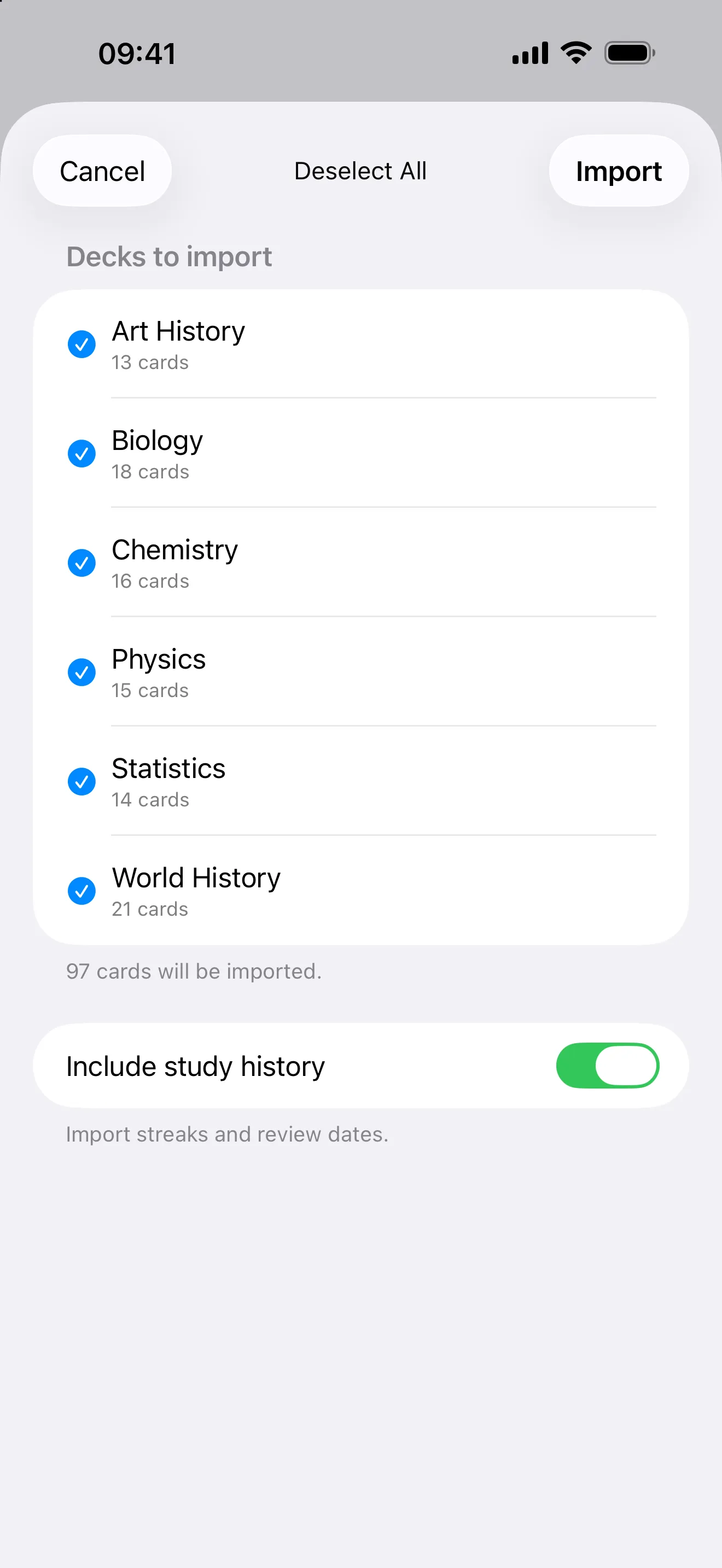
Select which decks to bring into Swiftflip.
Add cards from anywhere
You do not have to be inside Swiftflip to add cards. The Share Extension on iPhone and Mac sends text, links or images straight into a deck. Select a quote in Safari, share a paragraph from Notes or send a photo from Messages and choose Swiftflip from the share sheet.
Premium users can also generate a starter deck from a topic on iPhone, iPad and Mac. Tap Create with AI, give the deck a name like “French verbs in the past tense” and review the generated cards and edit anything that needs a fix. You can also add AI-generated cards to a deck you already have.
Practice
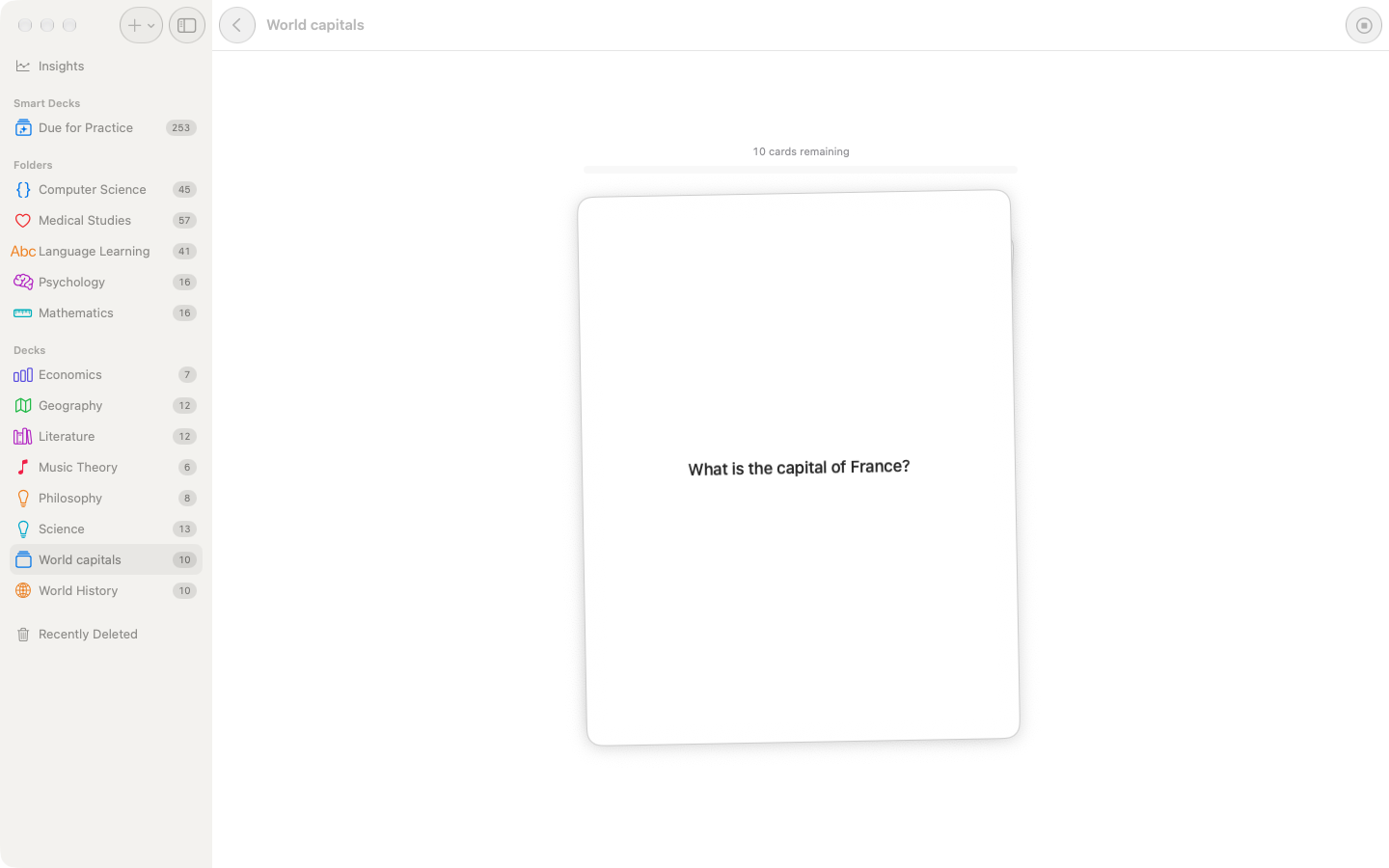
Open a deck and tap Practice. You see the front of a card first. Try to recall the answer, then tap or swipe to flip.
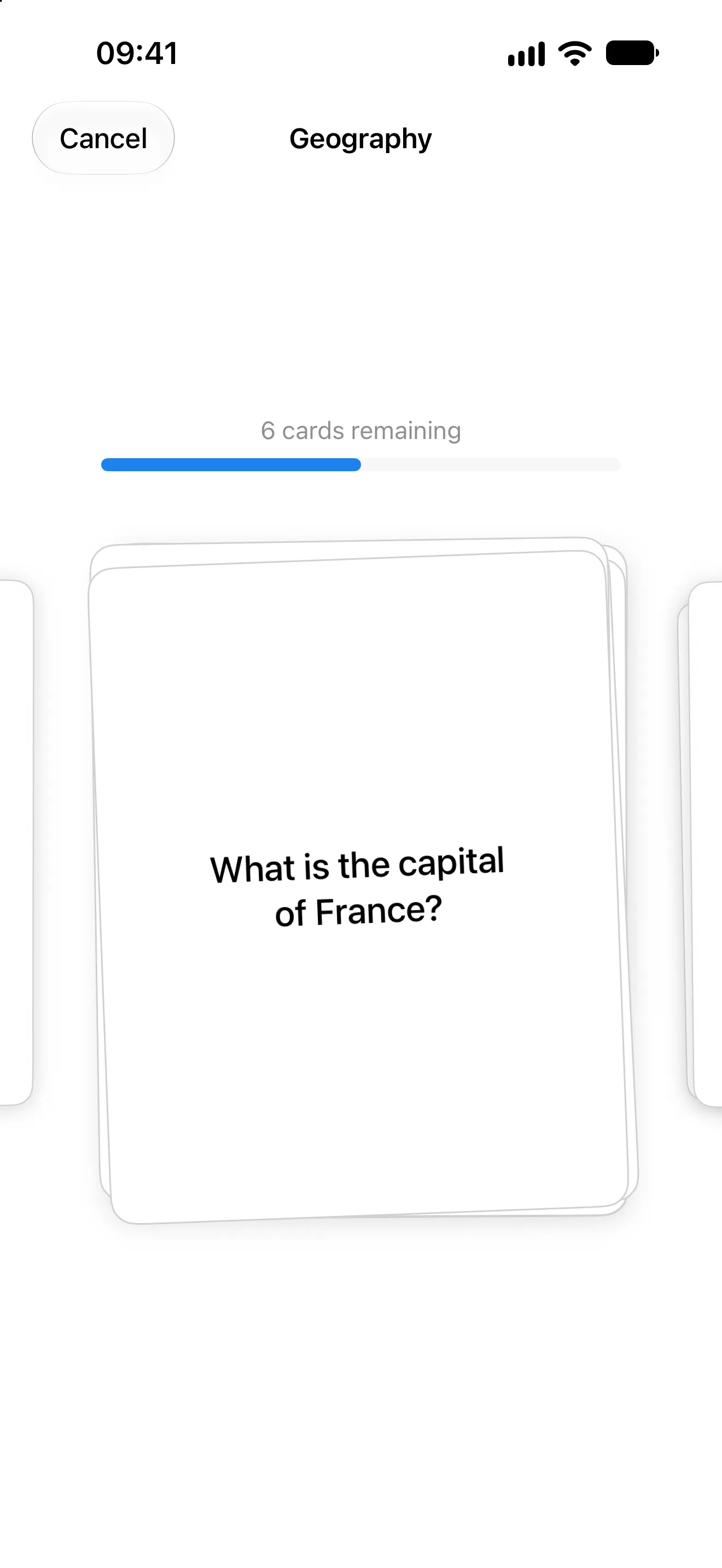
Recall the answer before flipping the card.
After seeing the answer, rate how well you knew it. Swipe right if you got it easily, swipe left if you struggled or got it wrong. Your rating tells the app when to show that card again.
This is how spaced repetition works. Cards you know well appear less often, and the intervals grow over time. A card you get right several times in a row might not appear again for weeks. Cards you find difficult come back sooner, so sessions skip material you already know.
Retry missed cards in the same session
With Repeat Incorrect Cards on, cards you miss return later in the same session. The completion summary separates first-try results from cards you corrected before finishing.
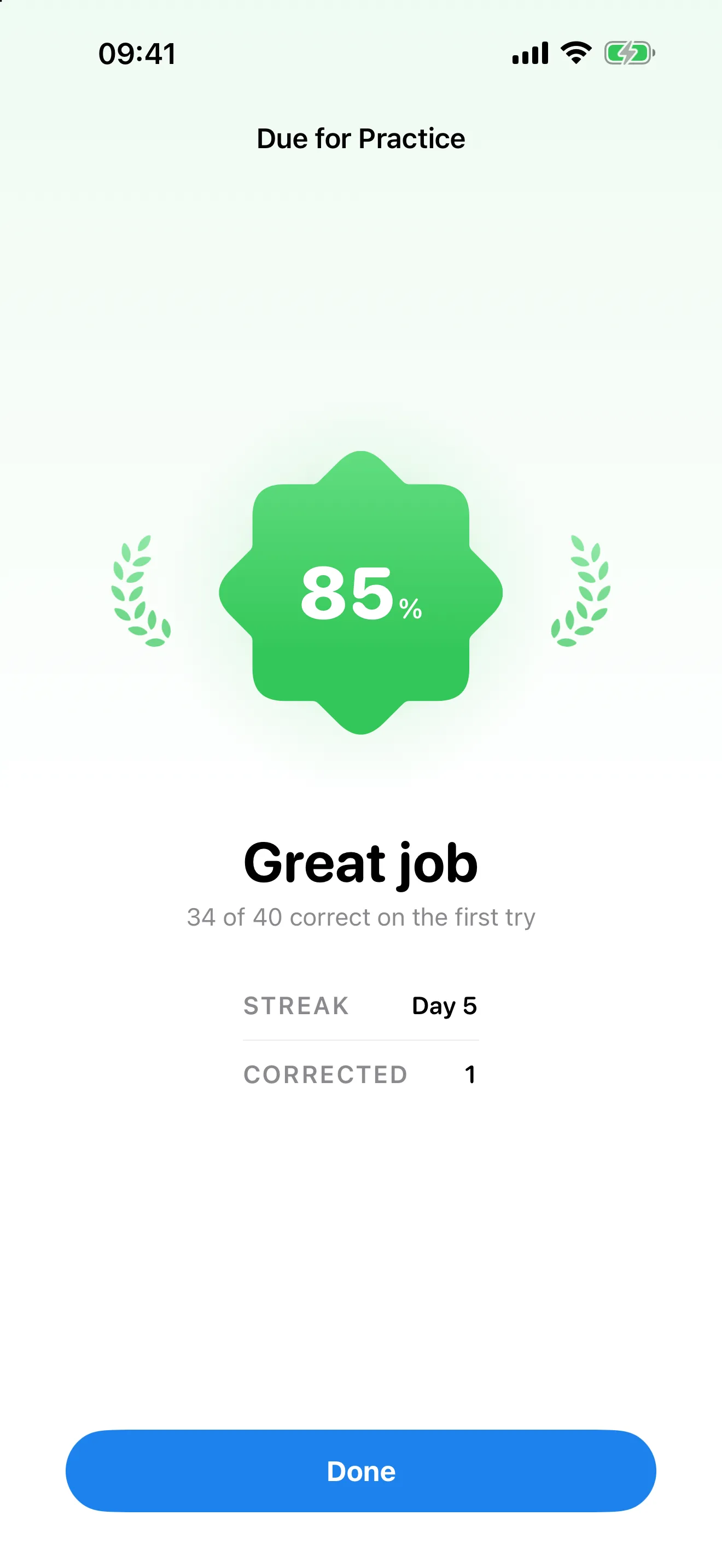
The summary separates first-try results from corrected cards.
Shape the session yourself
Custom Practice builds a session from decks you choose, with your own session size, card order and study focus. For vocabulary decks, turn on Practice Both Ways to practice recalling both sides.
Organize with folders
With Premium, group related decks into folders as your collection grows. Create a folder from the + menu, give it a name and icon, then drag decks into it. Folders can be nested for deeper organization.
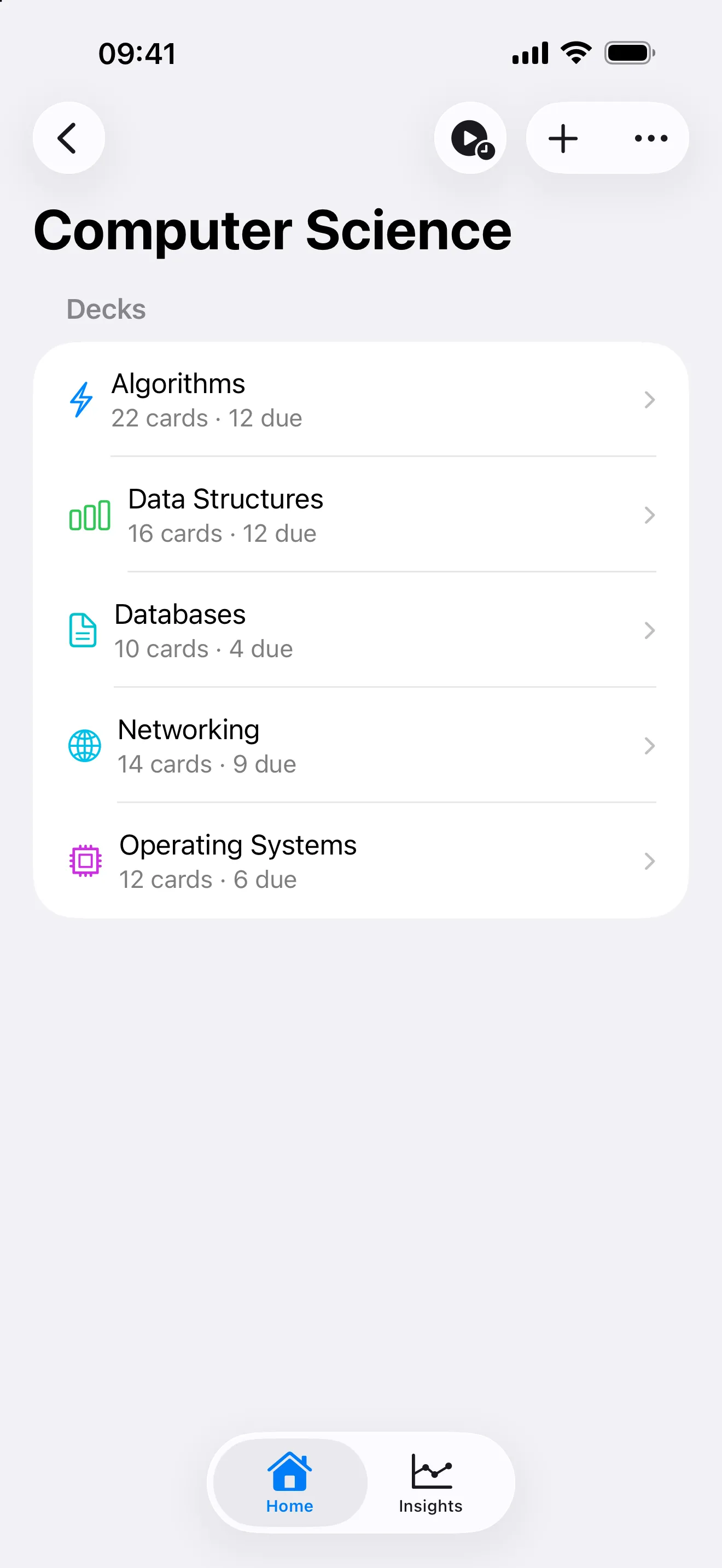
Group related decks into folders to keep things organized.
For more flexible grouping, try Smart Decks. A Smart Deck is a dynamic collection that updates automatically based on rules you set, like all cards due today across multiple decks or cards with a low review count.
Find cards with Spotlight
Swiftflip indexes deck names and both sides of your cards in Spotlight on iPhone, iPad and Mac. Type part of a card or a deck name from anywhere on the system and tap the result to open its deck in Swiftflip.
Edit on iPad
On iPad, open a deck from the sidebar to work with its card table. Tap a column header to sort, or use a card’s menu to share it or open Card Insights. Search in the sidebar opens library search, including filters and actions for several selected cards.
Study across devices
Swiftflip syncs through iCloud with no separate account required. Create cards on your Mac, review them on your iPhone and check due counts on your Apple Watch. Changes sync between signed-in devices. The iCloud guide covers first restore, offline use and recovery when something is missing.
Everything is stored locally on each device, so you can study offline. Progress syncs automatically when you reconnect.
Handoff lets you start a session on one device and continue on another. You can also ask Siri to add a card, start a practice session, search your library or check how many cards are due.
On Apple Watch, tap to flip cards and swipe to grade them. Use it for quick reviews while you are away from your phone.
Choose your device
iPhone
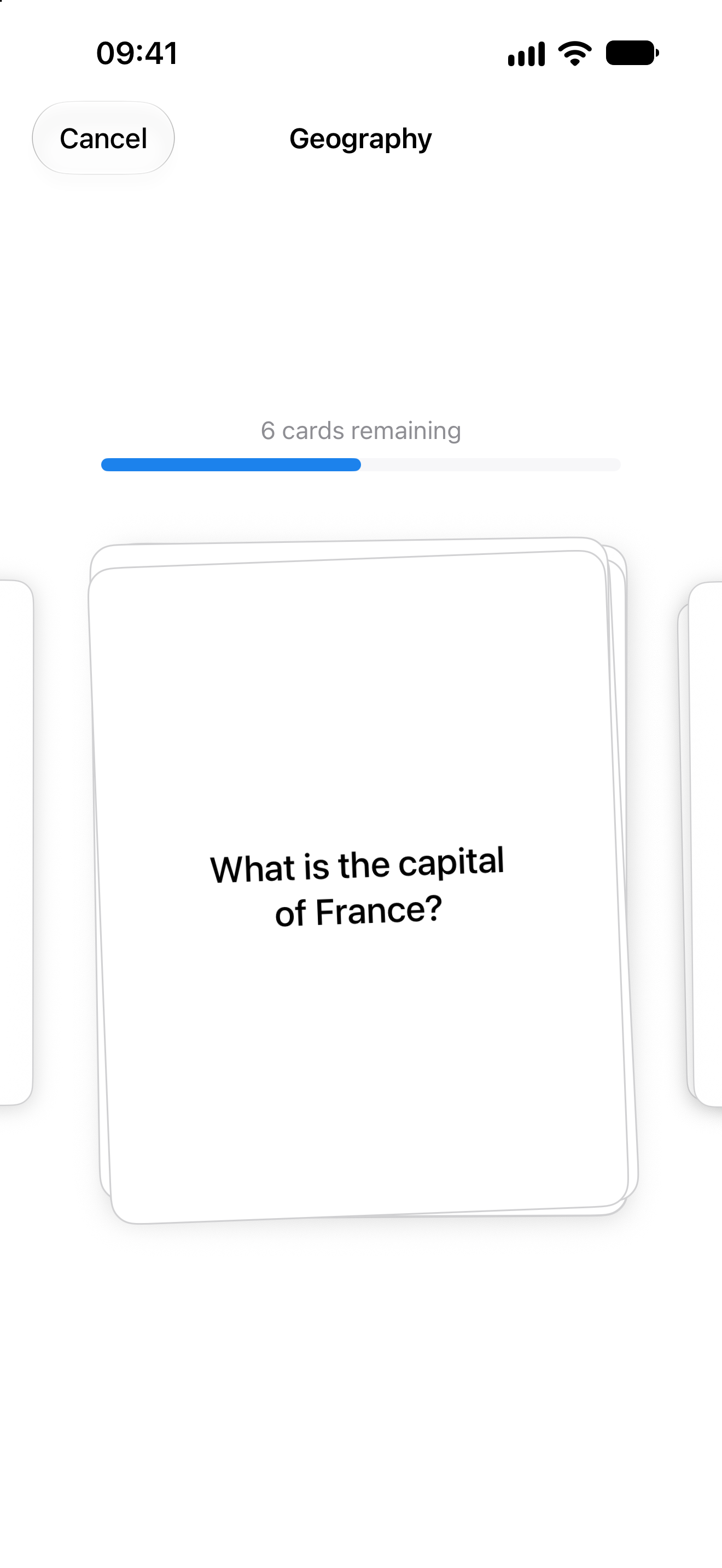
Practice one-handed
Tap or swipe to reveal a card, then grade it with one hand.
iPad
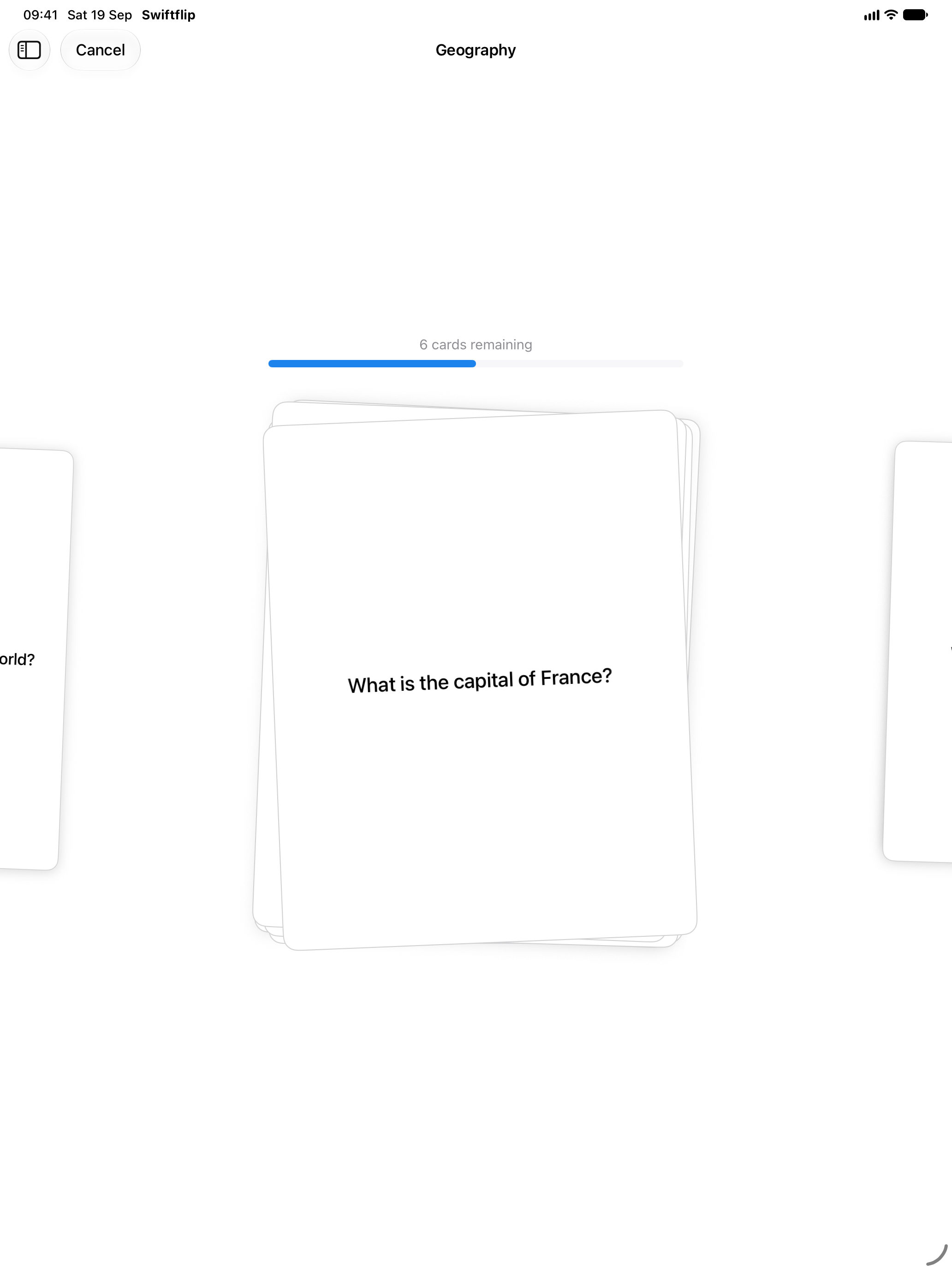
More room per card
The same practice flow gives cards more room while keeping your library close.
Mac
Grade from the keyboard
Flip and grade with the keyboard while the sidebar keeps every deck within reach.
Apple Watch
Review on your wrist
Open a due session, tap to flip and grade without reaching for another device.

Build a daily habit
Spaced repetition works best with regular practice. A few minutes each day is enough, since spreading reviews out strengthens long-term recall.
Swiftflip shows how many cards are due so you always know when to practice. Turn on study reminders in settings to get a notification when cards are waiting.
You do not need to finish every due card in one sitting. Pause Reviews if a card or deck should wait. It stays in the library and keeps its schedule.
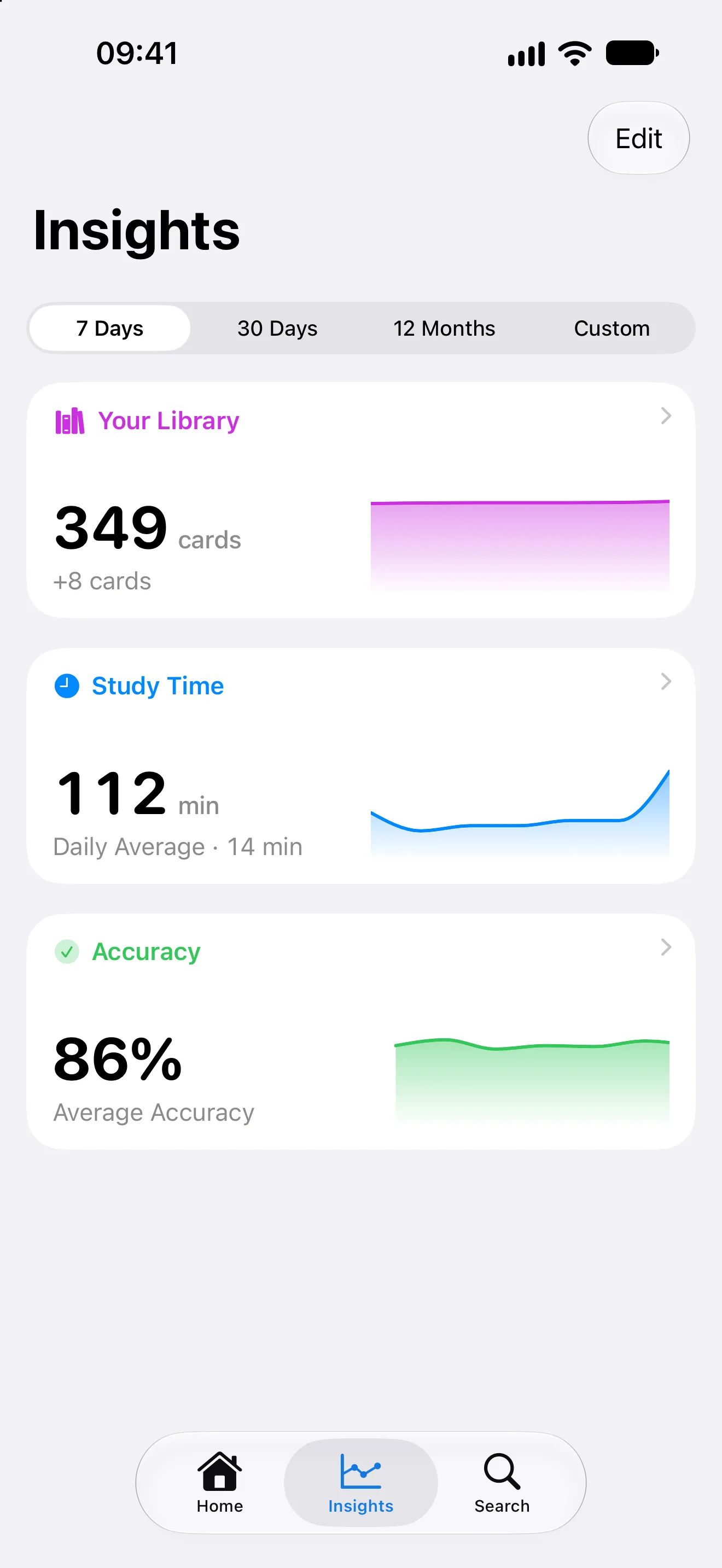
Track your library, study time and accuracy in Insights.
After each session you see a summary of your progress. Insights collects this into a bento layout with cards for your library, study time and accuracy. Tap any card to drill into the detail view, change the time range or read trend chips that explain what changed. Open a flashcard for Card Insights to see memory, review history and what comes next.
The streak detail includes a 90-day heatmap so you can see practice consistency at a glance. The library detail breaks cards down into learning, reviewing and mastered, and includes a per-deck table. With Premium you can drag Insights cards into the order that suits your routine.