
Pause reviews for a card or deck
Set a card or a whole deck aside so it stays in the library, keeps its schedule and leaves due counts until you resume.
Pause Reviews is for cards and decks you are not studying right now. Swiftflip keeps them in the library with their schedule. They drop out of due counts, practice, reminders and widgets until you resume. For the reasoning, see Pause Reviews.
Pause a card
Open the deck, or find the card in Search. Long-press the card on iPhone or iPad, or right-click it on Mac, and choose Pause Reviews. Select several cards first if you want to pause them together.
The card stays in the deck. It no longer counts as due.
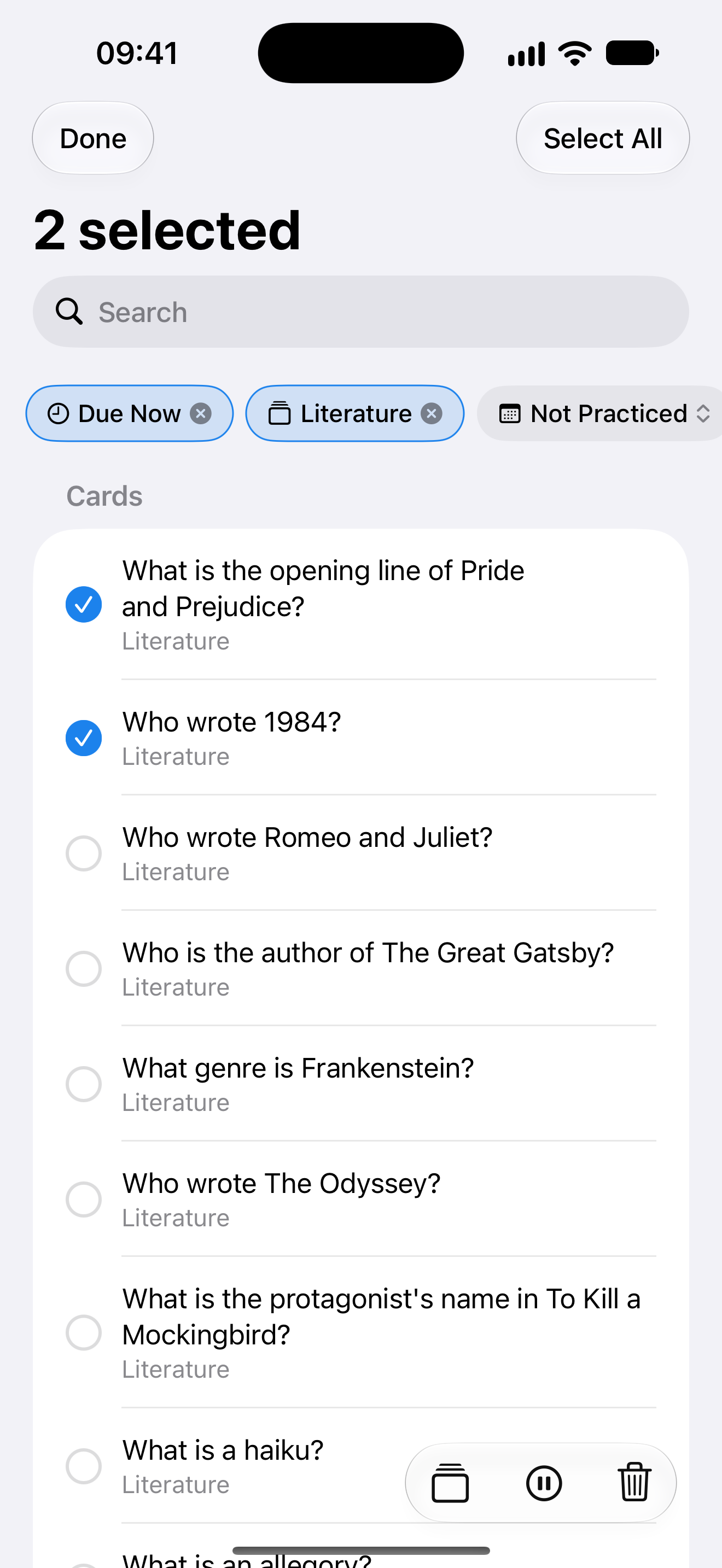
Select several cards in Search to pause them together.
Pause a whole deck
Long-press or right-click the deck and choose Pause Reviews. A pause mark appears on the deck in the library. Practice Due hides when that pause leaves nothing due.
On a paused deck the toolbar shows Resume instead of a play icon.
Find what you paused
Open Search and use the Paused filter. That lists cards whose reviews are set aside, including cards paused because their deck is paused. The search guide covers the rest of the filters.
Resume
Choose Resume Reviews on the card or deck, or tap Resume on a paused deck’s toolbar. The next review comes back as it was. Pause does not reset intervals.
Suspended cards from Anki
When you import an Anki deck, Swiftflip asks what to do with suspended cards. Import them and they arrive paused, with their review schedule. Leave them out and they stay out of the library.