
Use Handoff to continue practice across devices
Start a Swiftflip session on iPhone and pick it up on iPad, Mac or Apple Watch without losing your place.
Swiftflip supports Handoff so a practice session you start on one Apple device can continue on another, including Apple Watch. Cards you have already graded carry over and the session resumes where you left off.
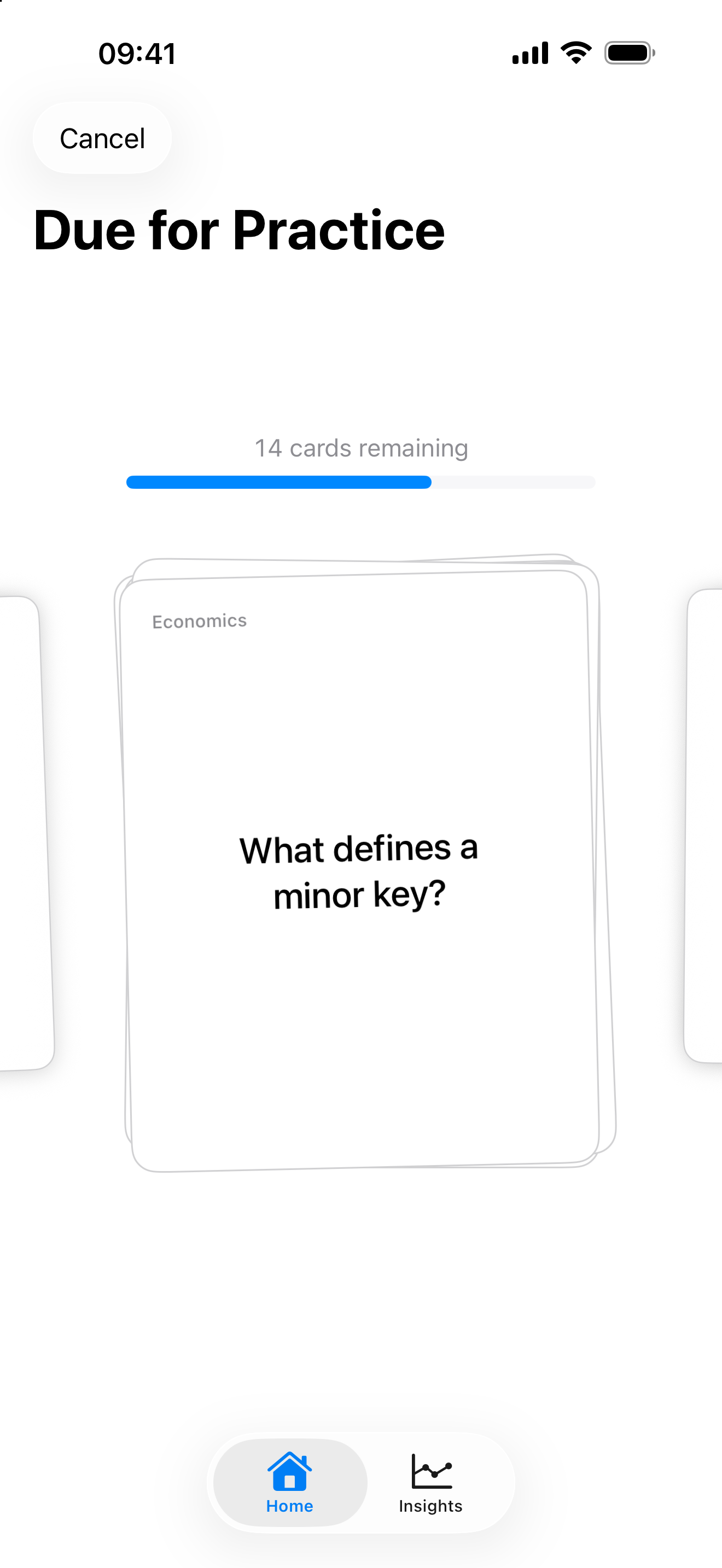
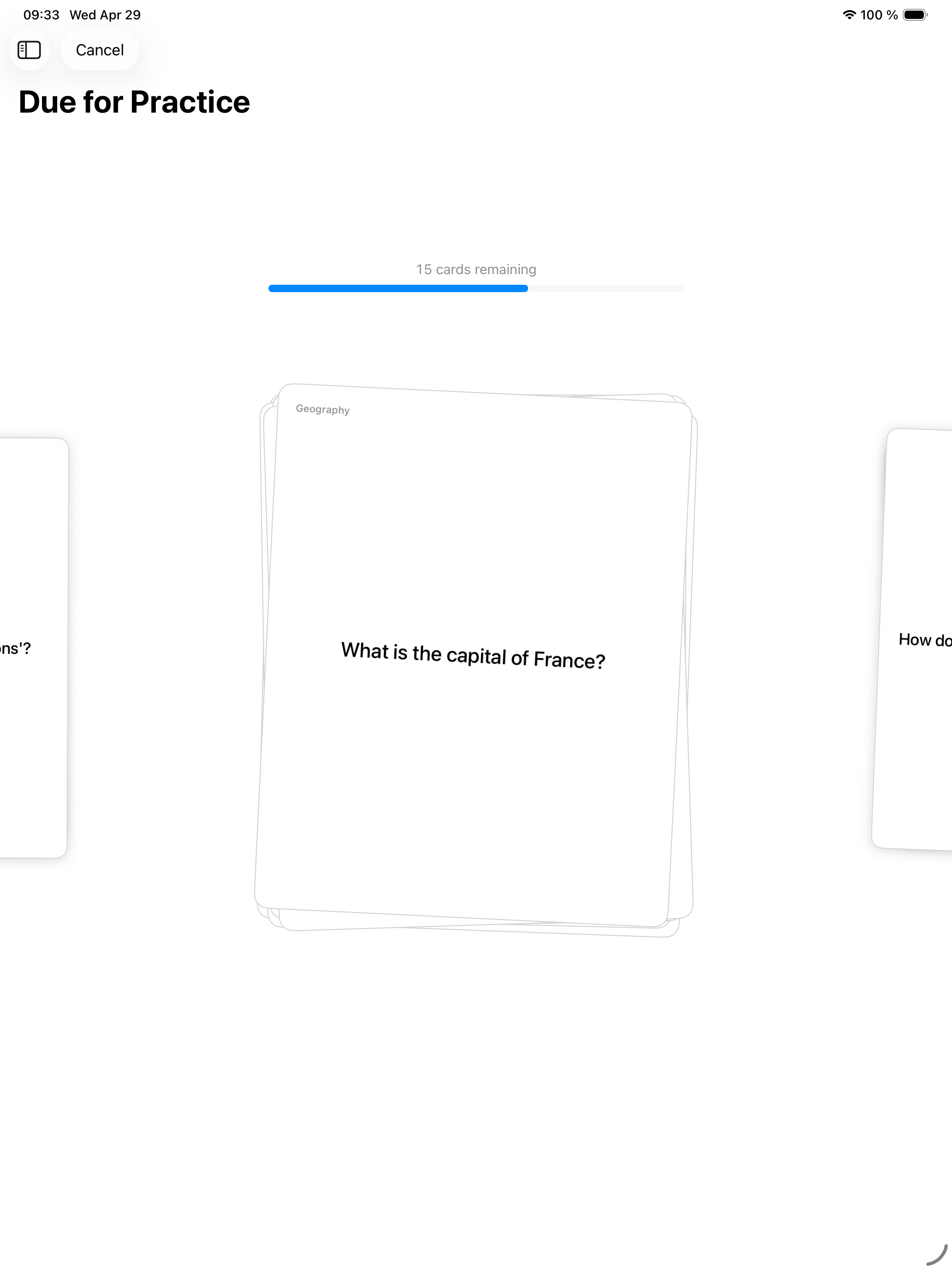
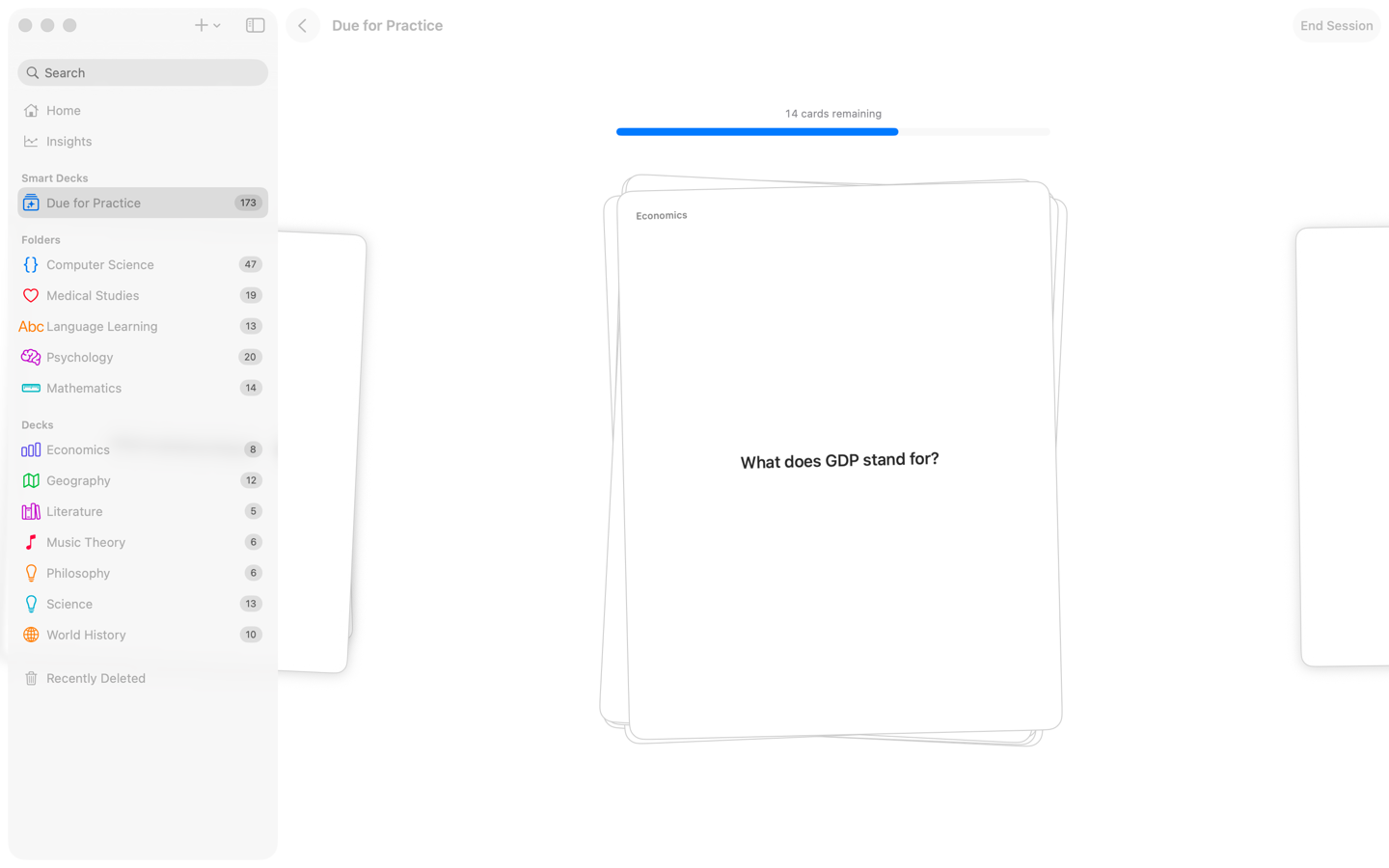
The screenshots below show the Swiftflip view after Handoff opens it. The system Handoff icon appears below the iPad app switcher or in the Mac Dock.
Practice views after Handoff
iPhone
Start a practice session
Grade a few cards before you switch, so Handoff has an active session to carry across.
iPad
Continue on iPad
The Handoff icon below the app switcher reopens this same practice view.
Mac
Continue on Mac
The Handoff icon in the Dock reopens the session beside the Mac library.
What you need
Handoff works when:
- both devices are signed in to the same Apple ID
- both devices have Bluetooth and Wi-Fi turned on
- both devices have Handoff turned on in Settings → General → AirPlay & Handoff
- Swiftflip is installed on both devices
Most setups already meet these conditions.
Start a session, switch devices
- Open Swiftflip on iPhone and tap Practice on a deck
- Grade a few cards
- Walk over to your Mac, pick up your iPad or raise your Apple Watch
- The Swiftflip Handoff icon appears in the Mac Dock, at the bottom of the iPad app switcher or as a Handoff suggestion on Apple Watch
- Click or tap the icon and the session resumes with your progress intact
The cards you graded before switching are not asked again. The schedule, accuracy and grade history stay consistent.
Use cases that work well
- start a session on iPhone during a commute, finish it on iPad at home
- begin practice on Mac while editing decks, switch to iPhone when you walk out
- start on iPhone or Mac and continue on Apple Watch when you only have a moment
What Handoff does not do
Handoff is for resuming sessions, not for sharing other state. Editing decks, importing files and changing settings each happen on whichever device you have in front of you, and changes propagate through iCloud sync rather than Handoff.
If a session does not appear on the other device, check that both have Handoff turned on, both are on the same Apple ID and both are awake. Once those line up, the icon appears within a few seconds.