
How to import a CSV file into Swiftflip
Move existing flashcards into Swiftflip from a CSV file exported from Quizlet, Notion, a spreadsheet or another flashcard app.
Many flashcard apps and spreadsheets can export to CSV. Swiftflip reads CSV files directly, so you do not have to retype anything to bring an existing collection over.
This guide walks through preparing the file, importing it and verifying the result.
Prepare your CSV file
Swiftflip imports two columns: a front and a back.
- the front of each card
- the back of each card
Swiftflip matches columns named front (or question) and back (or answer), and falls back to the first two columns when those headers are missing. Comma, tab, semicolon and pipe separators all work, since the separator is detected automatically. Any other columns are ignored. Empty rows are skipped.
A small example:
front,back
hola,hello
gracias,thank you
por favor,please
Save the file as UTF-8 to keep accented characters and other non-ASCII text intact. Most apps and spreadsheets do this by default.
Open Import in Swiftflip
On iPhone or iPad, open Settings then Import Decks. On Mac, use File then Import. Pick your CSV file from the file picker.
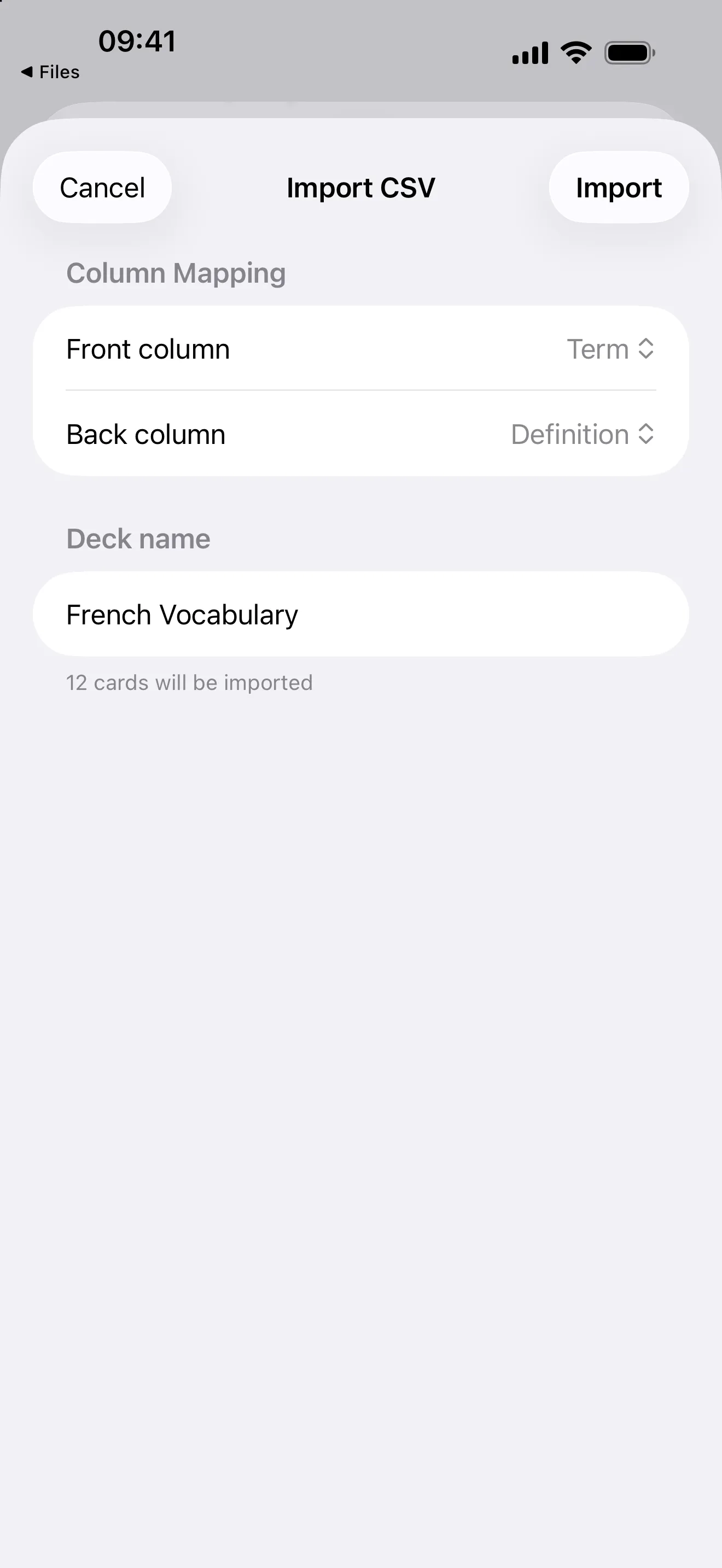
Map your columns to the front and back of each card.
Swiftflip shows a preview of the cards it found. Pick a destination deck or let the app create a new one named after the file.
Tips for clean imports
- One idea per row. A CSV row becomes a single card. Lump multiple ideas together and the card becomes hard to recall.
- Quote fields with commas. If a card front or back contains a comma, wrap the field in double quotes.
- Name your columns. Swiftflip looks for a column named front (or question) and one named back (or answer). Without those headers it uses the first two columns, and any extra columns are ignored.
- Preview before importing. The preview screen lets you spot encoding issues or empty rows before you commit.
Verify the result
Open the destination deck after import and skim a few cards. Spaced repetition starts the next time you practice. The imported cards behave the same way as cards you create by hand.
If you have an Anki collection too, the same Import flow accepts .apkg and .colpkg files. The Anki import page covers that workflow in more detail.