
Search your Swiftflip library
Find any deck or card from the Search tab, then narrow results with filters, suggestions and recent searches.
Swiftflip searches your library on iPhone, iPad and Mac. It matches deck names, card fronts and card backs without making you open each deck first.
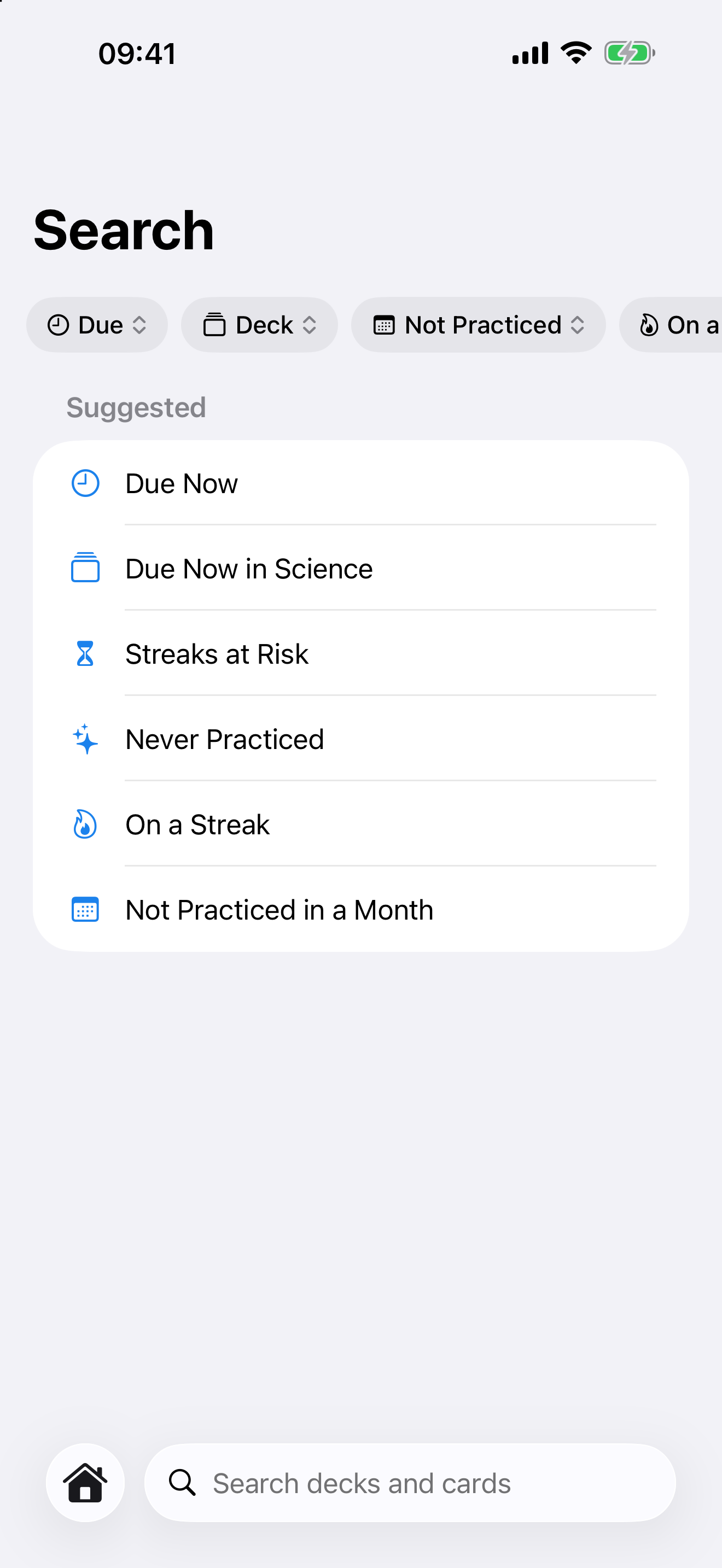
Start with a suggestion or combine filters.
Open the Search tab
Select Search from the tab bar on iPhone. On iPad, Search in the sidebar opens the same full search view. The first screen shows suggested searches based on your library, including cards due now, review counts and cards you have never practiced.
System Spotlight search remains separate. Spotlight finds Swiftflip content from outside the app, while the Search tab keeps filters and results inside Swiftflip. Say “Search in Swiftflip” to Siri to open library search.
Search deck names and card text
Enter part of a deck name, card front or card back. Results are grouped into decks and cards. Select a deck result to open that deck. Select a card result to open its editor.
Recent text searches stay on the first screen so you can repeat them. You can clear the list.
Filter without typing
The filter row can narrow the library by:
- due status
- deck
- last practiced date
- review count
- cards you often answer incorrectly
- images
- audio
- paused reviews
Filters work alone or with text. For example, enter “mitosis”, choose a Biology deck and limit the results to cards that are due.
Use a suggestion as a shortcut
Suggestions build common searches for the current library. Due Now shows cards ready for review. Review Count filters by the number of reviews. A deck-specific suggestion limits due cards to one deck.
For a reusable collection that updates on Home, build a Smart Deck. Use Search for a one-off lookup.
Change several cards together
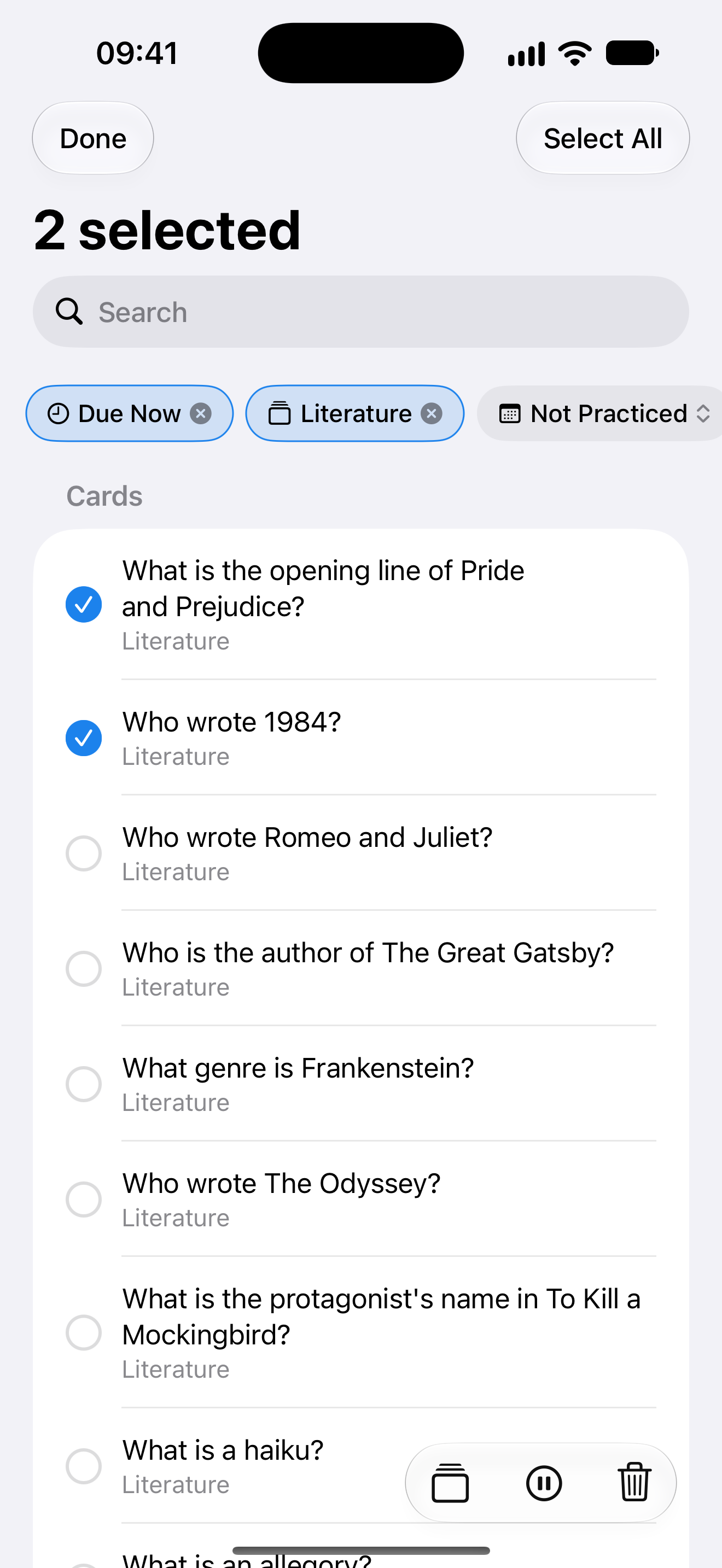
On iPhone or iPad, apply a filter such as Due Now, choose Select above the results and select the cards to change. Use the bottom toolbar to move the selection, pause or resume reviews or move cards to Recently Deleted. Check the selection count before a bulk action. The cards still belong to their original decks.
Search on Mac
On Mac, press Command F or select the search field, then choose All Library or limit the search to the deck, folder or view you already opened.
Mac keeps recent searches and opens deck or card results directly. It does not use the iPhone and iPad filter-chip row, so the search terms and scope picker do more of the work.
See the Swiftflip on Mac guide for the rest of the desktop workflow.