
Use Swiftflip on Apple Watch
Install Swiftflip on Apple Watch, browse decks and folders, review due cards and set wrist-specific image, audio and haptic options.
Swiftflip on Apple Watch is built for short, frequent reviews. This guide covers setup, the gestures and the few settings worth knowing about.
About the screenshots: These watchOS 26 screenshots come from Swiftflip 1.13.0. Swiftflip now starts on a list of your decks and adds visible grade buttons, which are not pictured yet.
Apple Watch walkthrough
Apple Watch
See what is due
Open Swiftflip to check the queue before starting a short review.
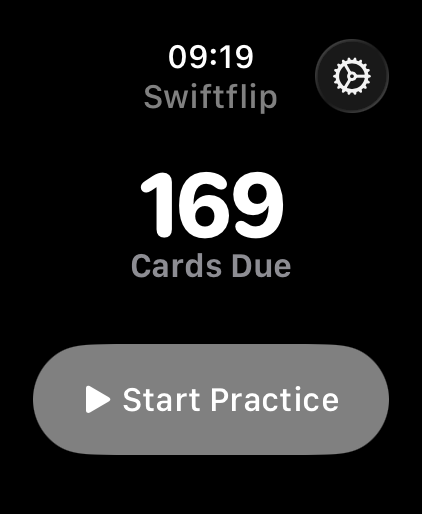
Apple Watch
Practice on your wrist
Tap to reveal a card, then swipe to record whether you knew it.

Apple Watch
Finish the session
The completion screen confirms that the queue is clear.
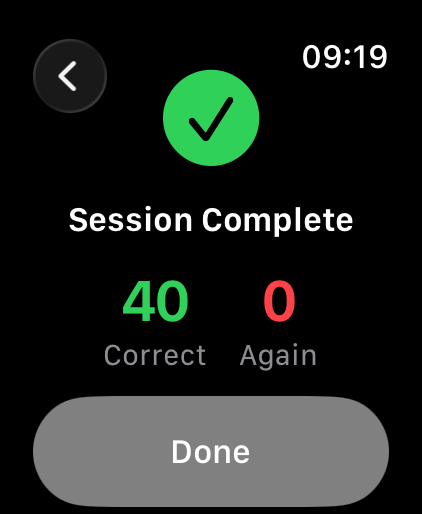
Install the watch app
If you already use Swiftflip on iPhone, the watch app installs automatically the next time your Apple Watch syncs apps. Otherwise open the Watch app on iPhone, find Swiftflip and tap Install.
You do not need to sign in or configure anything separately. Your decks, settings and progress travel through the same private iCloud sync.
Choose what to practice
Open Swiftflip on the watch and the start screen lists your decks, folders and Smart Decks, so you can choose what to practice without starting on another device. Pick a deck for a focused session, open a folder to practice its due cards or jump into the cards that are due. Paused decks stay in the list as Paused.
Practice gestures
Practice cards use the full screen:
- Tap the card to flip it
- Correct and Incorrect buttons appear after the flip
- Swipe right if you knew it, swipe left if you did not
- Turn the Digital Crown to scroll longer card content
Each grade plays a subtle haptic and is saved before the next card slides in. Cards you miss come back later in the same session. Swipe the next card back to undo the last grade.
Watch and iPhone settings
Open Settings in Swiftflip on Apple Watch to control:
- Images: include or skip image cards on the wrist
- Audio: include audio cards and allow playback during practice
- Haptics: turn grade feedback on or off
Configure the scheduling preferences on iPhone:
- Card order: newest first, oldest first or random
- Session size: how many cards a sitting includes
- Card mix: all cards, only due or only due-or-new
- Review frequency: how soon cards come back for review
The scheduling preferences sync to Apple Watch through iCloud.
Continue from iPhone or Mac
Start a session on iPhone or Mac, then pick it up on Apple Watch with Handoff. Cards you already graded stay graded. The Due Cards complication opens Due for Practice, so a tap from the watch face starts that session.
Audio and images on the watch
Audio is off by default on the watch, and cards that are audio only are skipped while it is off. To play recorded audio during a watch session, open Swiftflip on your Apple Watch, go into Settings and turn on Include Audio Cards.
Image display has its own toggle in the same place if you would rather skip images on the wrist.
When to use the watch
Apple Watch works best for:
- short review sessions between tasks
- a quick pass through cards you almost have memorized
- checking what is due without opening anything bigger
Editing decks, recording audio, importing files and managing folders all live on iPhone, iPad or Mac. The watch keeps practice fast and leaves the heavier work to the bigger devices.
Keep practicing
Most reviews are shorter than the time it takes to scroll a feed, and the cumulative effect across a week is what makes spaced repetition work. See more in Apple Watch flashcards, and use Handoff to move a session between iPhone, iPad, Mac and Apple Watch.