

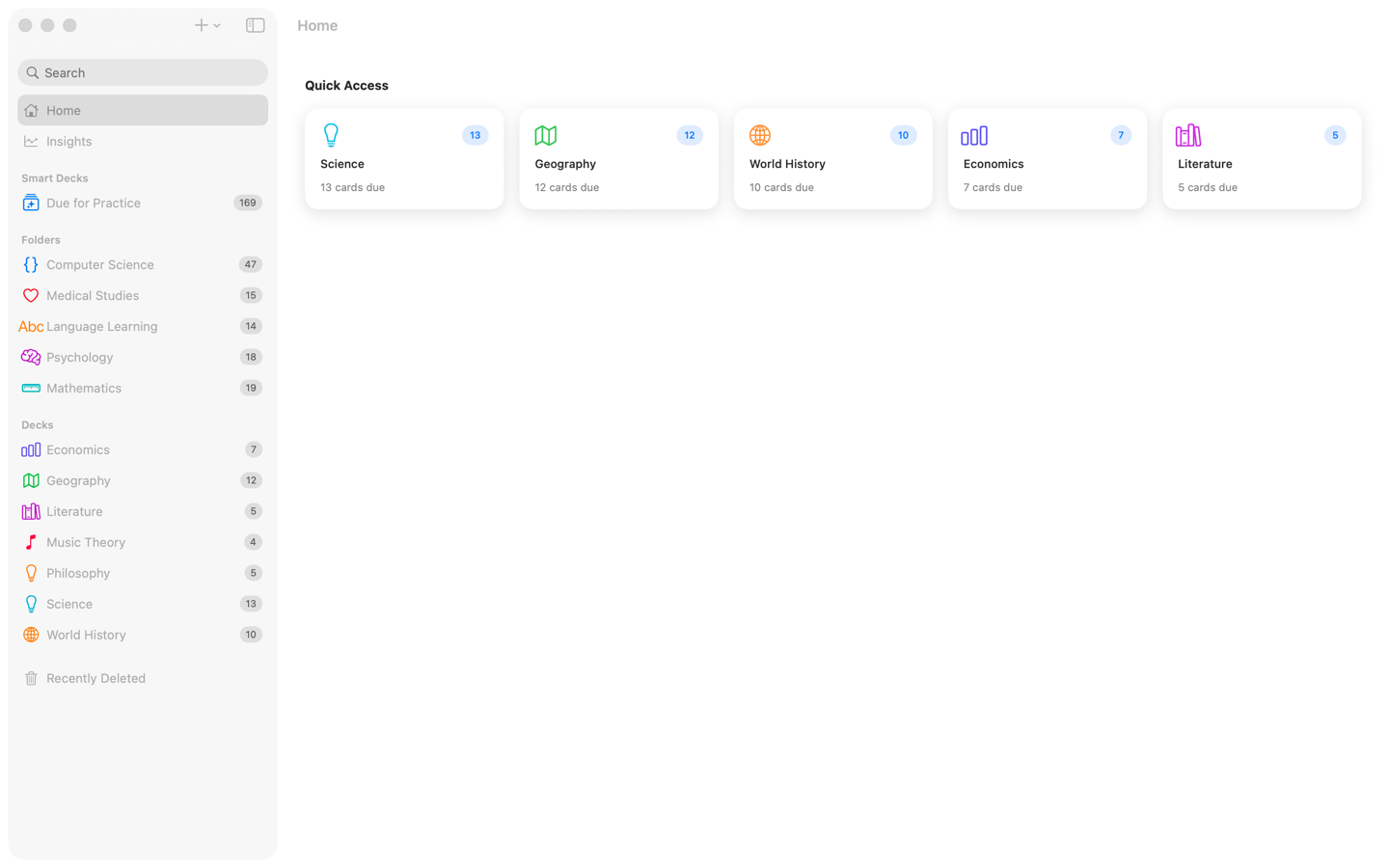
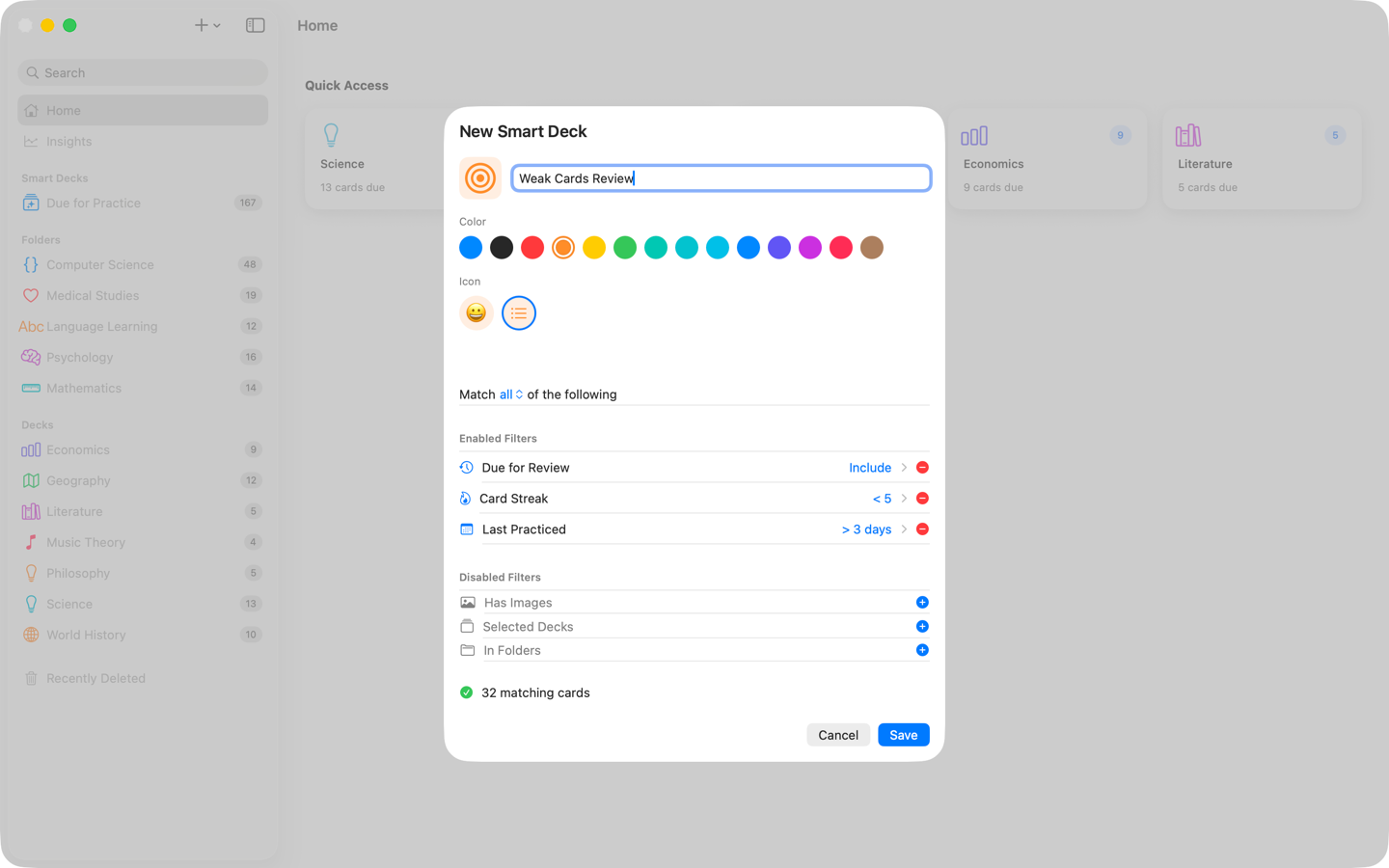
Most flashcard apps on Mac are scaled-up iPhone apps with the same layout. Swiftflip is built differently. The Mac app uses native patterns: sidebar, tables, menu commands and keyboard shortcuts.
Sidebar layout
The sidebar lists your decks, folders and smart decks. The system “Due for Practice” smart deck sits at the top so you can jump into a session without opening anything else. Right-click a deck to practice, start a Custom Practice session, edit, move, share or delete it. Select a folder to practice several decks at once. Edits update the sidebar immediately.
Editable card table
Card-heavy work is easier in a table than in a stack of cards. Swiftflip on Mac shows decks as editable tables you can scroll, sort and edit inline. Double-click a cell to edit it.
Command Control N adds a row with the Front field already focused. Delete moves selected cards to Recently Deleted while the table has focus. Right-click for copy, paste and other context actions. Undo and redo are wired into the standard Edit menu.
Search the whole library
Press ⌘ F to search deck names, card fronts and card backs. Choose All Library or limit the search to the deck, folder or view you already opened. Recent searches stay available, and a deck or card result opens directly. Follow the guide to search your Swiftflip library.
Widgets and Shortcuts on the desktop
Due Now, Deck Queue and Week Rhythm run as native Mac widgets, so due counts stay visible without opening the app. The same App Shortcuts as iPhone and iPad work on Mac, so you can add a card, start practice, open a deck or search your library from Shortcuts.
Keyboard shortcuts
Practice and Insights both have shortcuts:
- Space to flip the current card
- Right arrow to mark a card correct, left arrow to mark it incorrect
- ⌘ Z to undo the last grade in a session
- ⌘ . to end the current practice session
- ⌘ Shift R to start Practice All on the selected deck
- ⌘ 1, ⌘ 2 and ⌘ 3 to switch between Insights sections
- ⌘ N to create a deck
- ⌘ Control N to add a card in the selected deck
- ⌘ Delete to move the selected deck to Recently Deleted
- Delete to move selected cards when the card table has focus
The full list lives in the keyboard shortcuts guide.
For screenshots and the broader desktop workflow, see Use Swiftflip on Mac.
Native menu commands
File, Import and File, Export use the standard macOS file panels:
- Anki packages (
.apkgand.colpkg) - CSV files from spreadsheets or other apps
- Swiftflip archives (
.swiftflip) for portable backups
The Help menu includes Send Feedback so you can write to us without leaving the app.
Share Extension on Mac
The Share Extension is part of the Mac app too. Highlight text in Safari, share a paragraph from Notes or send a photo from Photos, choose Swiftflip and the new card lands in the deck you pick.
Quick Look for Swiftflip files
Select a .swiftflip archive in Finder, press Space and Quick Look shows the contents without opening Swiftflip itself. Useful for verifying a backup before you import it.
One purchase covers Mac
Swiftflip on Mac is part of the same purchase that covers iPhone, iPad and Apple Watch. Cards, folders, smart decks and progress sync through iCloud. Practice on whichever device is in front of you.