
On this page
To control your Mac from an iPhone or iPad, turn on Screen Sharing on the Mac and connect to it with Otherdesk. You see the Mac’s screen, move its pointer by touch, type on it and copy text between the two. Screen Sharing is built into macOS, so you install nothing on the Mac.
What you need
- a Mac with Screen Sharing turned on
- an iPhone or iPad with iOS or iPadOS 26 or later
- both devices on the same local network
- the user name and password of an account on that Mac
Otherdesk is available now on the App Store as a one-time purchase with no subscription. It has no account of its own.
Turn on Screen Sharing on the Mac
- Choose Apple menu > System Settings.
- Click General in the sidebar, then Sharing.
- Turn on Screen Sharing.
- Click the Info button next to it and check who can connect under Allow access for.
Screen Sharing and Remote Management cannot be on at the same time. If the Screen Sharing switch is dimmed, turn Remote Management off first. Turn on Screen Sharing and connect Otherdesk covers each setting.
Connect from iPhone or iPad
Open Otherdesk and tap +. A Mac on the same network appears under Nearby. Tap it, or choose Enter Address and type the Mac’s .local name or LAN address. Then sign in with the user name and password you log in to that Mac with. Your Apple Account password does not work here.
Allow Local Network access when your iPhone or iPad asks. Otherdesk needs it to find the Mac.
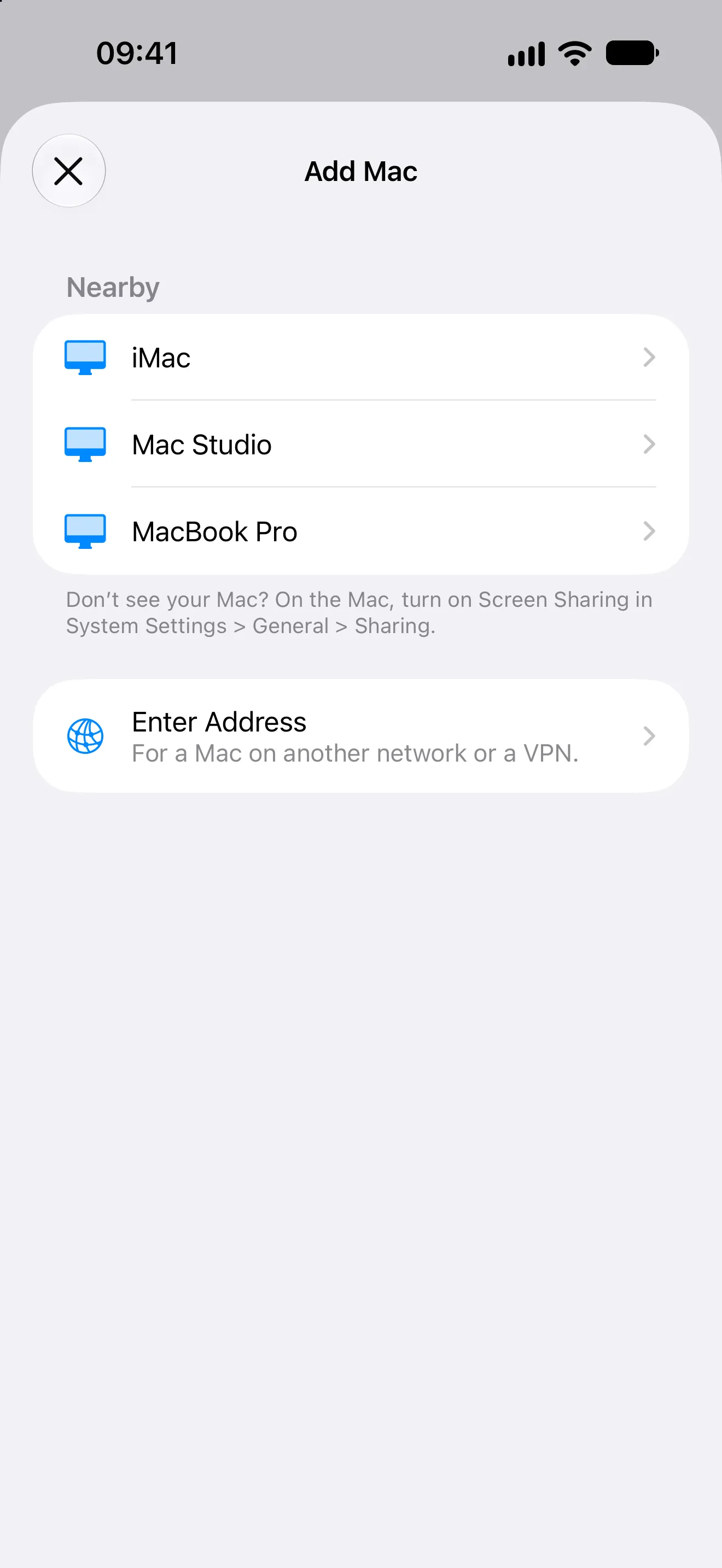
Add Mac lists the Macs it finds on your network.
If the Mac does not show up or the sign-in fails, follow the connection checks.
Control the Mac by touch
The session is a live view of the Mac, and your finger moves the Mac’s own pointer:
- drag with one finger to move the pointer
- tap to click where the pointer is
- press and hold, then drag, to move items
- pinch to zoom
- drag with two fingers to scroll
- tap with two fingers to right-click
These gestures work anywhere in the session, around the Mac’s screen as well as over it. Tracking speed and pointer size are in Settings. Control your Mac with the pointer goes through each gesture.
Type and copy text
Tap Keyboard on the session toolbar to type on the Mac. A row of keys above the keyboard has Esc, Tab, arrows and modifier keys for Mac shortcuts. With a hardware keyboard, the keys go through to the Mac without opening the software keyboard.
Copy brings text you selected on the Mac to your iPhone or iPad. Paste sends text the other way and pastes it into the focused Mac app. Only text goes through the clipboard, not files or images. Type, copy and paste has the steps.
Save your Macs
Save a Mac once, give it an icon and tap it to connect next time. Saved Macs sync between your iPhone and iPad with iCloud. Saved passwords sync with iCloud Keychain when it is available, and a device passcode is required to save one. You can also leave the password blank and enter it each time you connect. We cannot see your screen, your passwords or your saved Macs.
Picture quality and dropped connections
Automatic quality adjusts the picture to the connection. To change it for one session, tap Quality on the toolbar. Adjust display and pointer covers the Quality and Zoom settings.
If the connection drops, Otherdesk keeps the last screen visible, says why it is waiting and reconnects within seconds of the Mac answering again.
From outside your home network
Otherdesk connects straight to the Mac and has no relay of its own, so by itself it reaches only Macs on your local network. To use your Mac from somewhere else, connect both devices to a VPN such as Tailscale and add the Mac by the address it has there. Remote access to your Mac explains what that takes, and the Tailscale guide has the steps.
What Otherdesk does not do
- It runs on iPhone and iPad only.
- It requires Screen Sharing on macOS, so it does not connect to Windows or Linux PCs. VNC client for Mac Screen Sharing explains why.
- The clipboard carries text, not files or images.