
On this page
Otherdesk is a VNC client for iPhone and iPad that connects to a Mac. It talks to Screen Sharing, the VNC server built into macOS, and signs in with your Mac account. It does not connect to VNC servers on Windows or Linux.
What VNC means on a Mac
VNC lets you see and control one computer’s screen from another device. A VNC server runs on the computer you control. A VNC client, also called a VNC viewer, runs on the device in your hand.
macOS has the server built in. Apple calls it Screen Sharing, and it answers on port 5900. So there is no VNC server to install on the Mac. Turn Screen Sharing on in System Settings, under General, then Sharing. The Info button next to it shows who can connect.
Otherdesk is the client, and it runs on iPhone and iPad with iOS or iPadOS 26 or later.
How Otherdesk signs in
Otherdesk signs in with a Mac account: the user name and password you log in to that Mac with. Your Apple Account password does not work.
The Screen Sharing settings also have an option called VNC viewers may control screen with password. It sets a separate password for third-party VNC apps. Otherdesk does not use it, so you can leave that option off.
A session that signs in with a Mac account is encrypted after sign-in. The sign-in does not verify the Mac’s identity, so connect on a network you trust or through a VPN.
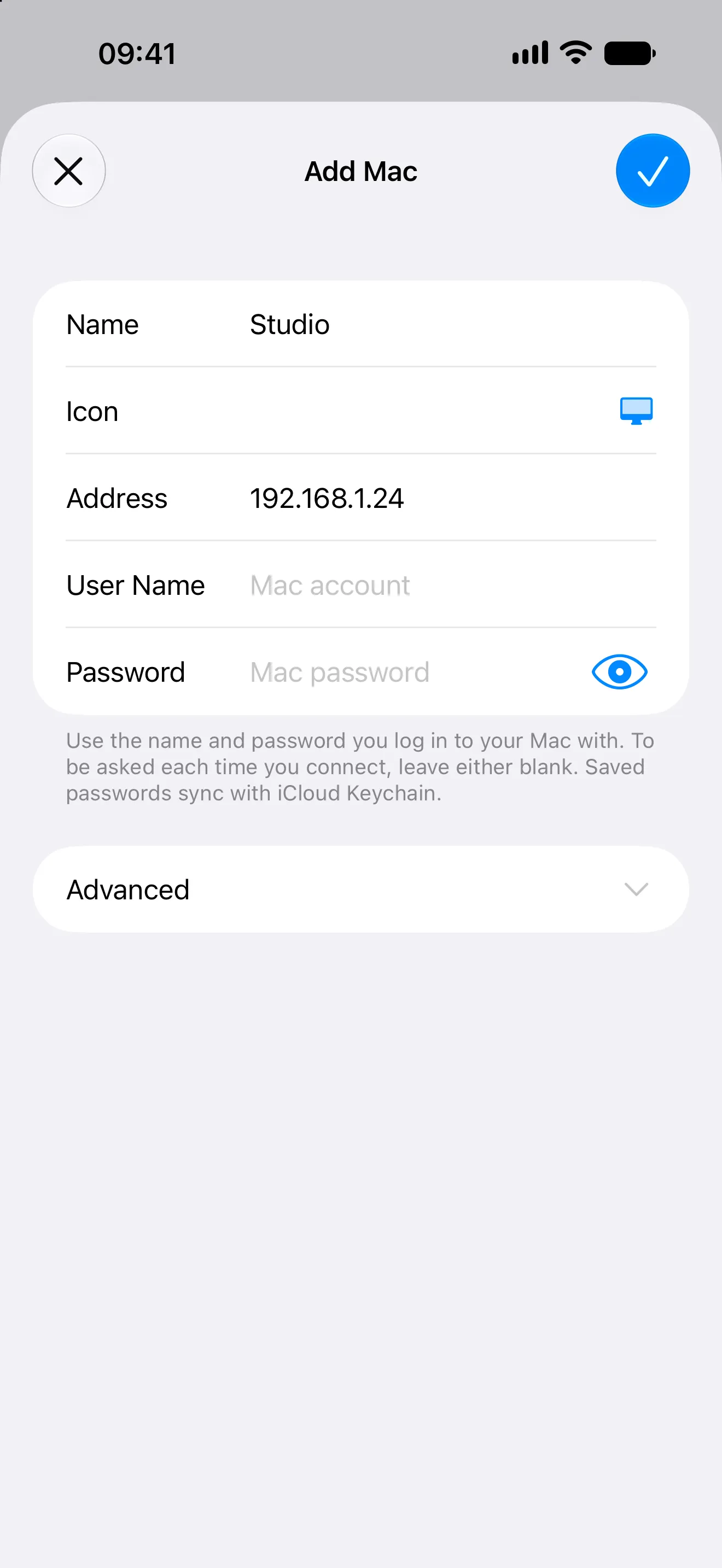
User Name and Password are the ones for your Mac account.
What Otherdesk connects to
- Screen Sharing on a Mac on the same local network. Add Mac lists nearby Macs, or you enter a
.localname or LAN address. - Port 5900 by default, or another port you enter under Advanced.
- A Mac on another network, over a VPN such as Tailscale, by the address it has there. The Tailscale guide has the steps.
Otherdesk connects straight to the Mac and has no relay, so it can only reach a Mac that your iPhone or iPad can reach on the network.
What it does not connect to
Otherdesk requires Screen Sharing on macOS. That rules out:
- Windows and Linux computers. Otherdesk only signs in with a Mac account. When a server does not offer that, Otherdesk stops and says “This server doesn’t support Mac account sign-in.”
- A sign-in with the separate VNC password. Otherdesk never asks for one and cannot use it.
If you need one app for a mix of Macs, Windows PCs and Linux machines, Otherdesk is the wrong choice.
Otherdesk itself runs on iPhone and iPad only. To reach a Mac from another Mac, use Apple’s Screen Sharing app, in the Utilities folder. A Windows PC can reach your Mac with a VNC viewer and the VNC password option.
What you get
- A touch pointer. Drag to move the Mac’s pointer, tap to click and tap with two fingers to right-click. See Control your Mac with the pointer.
- A row of keys above the keyboard with Esc, Tab, arrows and modifier keys for Mac shortcuts. Hardware keys go through to the Mac.
- Copy and Paste on the toolbar, which move text between the Mac and your device. See Type, copy and paste.
- Automatic quality, which adjusts the picture to the connection. You can change it from the toolbar during a session.
- Sessions that reconnect within seconds of the Mac answering again.
- Saved Macs that sync between iPhone and iPad with iCloud. Saved passwords sync with iCloud Keychain when it is available.
Privacy
Otherdesk has no account of its own, no analytics and no ads. Your Mac user name and password are sent only to the Mac you connect to. We cannot see your screen, your passwords or your saved Macs. The privacy policy has the details.
Set it up
Turn on Screen Sharing and connect Otherdesk walks through the Mac settings and the Add Mac form. For what a session is like, read Control your Mac from iPhone or iPad.
Otherdesk is available now on the App Store as a one-time purchase with no subscription.