
Connect Otherdesk to your Mac
Turn on Screen Sharing, find a nearby Mac or enter its address and sign in with the name and password you use on that Mac.
Otherdesk uses Screen Sharing on your Mac. There is no extra Mac app. Turn Screen Sharing on, add the Mac on your local network and sign in with the name and password you use on that Mac.
Add a Mac
iPhone
Find a nearby Mac
Choose a Mac or enter its address manually.
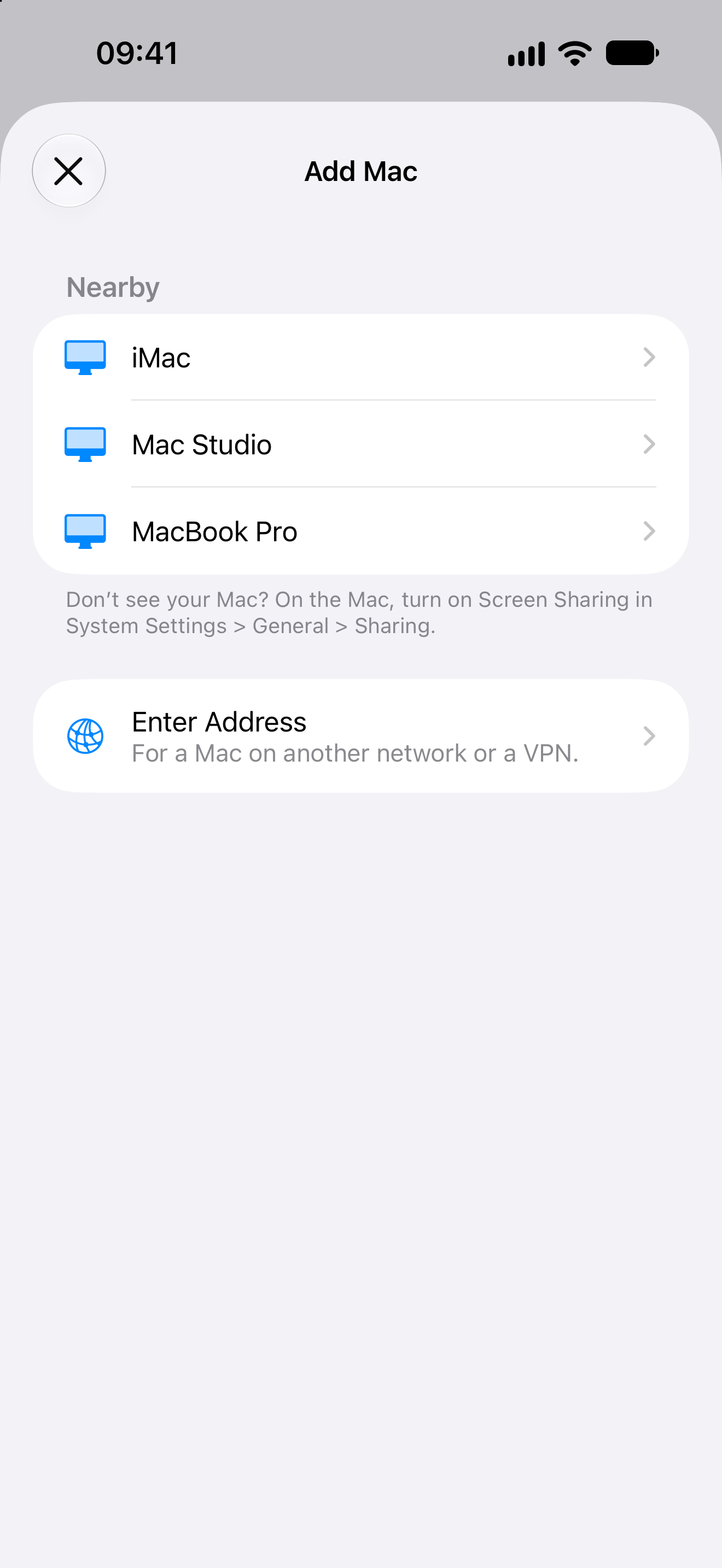
iPhone
Enter the Mac once
Saved Macs sync between iPhone and iPad with iCloud.
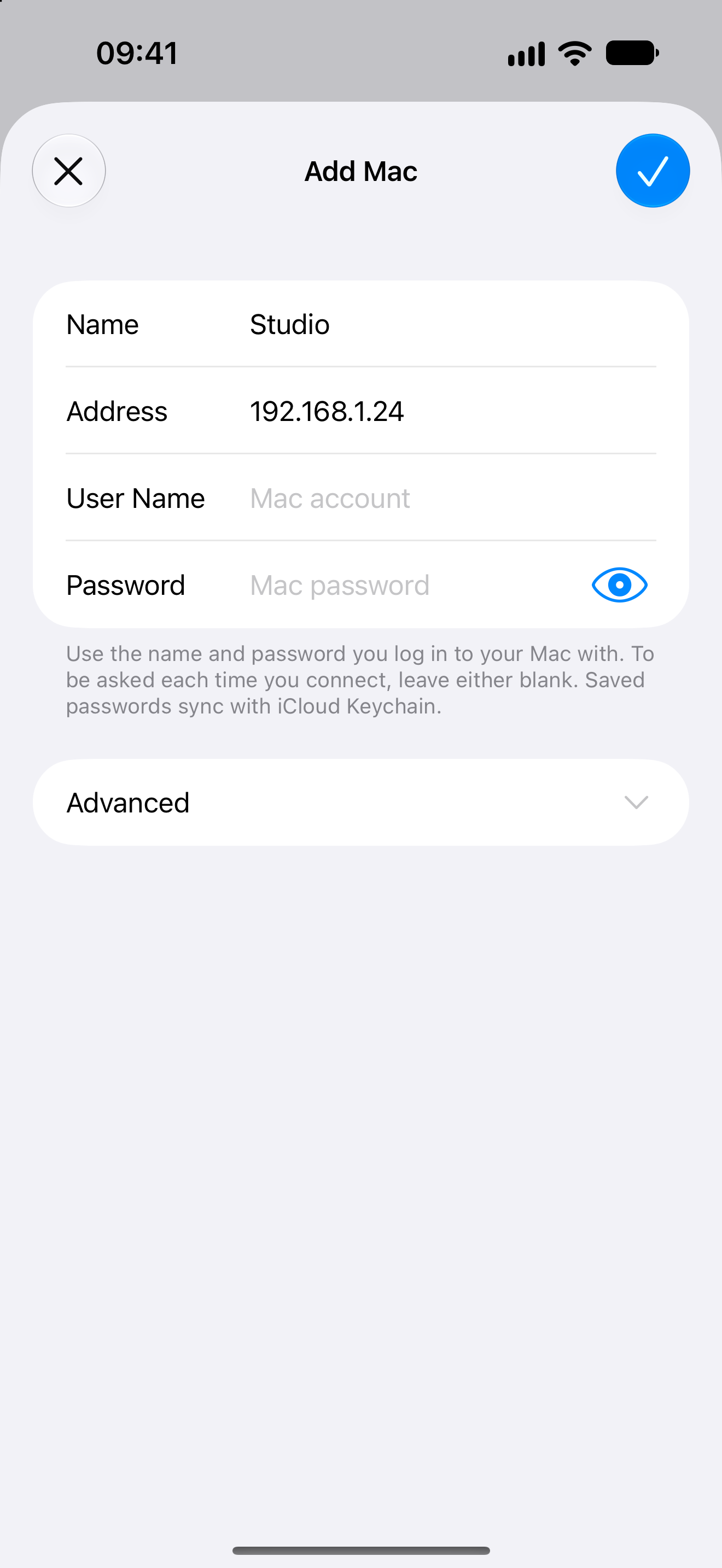
iPad
The same form on iPad
Saved passwords sync with iCloud Keychain.
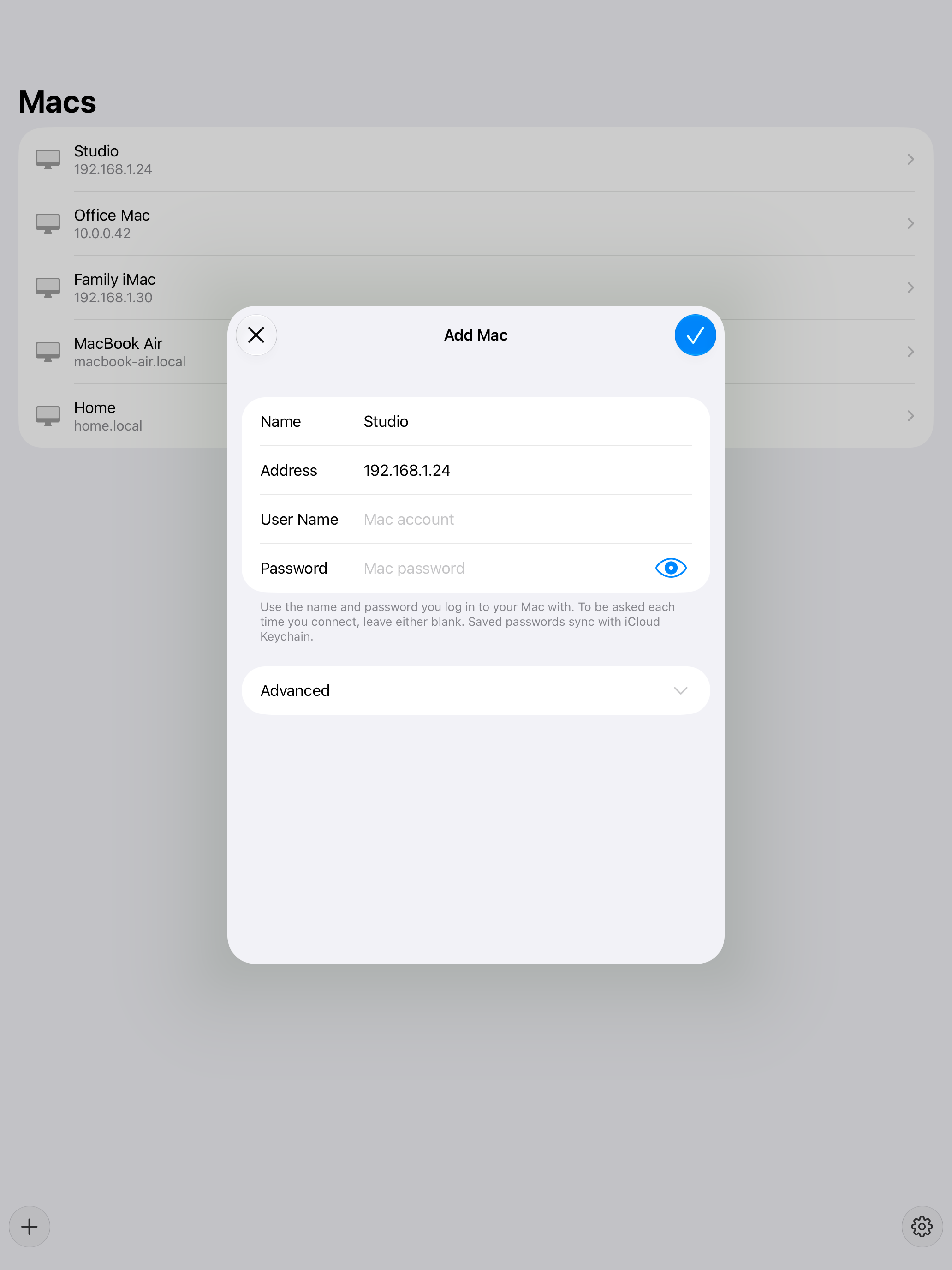
Turn on Screen Sharing
On the Mac:
- Open System Settings.
- Go to General, then Sharing.
- Turn on Screen Sharing.
- Allow the Mac account you will use.
Note the Mac’s .local name or LAN address. The default port is 5900. The iPhone or iPad cannot reach 127.0.0.1 on the Mac.
Find a nearby Mac
Keep your Mac and iPhone or iPad on the same local network. In Otherdesk, tap + and choose a nearby computer when it appears. If your Mac is not listed, the line under Nearby says where to turn on Screen Sharing. Allow Local Network access when asked. A nearby Mac that is already saved opens instead of being added again.
If your Mac does not appear, use its .local name or LAN address and follow the manual steps below.
A Mac on another network or behind a VPN never appears under Nearby. Connect this device to the VPN, then add the Mac with the address it has there.
Add the Mac manually
- Open Otherdesk, tap + and choose Enter Address.
- Enter a Name you will recognize.
- Enter the Address. Leave Port at 5900 unless the Mac uses another port.
- Enter the User Name and Password you log in to the Mac with. Leave either blank to enter it each time you connect.
- Tap the checkmark to save.
The device may ask for Local Network access. Allow it, then try again if the first connect failed.
Tap the saved Mac on the Macs list to connect.
Use your Macs on another device
Saved Macs sync through iCloud to an iPhone or iPad signed in to the same Apple Account. Saved passwords sync through iCloud Keychain when it is available, and a device passcode is required to save one.
Display and pointer settings stay on each device. Deleting a Mac removes it and its saved password from your other devices.
If the Mac does not appear or sign-in fails, follow the connection checks.