
Fix discovery and connection problems
Check Local Network access, Screen Sharing, the Mac address and account, then recover a connection that cannot reconnect.
Otherdesk connects directly to your Mac’s built-in Screen Sharing. Discovery, network access and the Mac account each need to be available before a session can open.
Check the Mac setup
iPhone
Start with Screen Sharing
Add Mac says where to turn on Screen Sharing.
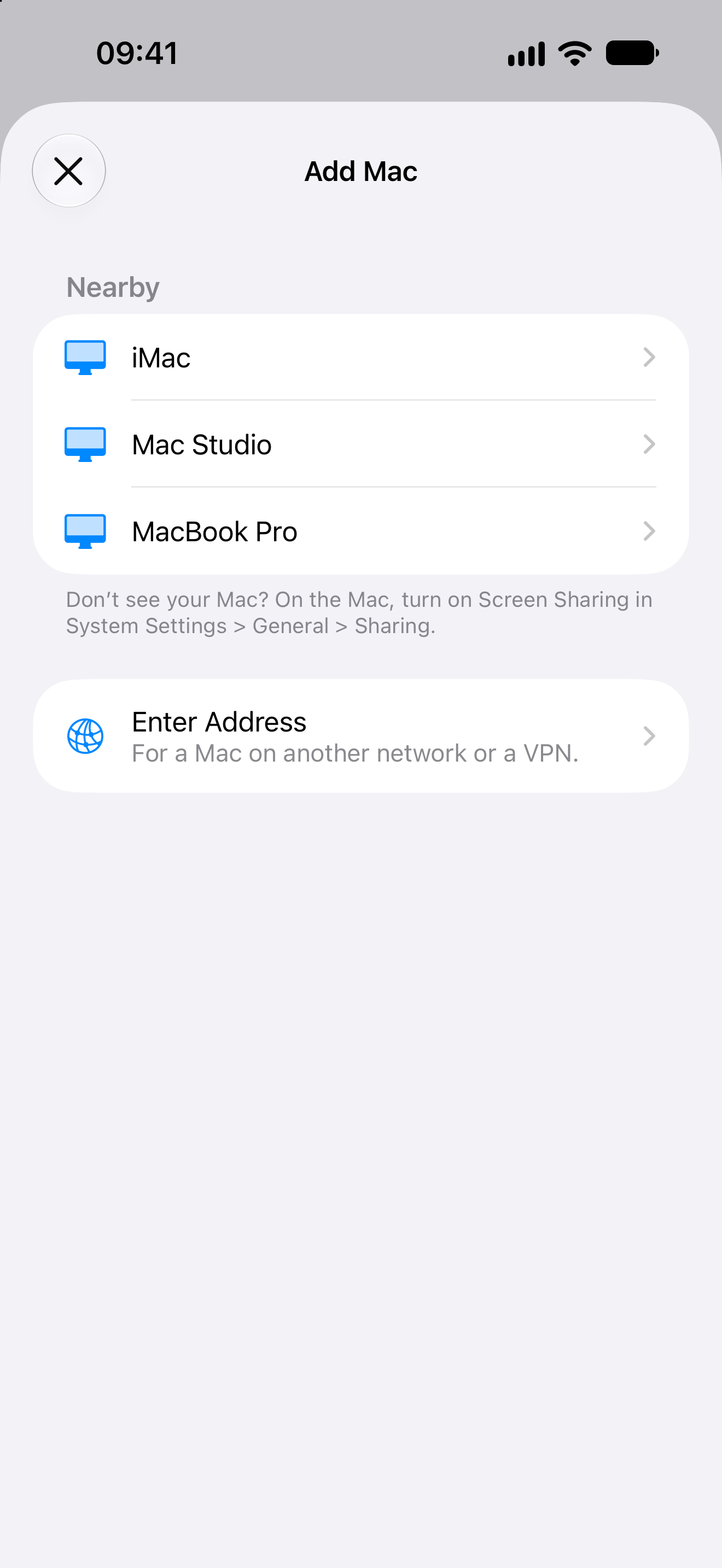
The Mac does not appear nearby
Keep both devices on the same local network. Guest Wi-Fi can separate devices even when their network names look related.
On iPhone or iPad, open Settings, then Privacy & Security, then Local Network, and allow Otherdesk. Return to Add Mac and try again.
On the Mac, open System Settings, General, Sharing and check Screen Sharing. If nearby discovery still cannot find it, add the Mac manually using its .local name or LAN address.
The address does not connect
Use the Mac’s current local address, not 127.0.0.1 or localhost: those names refer to the iPhone or iPad itself. Leave the port at 5900 unless Screen Sharing is configured differently.
Wake the Mac and check that it has not moved to another network. If you saved a numeric address, it may have changed. A reachable .local name can be easier to keep using.
Otherdesk connects straight to Screen Sharing on the Mac. It has no internet relay and no Otherdesk account that makes an unreachable Mac available. To reach a Mac on another network, connect this device to a VPN that reaches it, then use the address the Mac has on that VPN. With Tailscale, follow Connect to your Mac with Tailscale.
The account is rejected
Use the Mac account’s user name and password, not your Apple Account password. In Screen Sharing settings, check that this account is allowed access.
When the Mac refuses the sign-in, Otherdesk asks for the user name and password again. Choose Connect Once to use them for this session or Save & Connect to keep them. Saving a password requires a device passcode.
Saved Macs do not appear on another device
Saved Macs sync through iCloud. Sign in to the same Apple Account on both devices and check that each has a network connection. Saved passwords also need iCloud Keychain.
If the Macs list is empty and shows Couldn’t Sync Macs, read the message under it and tap Try Again. Changes made while iCloud is unavailable are kept on the device and sync later.
A session stops updating
Check that both devices remain connected and the Mac is awake. Otherdesk keeps the last screen visible while it reconnects, names the Mac and says why it is waiting. It tries again every few seconds, and right away when you return to the app. When the screen freezes, it asks the Mac for a fresh picture and reconnects if none arrives. A visible old frame does not mean the connection has recovered.
If it cannot reconnect, tap Disconnect on the session toolbar. Open the saved Mac again after checking the network. For a slow connection, start with Automatic quality in display settings.
Ask for help
In Otherdesk, open Settings and tap Send Feedback, or contact us with the Otherdesk version, iPhone or iPad model, macOS version and the exact error. Say whether the Mac appears nearby and whether a manual address works. Keep passwords and screenshots of private Mac content out of the message.