
Adjust display and pointer
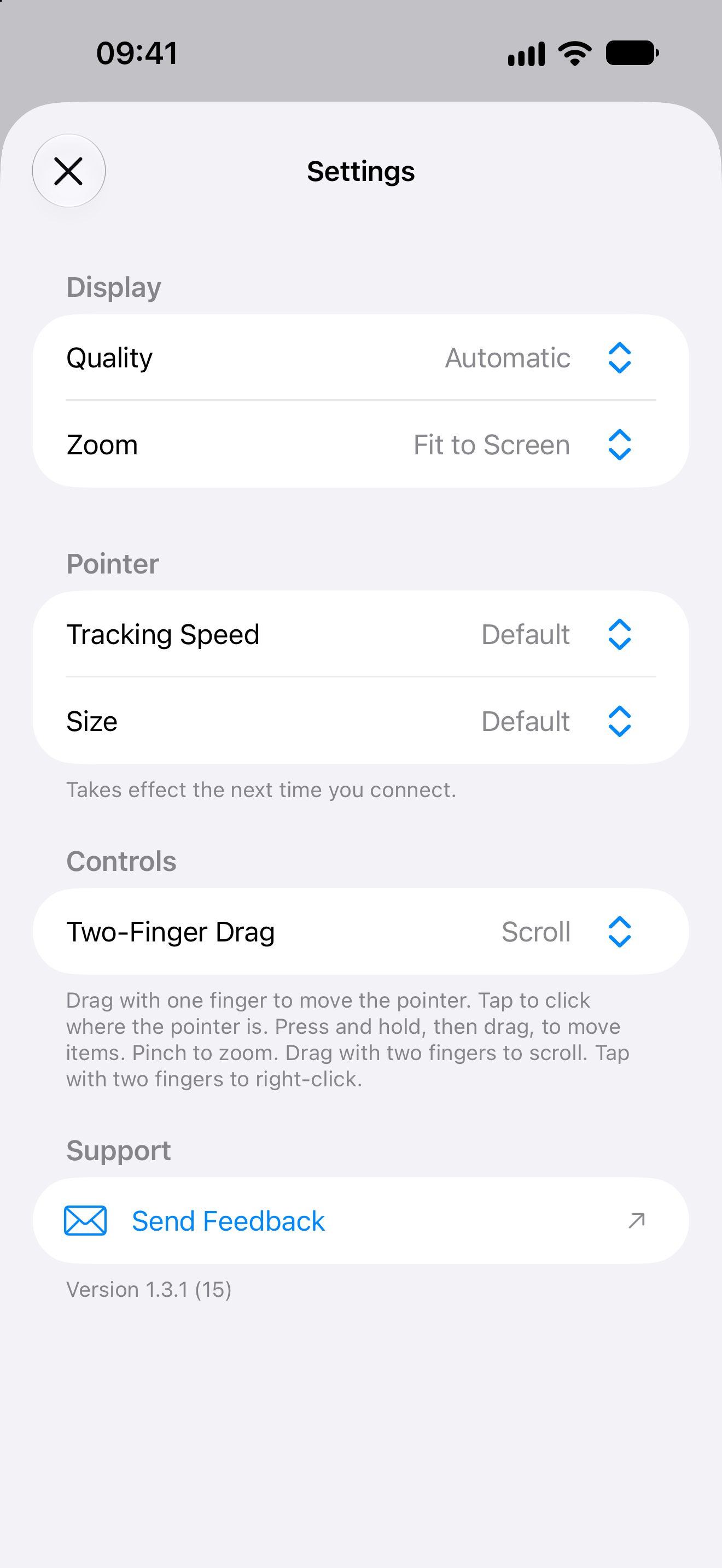
Choose quality, zoom, tracking speed and pointer size so the Mac fits this screen.
iPhoneiPad
Settings stay on this device. Display and pointer choices apply the next time you connect.
Display and pointer
iPhone
Fit the Mac to this screen
Quality, zoom, tracking speed and pointer size live in one list.
iPad
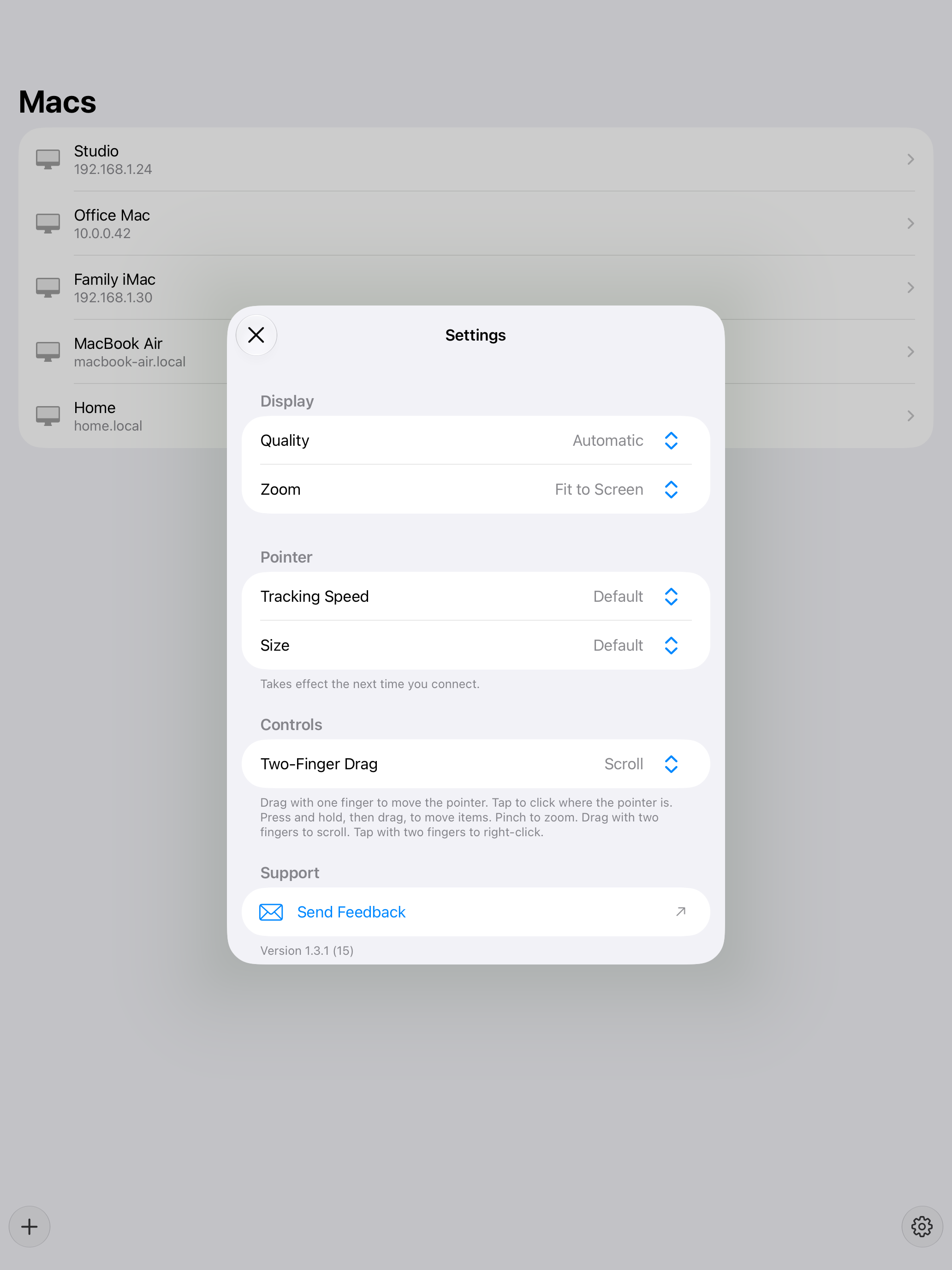
The same settings on iPad
Pointer changes wait until the next connection.
Display
- Open Otherdesk and tap Settings.
- Set Quality. Automatic follows the link. Choose a lower quality if the session feels heavy.
- Set Zoom. Fit to Screen keeps the whole Mac visible.
Two-finger dragging
In Settings, choose Two-Finger Drag. Scroll scrolls the Mac and is the default. Pan moves around the remote screen when zoomed in. Pinch to zoom and tap with two fingers to right-click in either mode.
Pointer
- Set Tracking Speed if the cursor feels slow or too quick.
- Set Size if the pointer is hard to see.
- Connect again. These values take effect on the next session.
The Controls section on the same screen is the gesture list for the current build.