

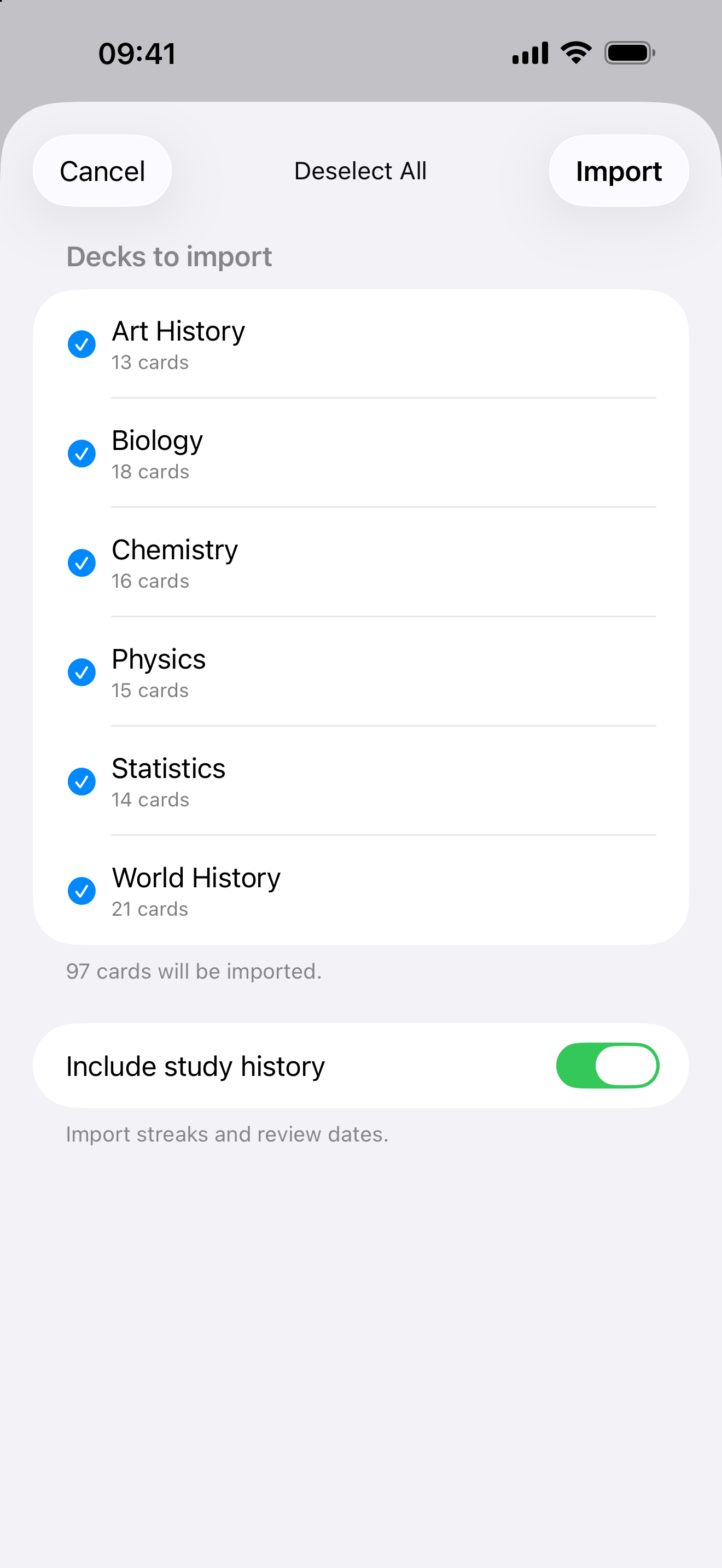
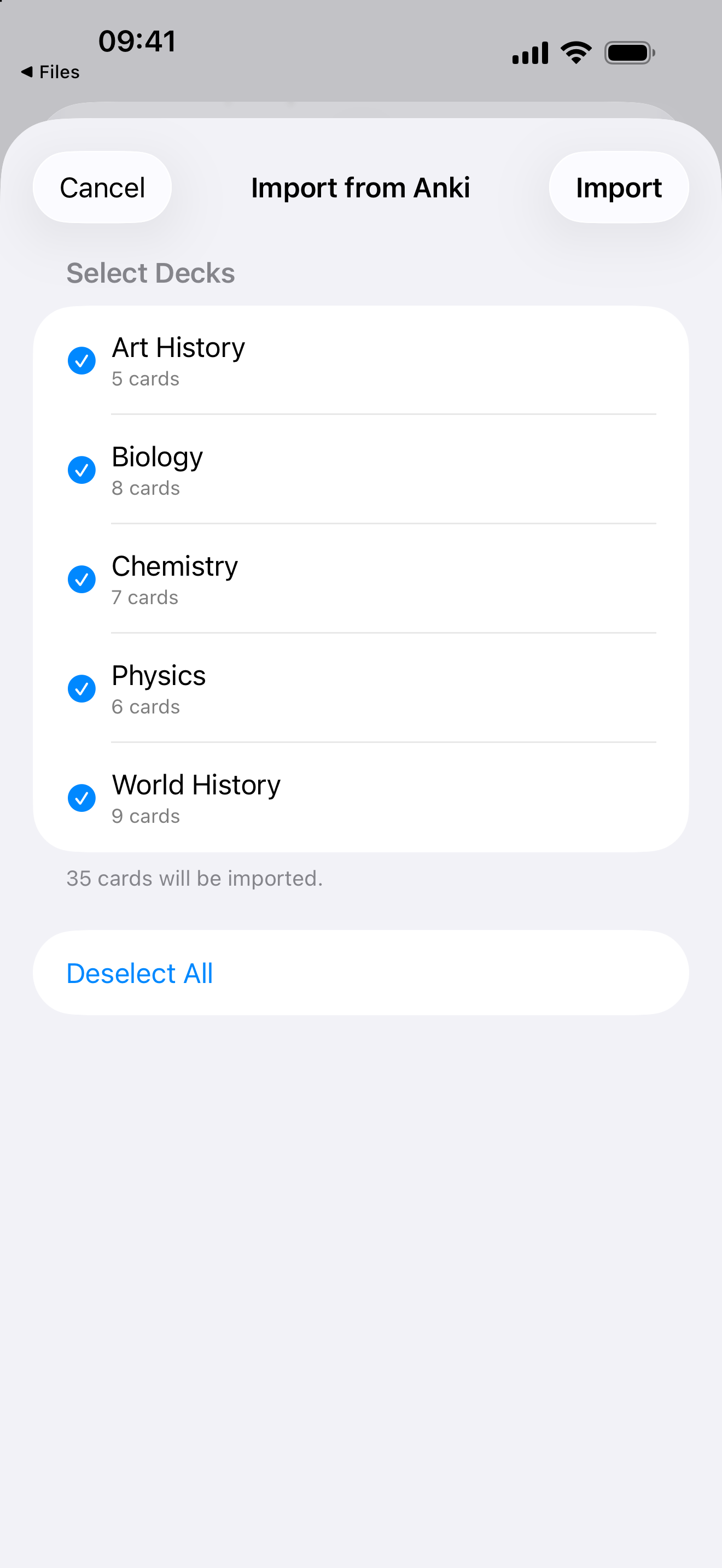
Swiftflip imports Anki packages directly, so you do not have to rebuild decks by hand.
If you are still deciding whether to move, Switching from Anki compares the two apps side by side.
What Swiftflip can import
- Anki packages, both
.apkgand.colpkg - CSV, when you have a spreadsheet or an export from another app
- Swiftflip archives, for restoring a backup
All of these are part of the free tier in Swiftflip.
Where to find import
- iPhone and iPad: Settings, then Import Decks
- Mac: File, then Import, or press Command Shift I
On Mac you can also drag a deck file straight into the window, and drag decks back out as files.
What transfers and what does not
Carried across from an Anki package:
- decks and their names
- card fronts and backs
- images and audio on cards
- bold, italic, underline and links
- cloze deletions, with the hidden part marked
- review progress and next due dates, preserved or estimated from each card’s ease factor
- parked cards, and filtered cards returned to their home deck
- suspended cards, imported as paused if you choose to keep them
Left behind:
- individual Anki grades, so Card Insights history starts from practice in Swiftflip
- video, which is skipped with a count reported at the end
Cards without usable scheduling still start fresh.
Duplicate decks and cards
If a deck name is already taken, Swiftflip offers to merge into the existing deck or keep both. Names stay separate by default. Cards whose front and back already exist are skipped, so a repeat import will not flood a deck with duplicates.
Suspended cards
When the package includes suspended cards, import asks whether to import them or leave them out. Imported suspended cards arrive paused, with their review schedule.
Exporting again
Export is free too, so nothing is locked in. A Swiftflip archive keeps decks, folders, Smart Decks, card text, images, audio and scheduling details. A CSV export carries the front and back columns only, and Swiftflip warns you when a deck contains media that CSV cannot hold.
What to do next
Import one deck you already know well first, then check due dates and any paused cards before moving a larger collection. The import guide walks through it step by step.