
Understand your study and Card Insights
Read your streak, accuracy and study activity, inspect a deck or card and understand separate progress for reviews in both directions.
Swiftflip Insights shows your streak, accuracy and study activity, with more detail for each deck and card. Start with the overview, then open a deck or card when you need it.
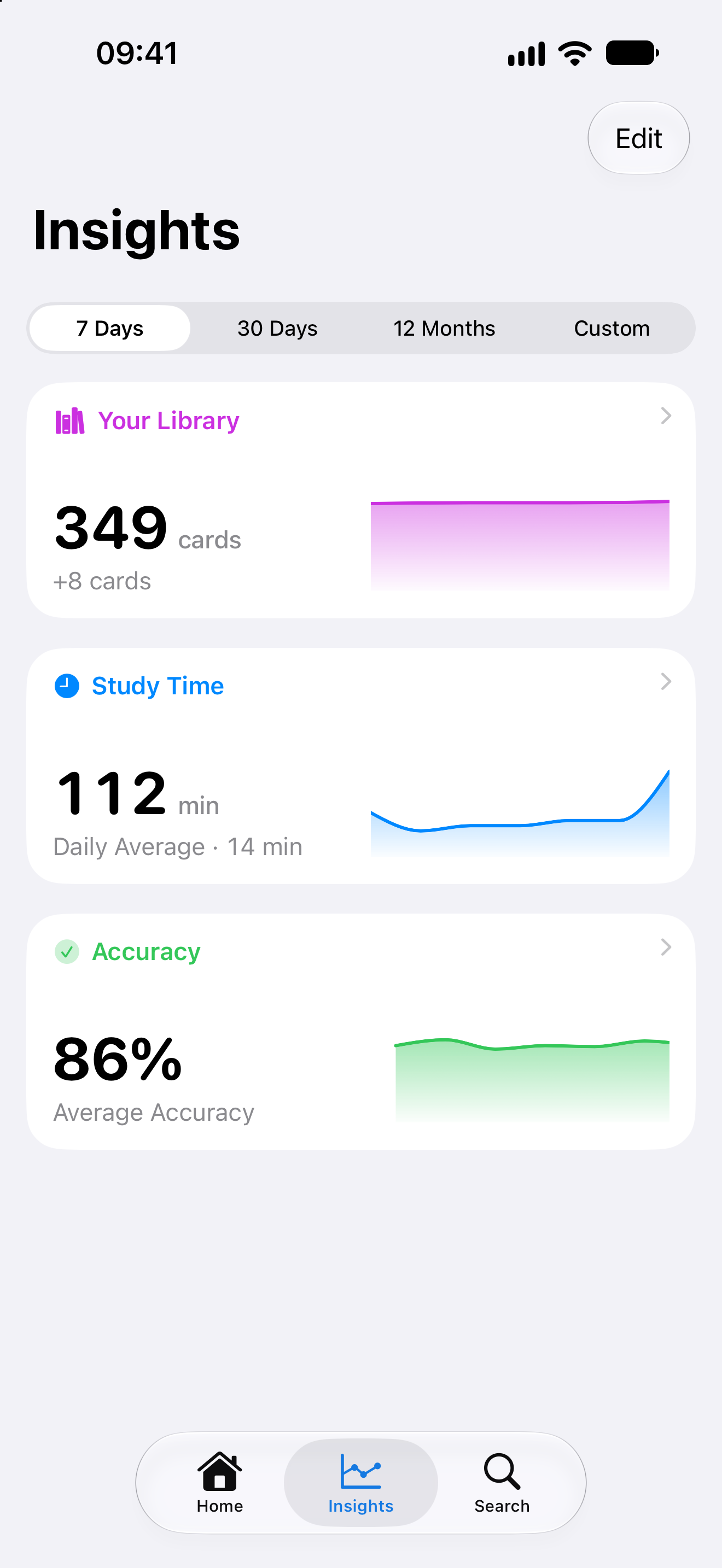
Start with the overview
Open Insights on iPhone, iPad or Mac. The overview brings together your streak, study activity, time spent, accuracy and library progress. Open a summary to inspect its detail and choose an available time range.
The study streak is free. Full Insights, longer time ranges and Card Insights require Premium. A locked option opens the purchase choices without removing your existing study data.
Read the pattern
- Streak shows consistency across days when you practice.
- Study activity and time show when you studied and how much time you spent.
- Accuracy helps you spot material that needs more attention. Read it together with activity rather than judging a small sample alone.
- Library progress shows how cards are distributed across stages of learning.
Deck and folder Insights narrow the view to that part of your library. Use them to compare topics without mixing an established deck with one you just imported.
With Premium, you can rearrange the overview’s cards to put the summaries you use most first.
Open Card Insights
From a card’s menu, open Card Insights. On iPad, the card table also offers this action. The view shows memory, status, review count, lapses, last review, next review and the history of later Swiftflip grades.
For a deck with Practice Both Ways, Front → Back and Back → Front have separate progress. A card can be familiar in one direction and still need work in the other.
Understand imports and drills
Anki imports can preserve or estimate a review schedule, but individual historical Anki grades do not become Swiftflip’s review history. That history grows as you practice in Swiftflip.
Custom Practice is a drill when Due Cards Only is off or First Side is not Scheduled Side. Its history is marked as a drill and it leaves due dates unchanged. Use Due Cards Only with Scheduled Side to update the schedule.
If devices show different numbers
Let iCloud sync finish before comparing the same scope and time range. The sync guide explains what to check when recent study has not reached another device.