
Spoken language is hard to study from text alone. The same is true for music intervals, bird calls and any subject where sound is the point. Swiftflip audio flashcards give you a way to record sound directly into a card and review it on the device that fits the moment.
Record up to 30 seconds per side
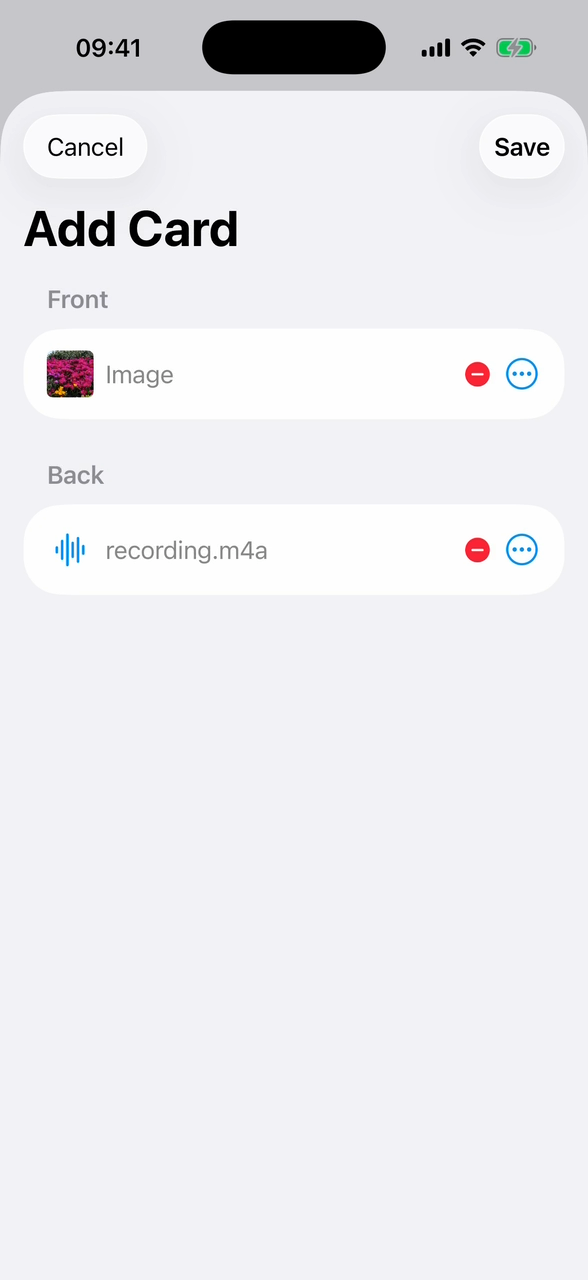
Open the card editor and tap the microphone on the front or the back. Record for up to 30 seconds, stop and save. The waveform appears on the card so you know audio is attached.
Thirty seconds is enough for:
- pronunciations of words and phrases
- short listening prompts
- music intervals or rhythm patterns
- example sentences in context
Where you can record, where you can play
Recording lives on iPhone and Mac, where the microphone makes sense. Playback works on iPhone, iPad and Mac out of the box. On Apple Watch, audio playback is off by default to save battery. Turn it on in the watch app settings if you want recorded audio to play during watch practice.
Audio with text and images
Audio sits alongside text and images on the same card. A card can have:
- written text on the front, audio on the back
- audio on both sides for shadowing exercises
- an image on the front, audio on the back for image-to-sound recall
- rich text formatting and clickable links beside the audio
Use whatever combination suits the material.
Use cases
A few patterns that work well:
- language vocabulary: written word on the front, native pronunciation on the back
- listening drills: audio sentence on the front, transcription on the back
- music theory: interval played on the front, name on the back
- medical or scientific terms: written term on the front, spoken pronunciation on the back
Practice on Apple Watch
When watch audio playback is enabled, audio on a card plays during a watch session the same way it plays on iPhone. That makes audio decks work for short reviews on the go without pulling out your phone.
Get started
Open Swiftflip on iPhone or Mac, edit any card and tap the microphone. The first recording is the easiest one to try. If you want a workflow built around audio, the language learning page covers a longer pattern across devices.