

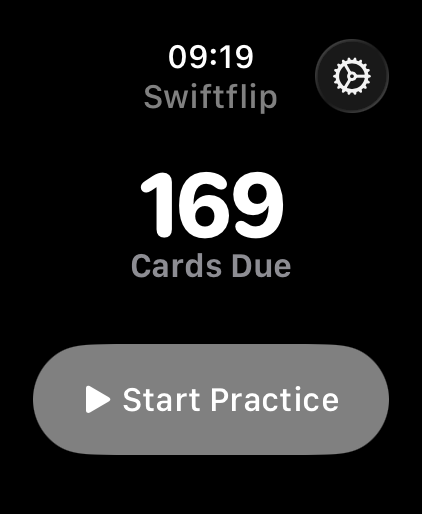

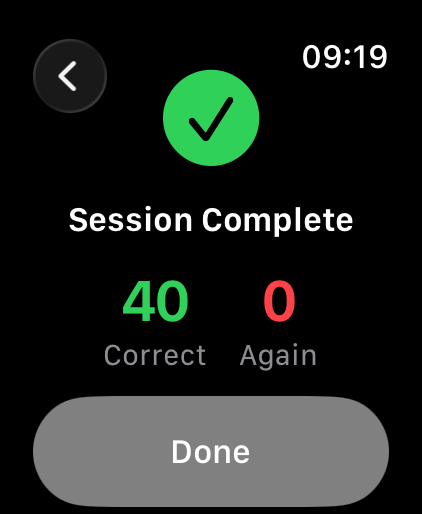
Apple Watch is a small screen, but it is the screen you wear all day. That makes it a good place for short, frequent flashcard reviews, the exact pattern spaced repetition rewards.
Swiftflip on Apple Watch is built around that idea. You can practice due cards in seconds without pulling out your phone.
Practice in seconds
Open Swiftflip on the watch and pick what to practice from your decks, folders and Smart Decks, or jump straight into what is due. Paused decks stay in the list as Paused. Tap a card to flip it, then grade with the Correct and Incorrect buttons or a swipe. Each grade updates the spaced-repetition schedule the same way it does on iPhone or Mac, and every rating is saved before the next card arrives.
Cards you miss come back later in the same session. Swipe the next card back to undo the last grade. A subtle haptic confirms each grade. A smooth exit animation moves you to the next card.
Full-screen cards, scrolled with the Digital Crown
Practice cards use the whole screen, so longer content stays readable on a small display. When a card still does not fit, turn the Digital Crown to scroll through it before you grade.
Settings on watch and iPhone
Open Settings in the watch app to control:
- image cards
- audio cards and playback
- haptic feedback
Use iPhone for the scheduling preferences that apply during watch practice:
- card order: newest first, oldest first or random
- session size: how many cards a sitting includes
- card mix: all cards, only due or only due-or-new
- review frequency for scheduling
These settings travel through iCloud, so you do not need a separate Swiftflip account or study profile on the watch.
Continue from iPhone or Mac
Start a session on iPhone or Mac and continue it on Apple Watch with Handoff. Graded cards carry over. The Due Cards complication on your watch face opens Due for Practice.
Audio is off by default
Audio is off by default on Apple Watch, and cards that are audio only are skipped while it is off. If you have audio on your cards and want to hear it during a watch session, turn on Include Audio Cards in the watch app settings.
Image display can be toggled the same way if you would rather not load images on the wrist.
What works well, and what is still better elsewhere
Apple Watch is built for short reviews. Editing decks, importing files, recording audio and managing folders all live on iPhone, iPad or Mac.
That separation is intentional. The watch keeps practice quick. The bigger devices handle the work of building and organizing your collection.
Start using the watch app today
If Swiftflip is already installed on your iPhone, the watch app is part of the same purchase. Open it on the watch and try a session. Most reviews are shorter than the time it takes to scroll a feed.