

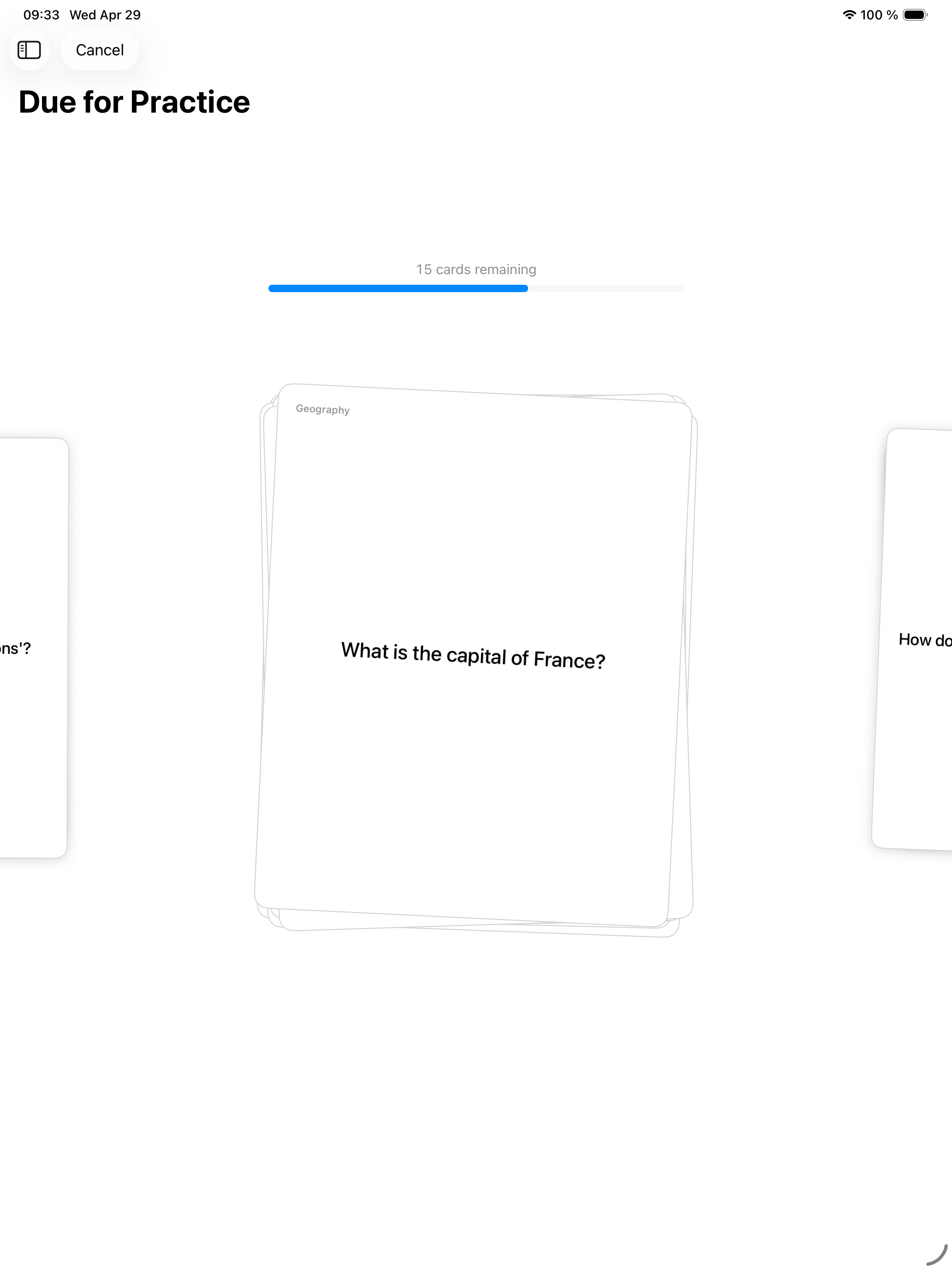
iPad sits in a useful spot between iPhone and Mac. The screen is large enough for serious editing and long sessions, but the device is portable enough to use anywhere. Swiftflip takes advantage of both.
Split view and multitasking
Swiftflip on iPad uses a split-view navigation layout. Decks live in a sidebar, the selected deck or folder fills the detail pane. Run the app alongside Safari, Notes or any other app in split view or Stage Manager so you can read source material on one side and build a deck on the other.
That makes iPad the natural device for the part of study where you turn what you read into cards.
Larger card layout
The deck detail view on iPad uses a layout tuned for the larger screen, not the same view scaled up from iPhone. Card content is easier to scan, the editor is roomier and the practice surface has more breathing room.
The card table lets you share a card or open Card Insights without leaving the list. Open a deck from a folder in the table. Sort by tapping a header. Search in the sidebar opens the full search view.
A practical iPad workflow
A pattern that works well for most users:
- read source material on iPad in one window
- build cards in Swiftflip in the other window
- edit and organize decks while you have the larger screen
- review on iPhone during the day and iPad in longer sittings
- check due counts on Apple Watch when you only have a moment
Everything stays in sync through iCloud.
Handoff and continuity
If you start a practice session on iPad and need to switch devices, Handoff carries the session over. Pick up from the Swiftflip icon in the Mac Dock, on iPhone or on Apple Watch and the cards you have already graded carry forward.
One purchase covers iPad
Swiftflip on iPad is part of the same purchase that covers iPhone, Mac and Apple Watch. There is no separate iPad app, no separate iPad subscription and no separate setup. Sign in to the same Apple ID and your decks appear.