
Schedule and clean up Seyvd backups
Set an automatic backup time, limit network use and choose how long old backups stay available.
In development. Not on the App Store yet.
Seyvd can back up hourly, daily or weekly, and it can avoid metered networks.
Schedule settings
Mac
Choose when Seyvd runs
Frequency, time and network limits live in one settings tab.
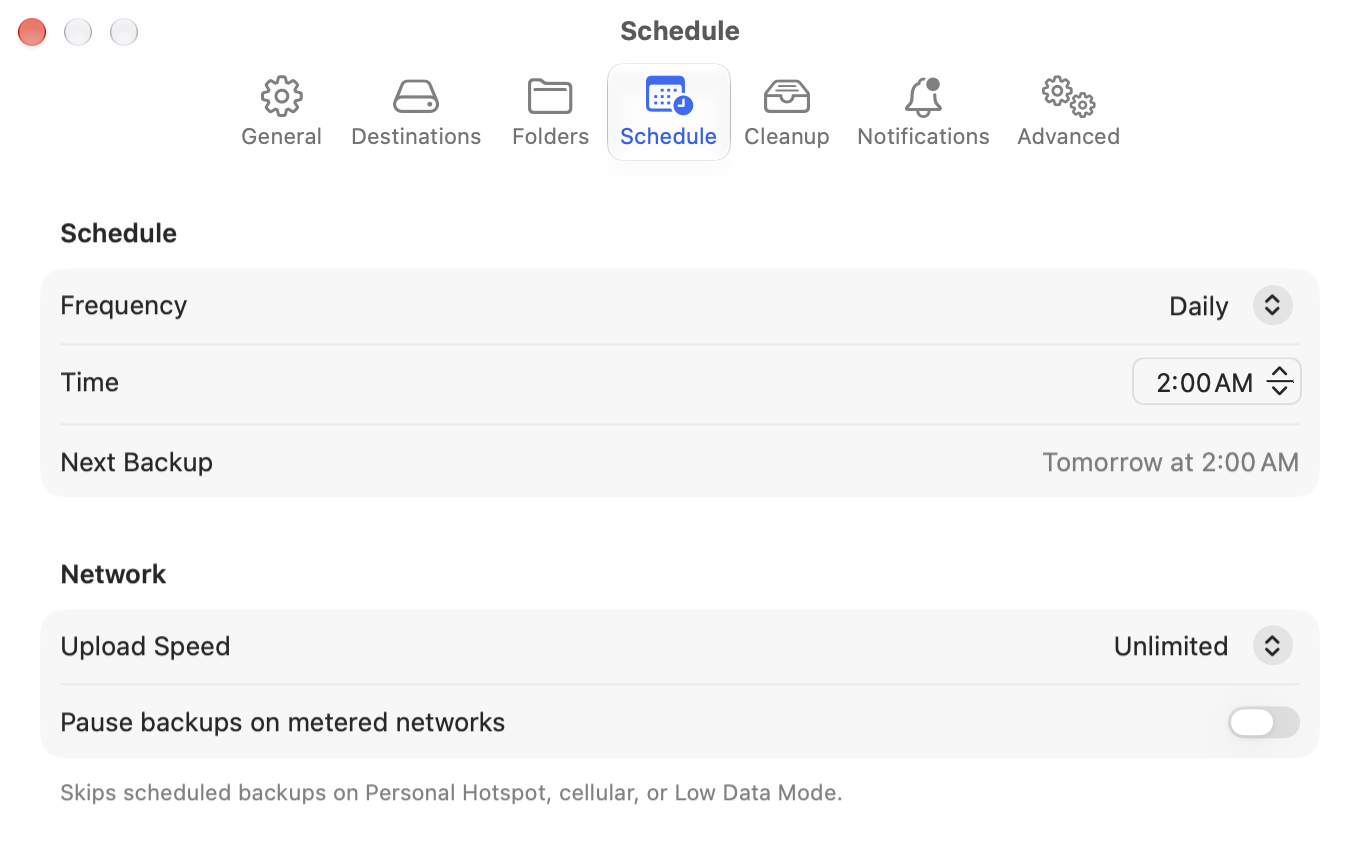
Set the schedule
- Open Seyvd > Settings.
- Select Schedule.
- Set Frequency to Hourly, Daily or Weekly.
- Choose the time and day when those controls appear.
- Set Upload Speed if the backup must share a slow connection.
- Turn on Pause backups on metered networks to avoid Personal Hotspot, tethered cellular and Low Data Mode connections.
Seyvd reads the saved schedule when it starts. If the Mac missed a scheduled run, the current build can catch up after launch.
Clean up old backups
- In Settings, select Cleanup.
- Choose a fixed number of recent backups or a tiered hourly, daily, weekly, monthly and yearly policy.
- Review Cleanup Preview before removing anything.
- Select Apply Now if you want to run the saved policy immediately.
Cleanup removes old snapshots and unused remote data. It does not delete the source files on your Mac.