
Measure your first disk with Diskbite
Allow Diskbite to read a disk, watch the scan fill in and read the donut and list.
In development. Not on the App Store yet.
Diskbite measures every folder on a disk and shows the largest items first. macOS asks you to allow each disk once, then Diskbite remembers it.
Measuring a disk with Diskbite on Mac
Mac
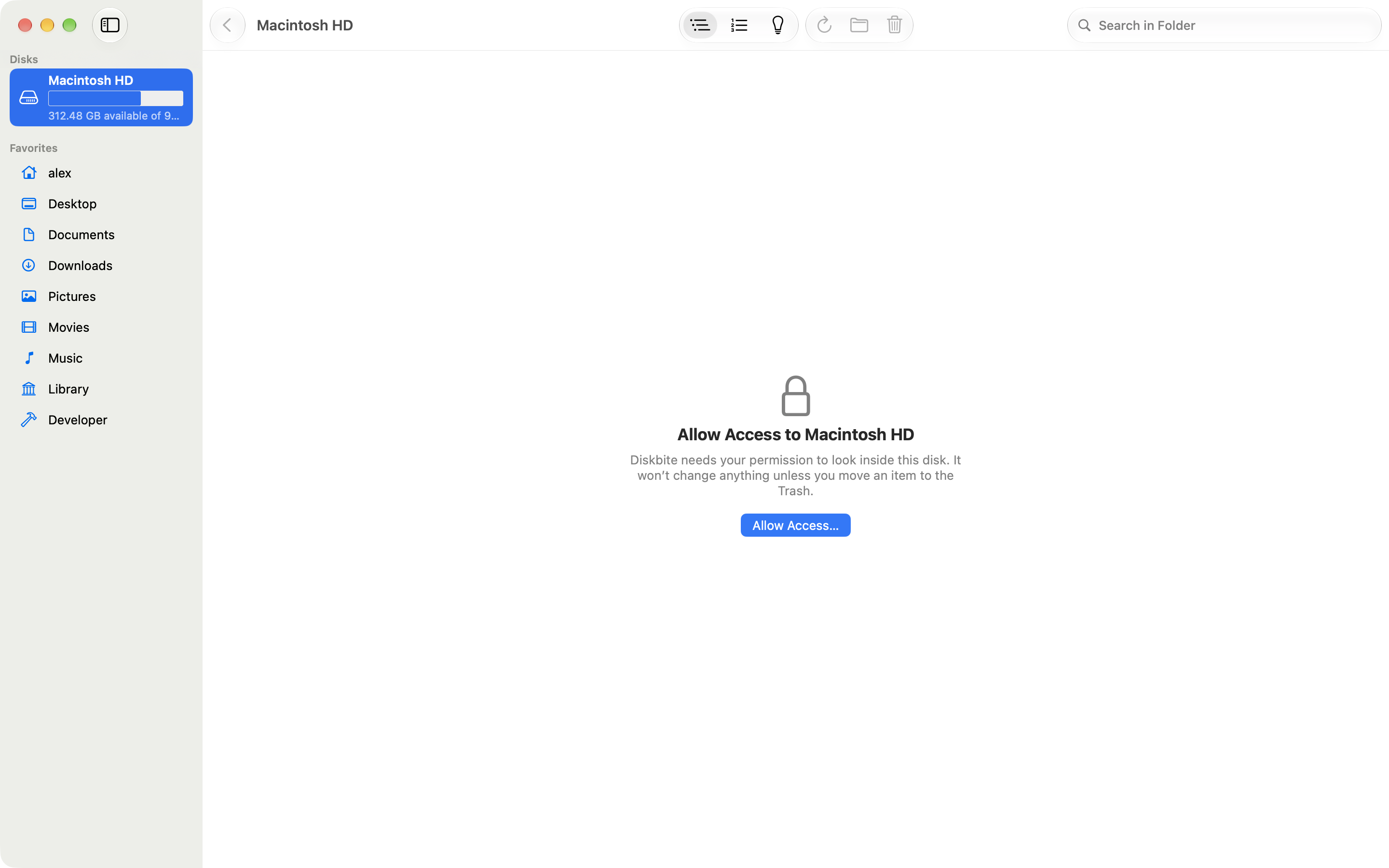
Allow the disk once
The App Sandbox needs your permission before Diskbite reads a disk.
Mac
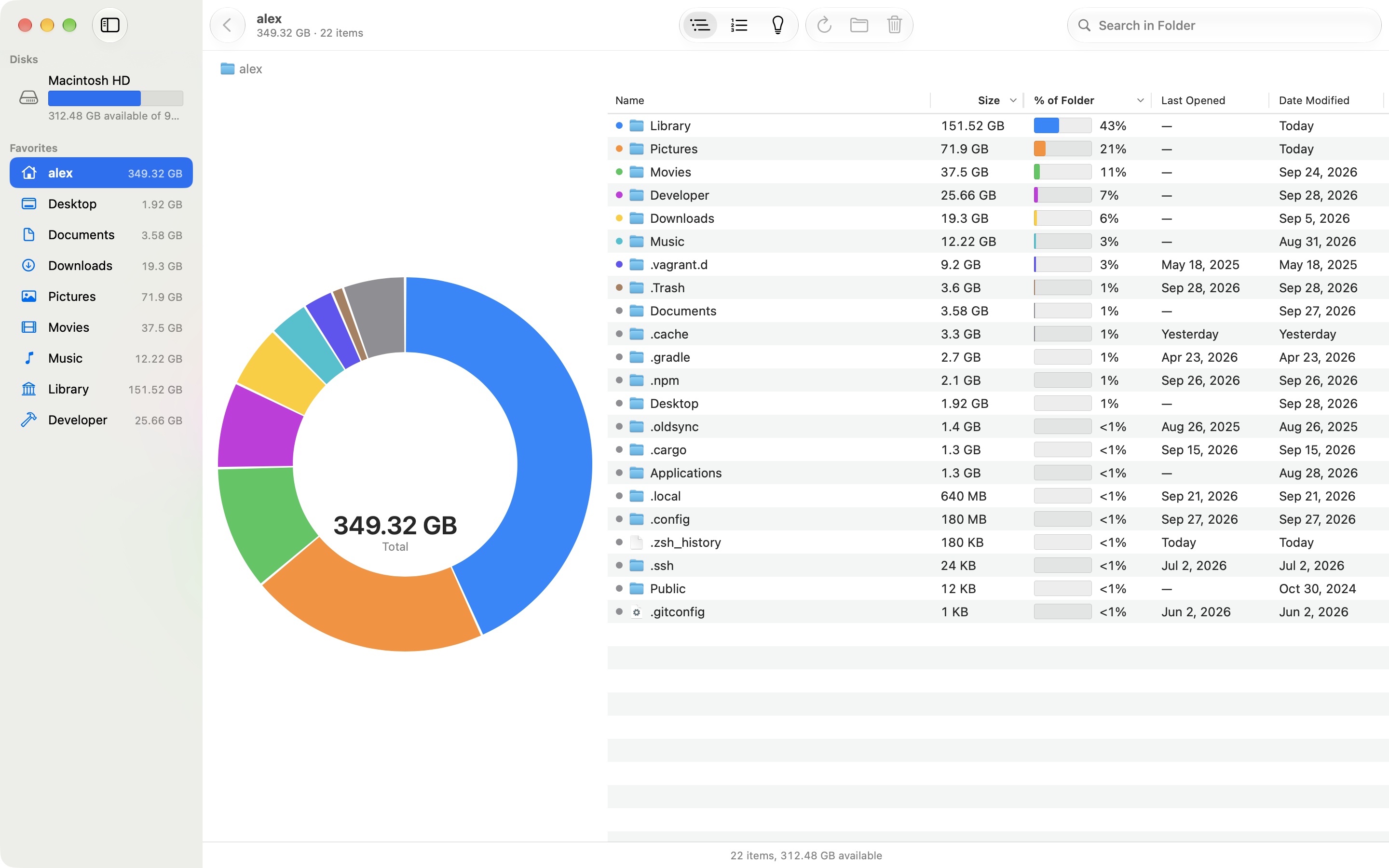
Read the results
The donut shows the largest items and the list shows everything.
Measure a disk
- Open Diskbite and select Macintosh HD under Disks in the sidebar.
- Select Allow Access.
- The Open panel starts at the disk. Select Allow.
Diskbite remembers the choice, so you only do this once per disk. Results appear as soon as the scan starts, and you can open folders while it is still measuring.
Read the results
- The eight largest items each get a color in the donut. Everything else shares gray.
- Hover a slice to see its name and size. Click it to select the matching row.
- Double-click a folder, or press ⌘ ↓, to open it. ⌘ ↑ goes back up.
- Apps and other packages count as single items, as in Finder.
- The status bar shows the scan’s progress, then the number of items and the space left on the disk.
The sidebar lists your disks with a capacity bar that turns yellow above 80% and red above 90%. Favorites such as your home folder and Downloads show their sizes once the scan reaches them.
Measure one folder
Choose File, then Open Folder (⌘ O) to measure any folder on its own. Diskbite adds it to your favorites. To keep another folder there, drag it onto the favorites or choose File, then Add to Sidebar (⌃ ⌘ T).
After you change things on disk, open the folder you changed and choose Rescan (⌘ R). Only that folder is measured again, and every folder above it updates. ⌘ . stops a scan. What has been measured so far stays on screen, marked as incomplete.