
Find what takes space on your Mac
Use Largest Files, search and Last Opened in Diskbite to find the items worth a closer look.
In development. Not on the App Store yet.
Large files hide deep inside folders. Diskbite can list them from anywhere in the folder on screen, find items by name and show when you last opened each one.
Finding large items with Diskbite on Mac
Mac
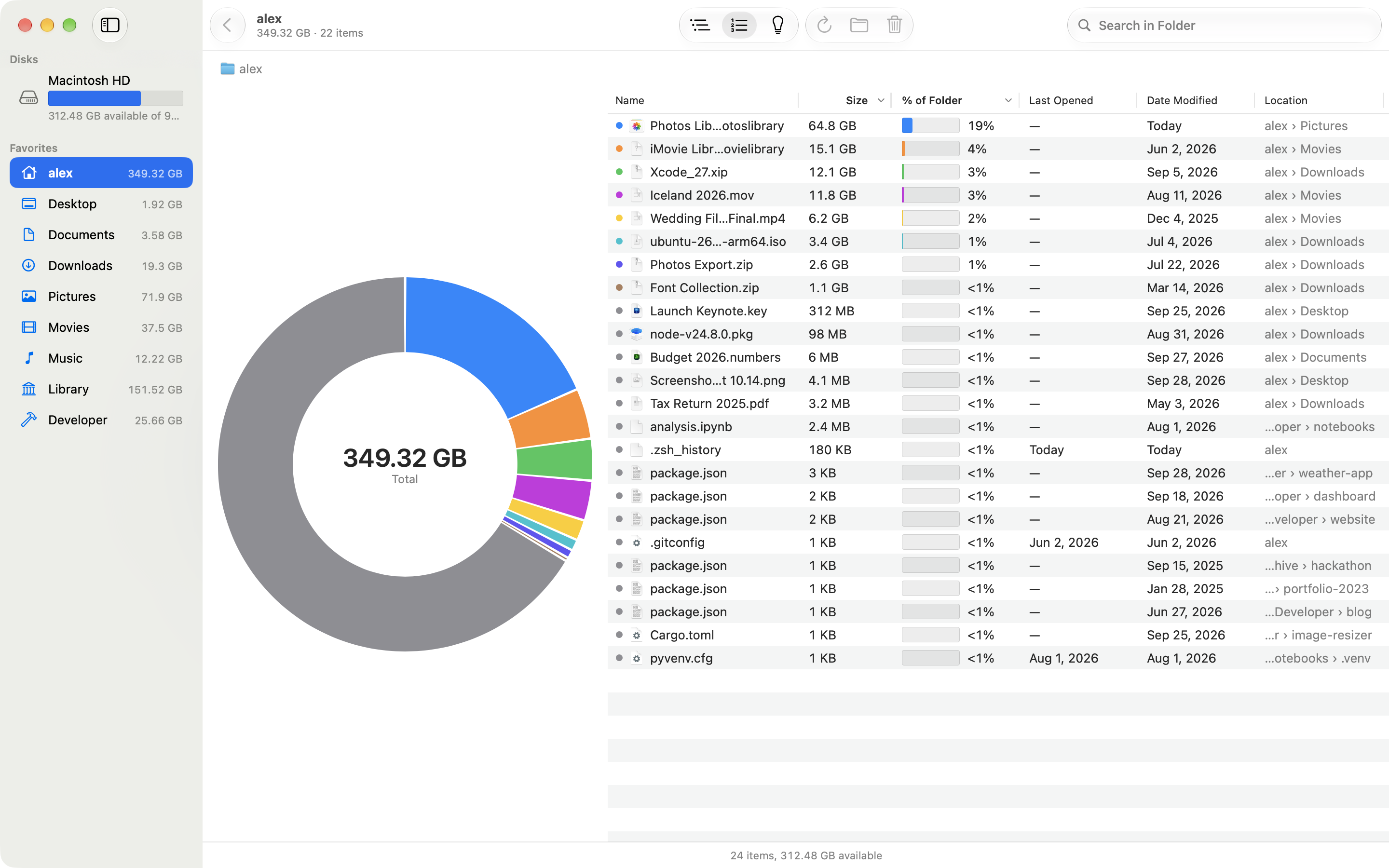
The largest files, anywhere inside
Location shows where each file lives.
Mac
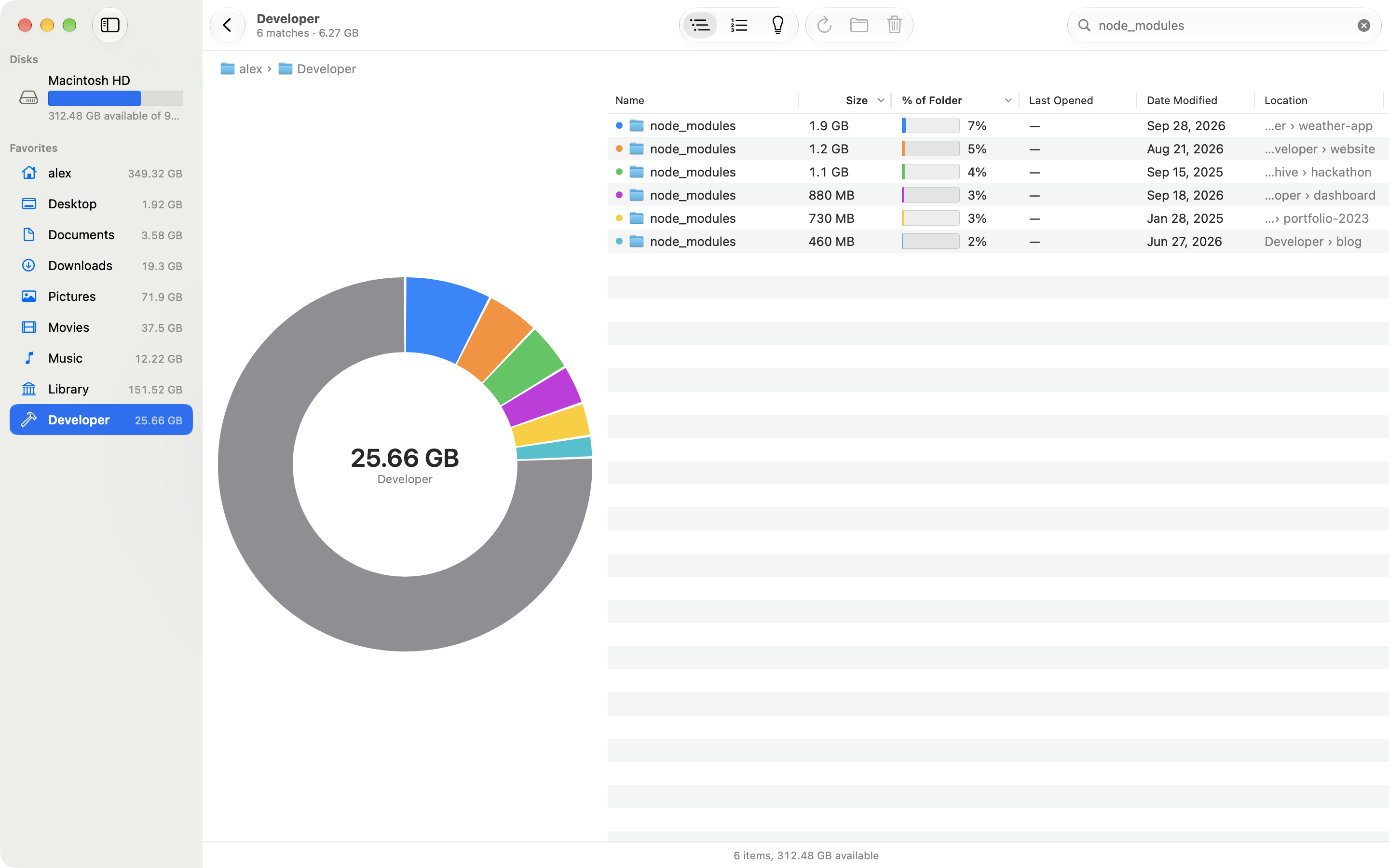
Search adds it up
The subtitle shows how many items match and their total size.
Mac
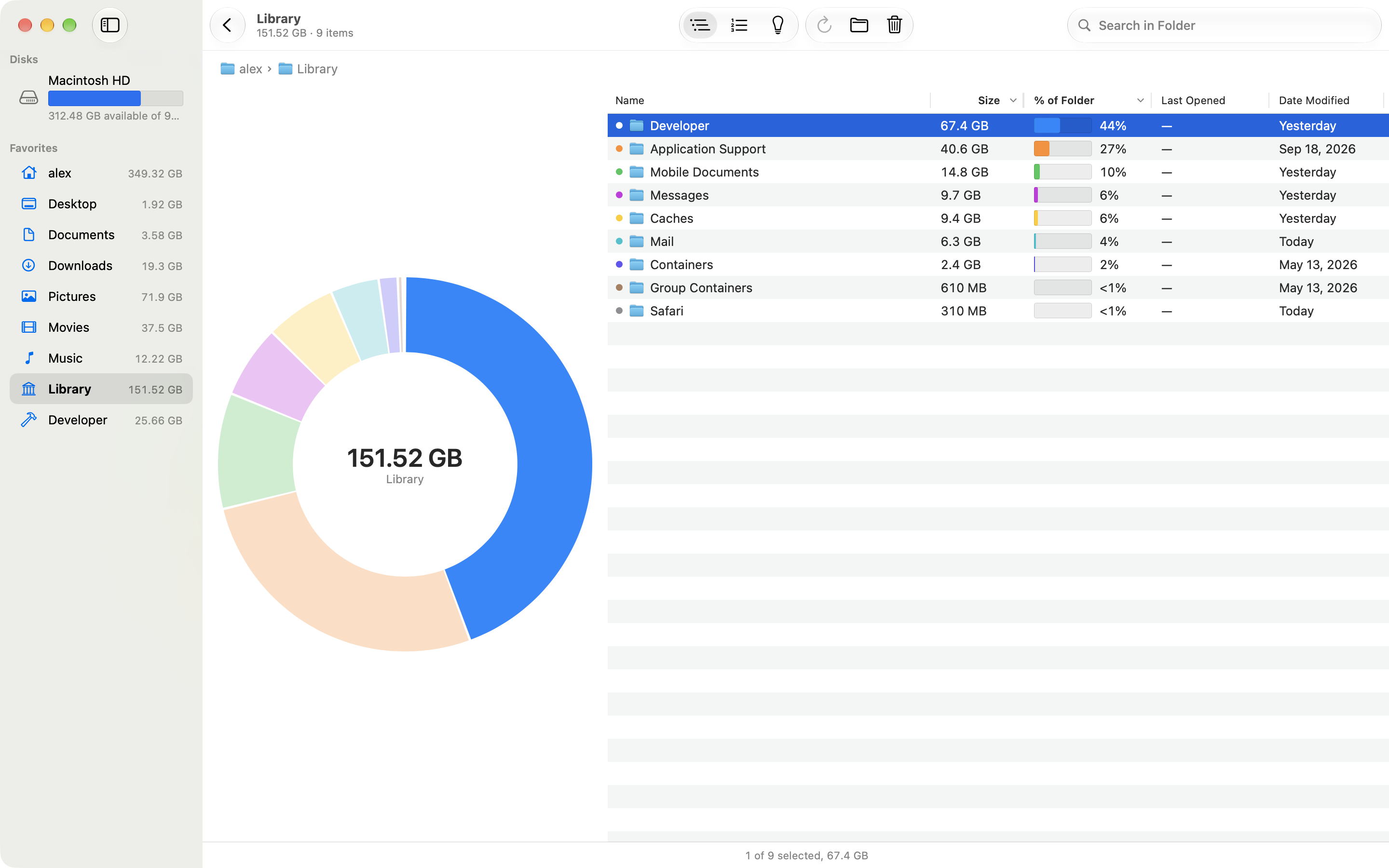
Select to see the share
The donut highlights what you select.
List the largest files
Choose View, then Largest Files (⌘ 2). Diskbite lists the 100 largest files in the folder on screen and every folder inside it, however deep. The Location column shows where each one is. Choose View, then Folders (⌘ 1) to go back to the folder’s own list.
Search by name
Press ⌘ F and type part of a name. Diskbite finds matching items anywhere in the folder on screen. The subtitle under the folder name shows how many match and how much space they take together, for example every node_modules folder in your projects. A match’s contents are not listed again, so sizes never count twice. Double-click a folder among the matches to open it. The search ends when you open another folder, as in Finder.
Find what you no longer use
Sort by Last Opened to see the items you have not opened in a long time, such as apps you forgot about. Diskbite takes the date from Spotlight, the same date Finder shows as Date Last Opened. Date Modified shows when an item, or anything inside it, last changed.
Look before you decide
- Select an item and press Space or ⌘ Y for Quick Look, as in Finder.
- Select several items to see their count and total size in the status bar.
- Right-click an item and choose Show in Finder to open its folder there.