
DiskbiteIn development · Mac
 Diskbite
Allow Full Disk Access for Diskbite
Let Diskbite measure the folders macOS protects, and understand the Hidden Space slice.
In development. Not on the App Store yet.
On this page
macOS keeps apps out of the data of Mail, Messages, Safari and some other apps unless you allow it. Full Disk Access lets Diskbite measure those folders too. It is optional, and everything else in Diskbite works without it.
Full Disk Access in Diskbite on Mac
Mac
Allow it from the status bar
Diskbite asks only after a scan misses protected folders.
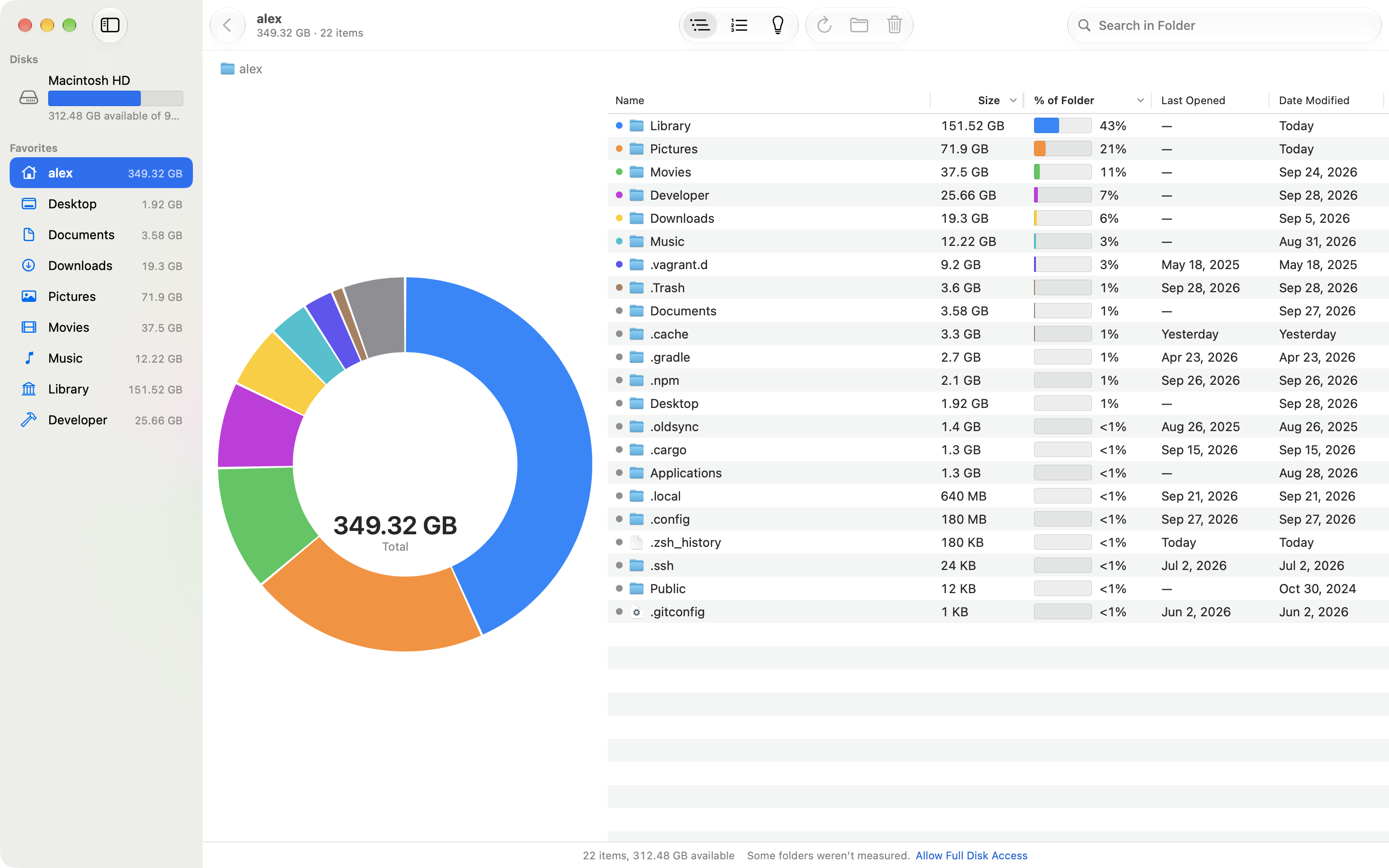
Turn on Full Disk Access
- After a scan, look for Some folders weren’t measured in the status bar.
- Select Allow Full Disk Access. System Settings opens at Privacy & Security, then Full Disk Access.
- Turn on Diskbite. If it is not listed, select the add button and choose Diskbite in Applications.
- Return to Diskbite and choose Rescan (⌘ R).
Even with Full Disk Access, Diskbite reads only names, sizes and dates, not what is inside your files.
Understand Hidden Space
At the top level of a disk, a light gray Hidden Space slice shows what the disk uses outside every folder Diskbite can read. That includes macOS’s own volumes, local snapshots, swap and folders Diskbite is not allowed into. Full Disk Access makes it smaller.
Hidden Space is measured once, when a full scan of the disk finishes. Moving items to the Trash does not change it, because they stay on the disk until you empty the Trash. Purgeable space counts as available, as in Finder.
Why sizes can differ from Finder
- Diskbite shows the space items take on disk, so compressed and sparse files count for what they really use.
- Files that live only in iCloud or another cloud service count as zero. Diskbite never downloads them.
- Other volumes, such as external disks and disk images mounted inside folders, are measured on their own.
- Hard links and APFS clones count once per path, so a total can be slightly higher than the space they share.