
Clear space with Suggestions
Review build folders, caches and data from deleted apps in Diskbite, then move what you no longer need to the Trash.
In development. Not on the App Store yet.
Some of the largest folders on a Mac are copies that apps and tools make again when they need them. Suggestions lists those, plus data left behind by apps you have deleted, with a note on each.
Diskbite Suggestions on Mac
Mac
Every suggestion has a note
Read what clearing an item does before you move it.
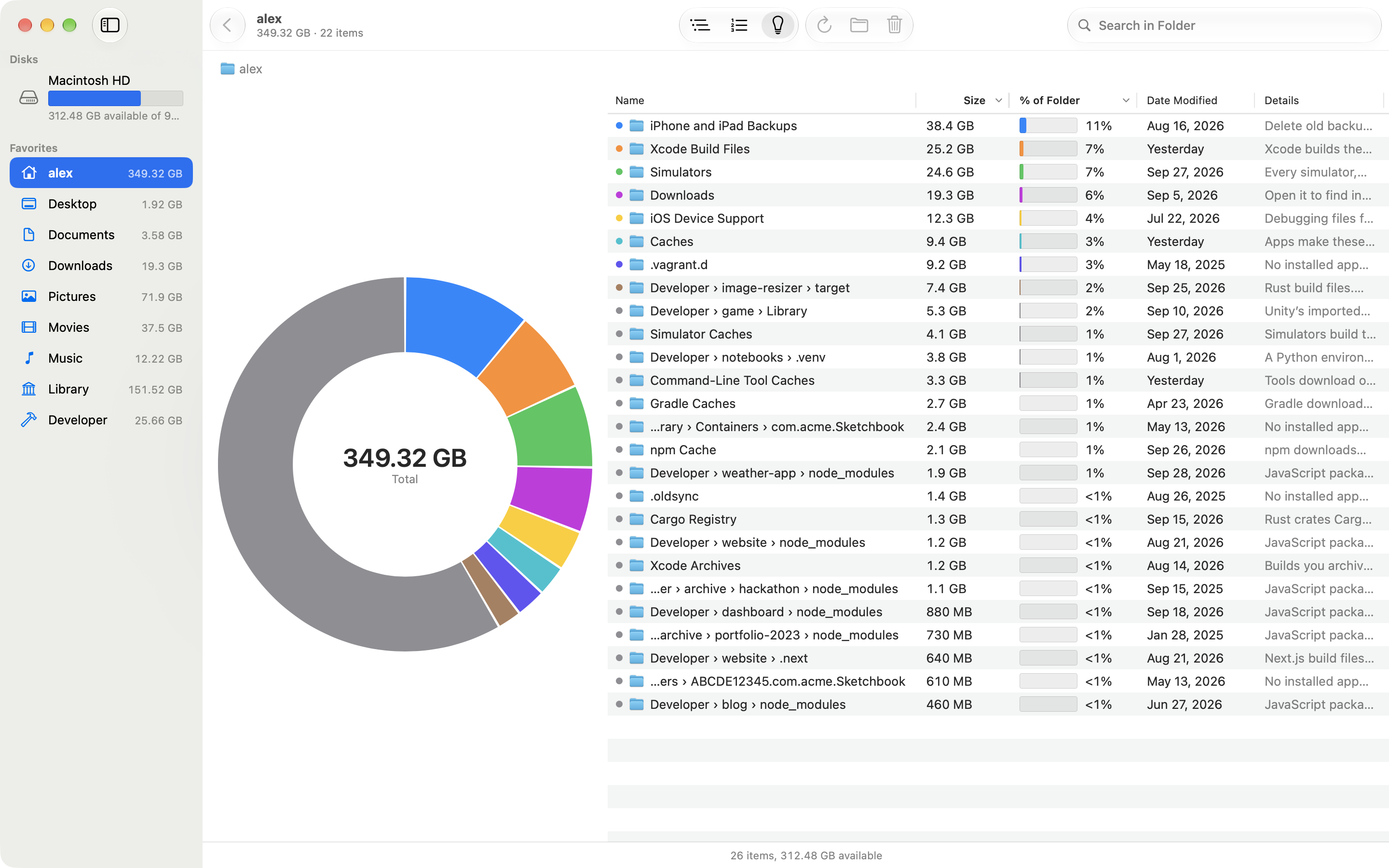
Open Suggestions
Measure your home folder or the disk it is on. Then choose View, then Suggestions (⌘ 3), or select the lightbulb in the toolbar. Suggestions covers the folder on screen and everything inside it.
What Suggestions lists
- Well-known folders that often grow large, such as Xcode build files, simulators, caches, iPhone and iPad backups and package caches for tools such as npm and Cargo.
- Project folders that builds and package managers make, such as
node_modules, ortargetbeside aCargo.toml. Each one is titled with its path from your home folder. - Leftovers: hidden items in your home folder, and data in Library that apps keep under their bundle ID, when no installed app or tool seems to own them and they have not changed in a month.
Suggestions never nest, so a folder is not listed again inside one that is already there. Folders that apps and tools need for themselves, such as the node_modules inside an app, are left out.
Read the note first
The Details column says what happens if you clear an item. Xcode builds its build files again, and apps make their caches again, though they may be slower the first time. A backup or a leftover is gone for good once you empty the Trash. Diskbite does not promise that anything is safe to remove, so read the note and decide.
Move items to the Trash
- Select one or more items. Press Space to preview one with Quick Look.
- Press ⌘ Delete, or right-click and choose Move to Trash.
- Diskbite says how much space you will get back. Select Move to Trash to confirm.
The space comes back when you empty the Trash. If an item belongs to another user or to macOS, Diskbite offers Show in Finder so you can move it there with an administrator’s password. Move to Trash is unavailable while a scan runs.
Hide a suggestion
Right-click a suggestion you want to keep and choose Hide from Suggestions. To bring one back, choose Diskbite, then Settings, select it under Hidden Suggestions and click Remove.