

On this page
Brevier is a book reader for iPhone, iPad and Mac with an AI feature called Explain. Select a passage in a book you are reading and choose Explain, or ask about the page, the chapter or the whole book, and the answer cites passages from that book. Explain is optional and part of Brevier Premium, and it asks before it sends anything.
What you can ask
- Select a passage and choose Explain for its meaning, context and background.
- Choose Explain Page, Explain Chapter or Explain Book to cover more of the text.
- Choose Ask a Question to start from your own question. Nothing is sent until you ask.
- Ask follow-up questions in the same conversation.
Explain works in the DRM-free EPUB, PDF and plain-text books you add to Brevier. See EPUB reader for Mac for which files open.
Answers cite your book
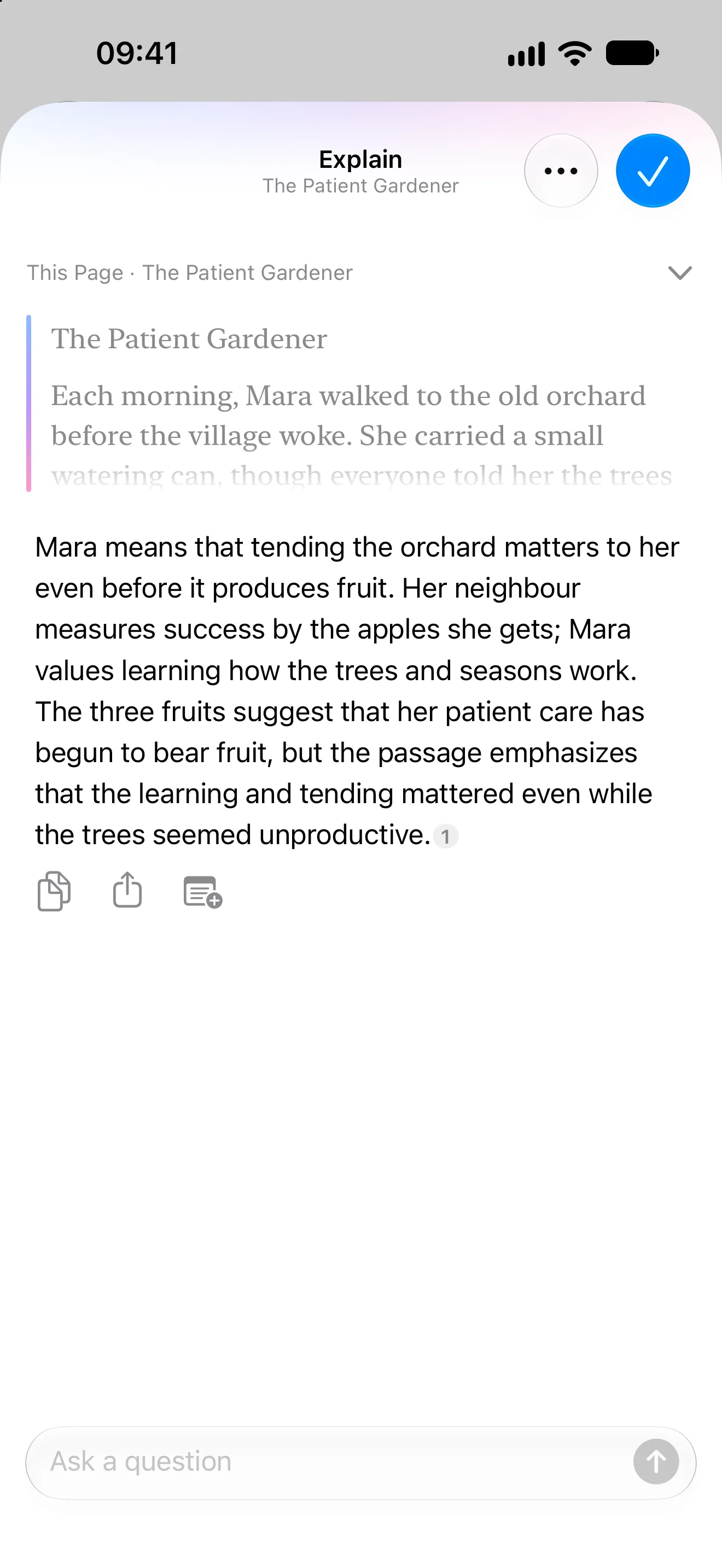
The number after the answer is a citation from the book.
Each answer has numbered citations. A citation shows the passage it points to, and Show in Book takes you to that place. When the AI service looked something up for background, a citation can be a web page instead.
Explanations may contain mistakes, so check a claim against its passage before you rely on it.
Under each reply you can copy it, share it or choose Save to Notes. Your Explain conversations are kept in Conversations and sync through your iCloud with your notes.
Avoid Spoilers
Avoid Spoilers is on for every new explanation. While it is on, Explain works from the book only up to the page you are on. Text after your reading position is not sent. Explain Chapter and Explain Book then cover the chapter or the book up to your place.
To let answers draw on the rest of the book, turn Avoid Spoilers off in Explanation Options. Brevier first warns that explanations can then reveal events or arguments you haven’t read yet, and you confirm with Allow Spoilers.
Catch Up
Catch Up recaps the book so far and gives most of its attention to the chapters you read last. It stops at your place in the book.
If you have Premium and come back to a book you are partway through after a week or more, a Catch Up button appears when you open it.
Learn
In a book in another language, select text and choose Learn. Brevier gives a translation, then a short lesson on the words and grammar in it, written in your device’s language.
What Explain sends
Your books, notes and reading positions stay on your devices and sync through your own iCloud. Explain is the only feature that sends book text to our server, and it is optional. The first time you use it, Brevier asks “Use Explain?” and sends nothing if you choose Not Now.
Each request then goes through our server to a third-party AI service in the cloud. It includes:
- your question
- the passage you selected or the page you are on
- related passages from the book
- your highlights and notes near that place
- the book’s title, authors, translators, editors and language
- the chapter you are in and how far you have read
- the earlier questions and answers in that conversation
- up to eight of your earlier questions about the book
- sections of the text you have read, summarized so Explain remembers the story so far
- your device’s language, when you choose Learn
For an explanation, the AI service may run one web search for background.
Our server never logs or stores your questions, book text or explanations. The privacy policy names the AI service and says what it and our server keep, and for how long.
Brevier Premium
Explain, Catch Up and Learn are part of Brevier Premium, a monthly or yearly subscription. Reading, highlights and notes and sync are free.
Explain a passage in Brevier shows where each command is on iPhone, iPad and Mac.