

On this page
In Brevier you select text in an EPUB, PDF or plain-text book and choose Highlight or Add Note. Highlights come in five colors or an underline. Every highlight and note goes into one list you can search, and each book’s notes export as a Markdown file. All of this is free on iPhone, iPad and Mac.
Highlight a passage
On iPhone and iPad, select the text and tap Highlight. Brevier uses the color you chose last. Tap the highlight to change it to yellow, green, blue, pink, purple or an underline, or to remove it.
On Mac, select the text, Control-click it and pick a color from the menu. Edit > Highlight uses the color you chose last.
Removing a highlight can be undone. If the highlight has a note, Brevier asks first, because the note is removed with it.
Add a note
Select text and choose Add Note, write the note and save it. The note is attached to a highlight on that passage, which gets a small number in the text. Tap or click the passage to read the note again.
An answer from Explain can become a note too. Choose Save to Notes under the reply.
Find every highlight and note
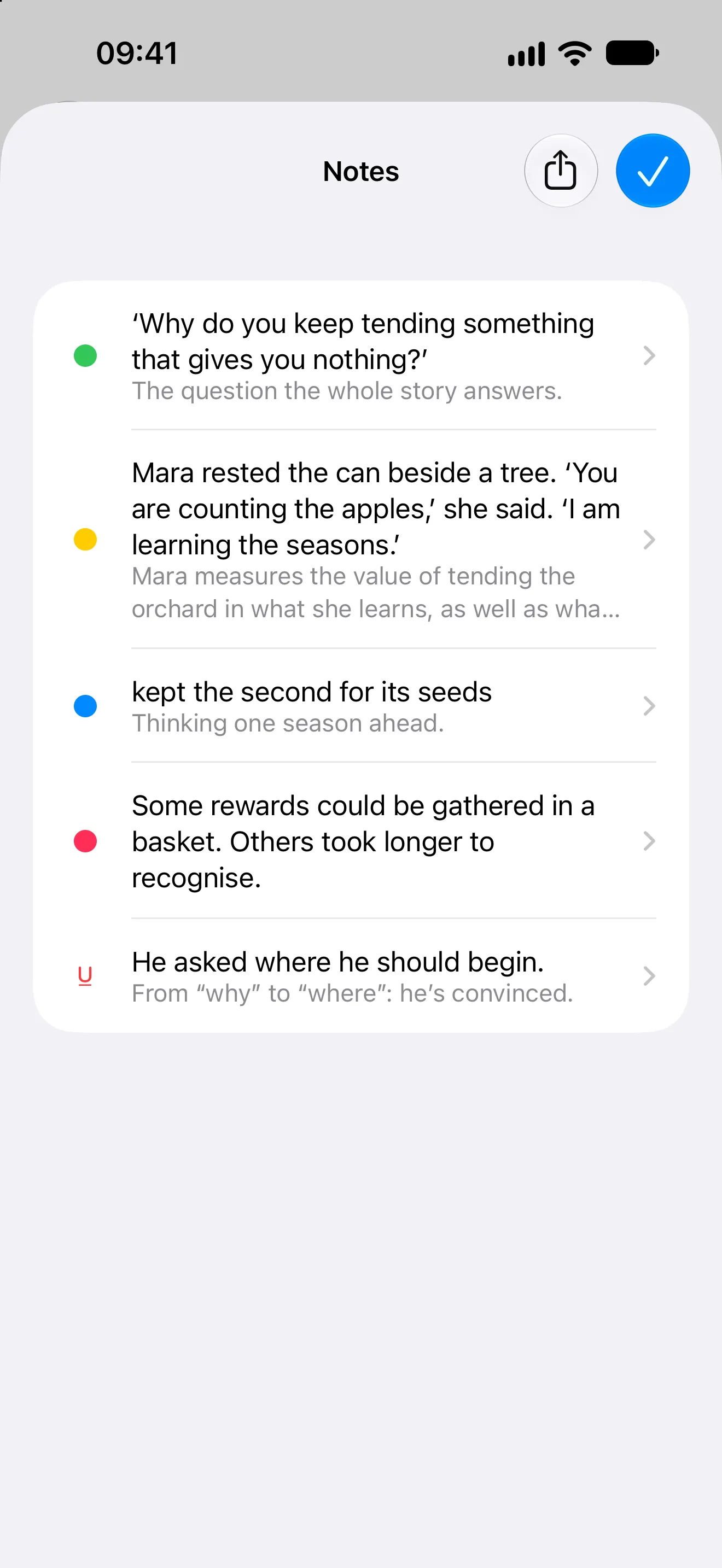
Each row shows the passage, its color and your note.
Each book has its own Notes list. Open it from the reader with the Notes button on iPhone and Mac, or from the More menu on iPad. A row starts with the highlighted passage and its color, with your note underneath. Choose a row to go to that passage in the book.
For all your books at once, open the Notes tab on iPhone and iPad, or choose View > Notes on Mac (Command-2). Highlights without a note are listed too.
To search them, use the Search tab on iPhone and iPad, or the search field in View > Notes on Mac. A search of the whole library also finds book text and Explain conversations.
Export notes as Markdown
Open a book’s Notes list and choose the share button. Brevier writes a Markdown file named after the book:
- the title and author at the top
- a heading for each chapter
- each highlighted passage as a quotation
- your note below the passage
From the share sheet you can send the file or save it. Export works one book at a time.
Share a quote as an image
Select a passage and choose Share on iPhone and iPad, or Control-click it and choose Share Quote on Mac. Brevier draws the quote on a card in your reading font and theme, with the book’s title and author under it. On iPhone and iPad, Save Image adds the card to your photo library.
When you copy a passage of more than three words, Brevier adds the author and title after it.
PDFs
Highlights and notes work in a PDF that has text, and the PDF keeps its own pages. Brevier does not write them into the file. A scanned PDF without text, or a PDF that forbids copying, can be read and bookmarked only.
Sync and privacy
Your books, notes and reading positions stay on your devices and sync through your own iCloud. We cannot see them. Brevier has no account, ads or tracking.
Read more about the reader itself in EPUB reader for Mac.