
BrevierFree with optional Premium · iPhone, iPad and Mac
 Brevier
Explain a passage in Brevier
Use Explain in Brevier to ask about a passage, a page, a chapter or the whole book, and choose whether answers may use what you have not read yet.
On this page
To explain a passage in Brevier, select it and choose Explain. Brevier shows an answer over your page and cites the passages it used. Explain is part of Brevier Premium, and the first time you use it Brevier asks before it sends anything.
Before you start
- Explain needs Brevier Premium and an internet connection.
- It works in the DRM-free EPUB, PDF and plain-text books you add. Add books to Brevier shows how.
- Explain uses a third-party AI service in the cloud, and explanations may contain mistakes. What Explain sends lists what leaves your device.
Explain a selected passage
- Open a book and select the text.
- On iPhone or iPad, tap Explain in the menu that appears. On Mac, Control-click the selection and choose Explain, or choose Edit > Explain.
- If you have no subscription, the Brevier Premium sheet appears. Subscribe there, or choose Restore Purchases if you subscribed before.
- The first time, Brevier asks Use Explain? and says what it sends. Choose Use Explain. If you choose Not Now, nothing is sent.
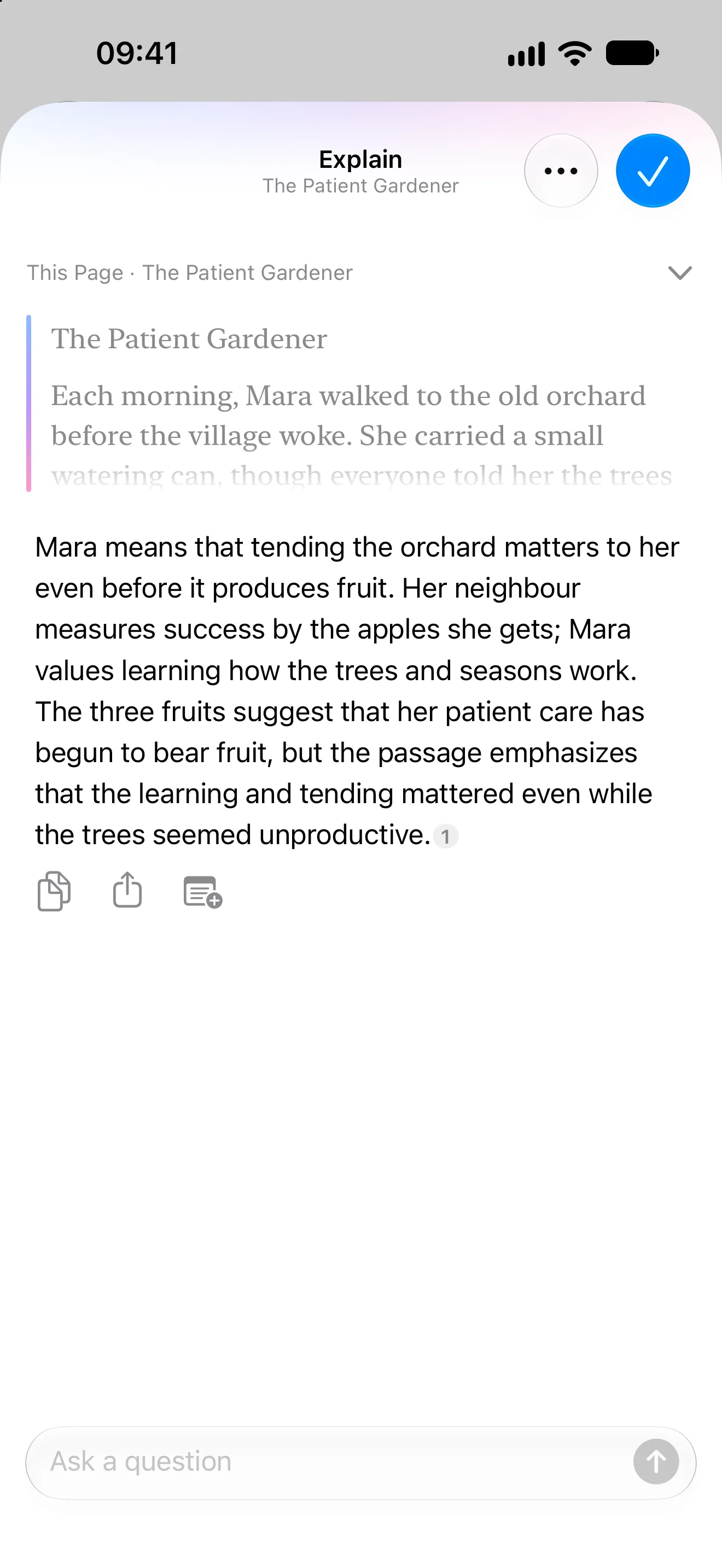
The answer, with the Ask a question field below it.
On Mac, the answer to a selection opens in a popover beside it. Click More to move it into its own window, where you can ask follow-up questions.
Check the answer
The numbers in an answer are citations. Choose one to read the passage it points to, then Show in Book to go to that place in your book. A Back button returns you to where you were reading. When the AI service looked something up for background, a citation can be a web page instead.
Under each reply are Copy, Share and Save to Notes. Your conversations are also listed under Conversations.
Ask a follow-up question
Type in the Ask a question field and send it. A follow-up continues the same conversation.
To start from your own question, choose Ask a Question in the Explain menu, or Ask in the selection menu on iPhone and iPad. Nothing is sent until you ask.
Explain a page, a chapter or the whole book
On iPhone and iPad:
- Tap Explain in the toolbar and choose Explain Page, Explain Chapter or Ask a Question.
- Tap More (the ••• button) and choose Explain Book or Catch Up.
If the toolbar is hidden, tap the middle of the page to show it.
On Mac, click Explain in the toolbar or open the Reading menu. Both have Explain Page, Explain Chapter, Explain Book, Catch Up and Ask a Question.
Catch Up recaps the book up to your place and gives most of its attention to the chapters you read last.
In a PDF, Explain Chapter is not available, and a scanned PDF without text cannot be explained.
How Avoid Spoilers works
Avoid Spoilers is on each time you start an explanation. While it is on, Explain works from the book only up to the page you are on, and text after your reading position is not sent. Explain Chapter and Explain Book cover the chapter or the book up to your place.
To let answers use the rest of the book:
- Open Explanation Options. On iPhone it is the ••• button at the top of Explain, and on iPad the button with sliders. On Mac, click More if the answer is in a popover, then choose Explain > Explanation Options from the menu bar.
- Turn off Avoid Spoilers.
- Brevier asks Allow Spoilers? and warns that explanations can then reveal events or arguments you haven’t read yet. Choose Allow Spoilers.
Brevier then asks for the current answer again with the new setting. Turn Avoid Spoilers back on the same way.
Change the length and style of answers
Explanation Options also has Response Length (Brief, Automatic or Detailed) and Explanation Style (Plain Language, Context, Analysis or Very Simple). On Mac they are labeled Length and Style. Changing one replaces the current answer.
To set them for new conversations, open Settings and look under Explain.
If Explain does not answer
- “Explain needs Brevier Premium.” Subscribe, or restore your purchase.
- “An internet connection is needed for explanations.” Reconnect and choose Try Again.
- “Explain is temporarily unavailable.” Try again shortly.
For what Explain can do and what it sends, see ask questions about the book you are reading.