
Swiftflip 1.22.0 writes cards from your own files
Generate cards from files, photos and pasted text, practice in front of a theme, see every card when you finish and back up your library each week.
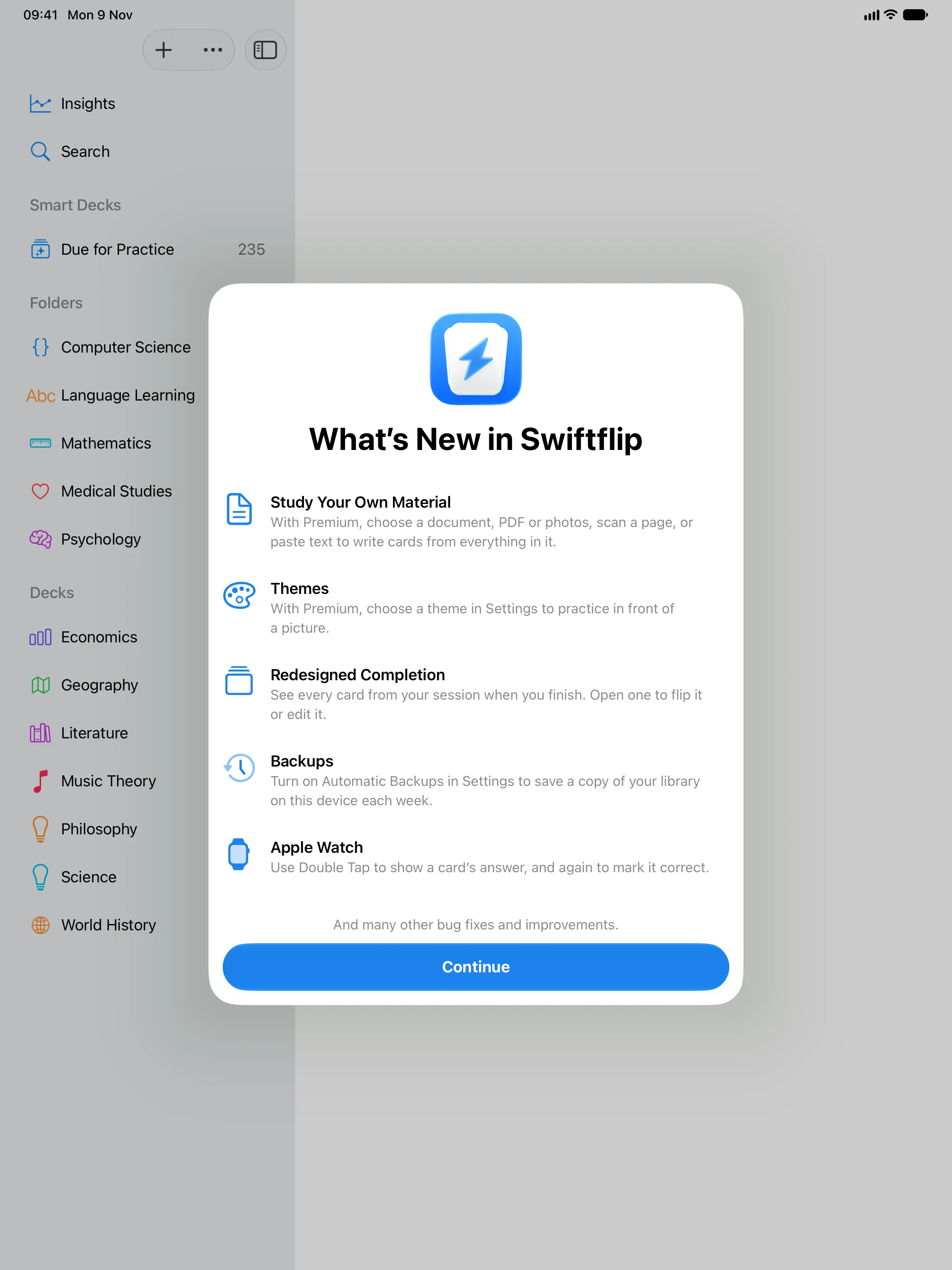
Swiftflip 1.22.0 writes cards from your own files and photos, adds practice themes and a new finish screen, and can back up your library every week.
Cards from your own files
Choose Generate from File or Photo and add a PDF, a Word or PowerPoint file, photos or text you paste. On iPhone and iPad you can also scan pages. Cloud AI writes cards only from what you add, and you review them before they save. It is part of Premium and needs macOS 27 or later on Mac.
Generate from Topic on one screen
Pick a suggested focus, choose about 10, 25 or 50 cards and open Custom instructions only when you need them.
Themes
Premium adds three themes for practice: Paper, Night Sky and Forest. A theme puts a picture behind your cards and matches the progress bar and card edges. Preview one in Settings before you choose.
Every card on the finish screen
When a session ends, the finish screen lays out every card you practiced, marked by your first answer. Open a card to flip it, edit it or see when it comes back.
Due dates spread over more days
Cards you learn together no longer all come due on the same day. A gap of 3 days or more now lands on a day in a small range, as it does in Anki. Spaced repetition and FSRS, explained lists the ranges.
Automatic Backups
Turn on Automatic Backups in Settings to save a copy of your library on the device each week. Backups are free. Export and back up your library covers restoring one.
Apple Watch
Double Tap shows a card’s answer, and a second Double Tap marks it correct.
Anki imports
Anki imports keep furigana readings, cloze cards and SVG pictures.
Practice Due Cards on Mac
Add the Practice Due Cards control to Control Center or the menu bar.