
Manage and sync your blocklist
Add and pause domains, understand homepage matching, undo a deletion and keep the same list available on your Macs through iCloud.
Hold That Tab keeps a short list of domains whose homepages you want to stop opening by habit. Direct links still work, so you can read an article without reopening the feed.
Manage domains
Mac
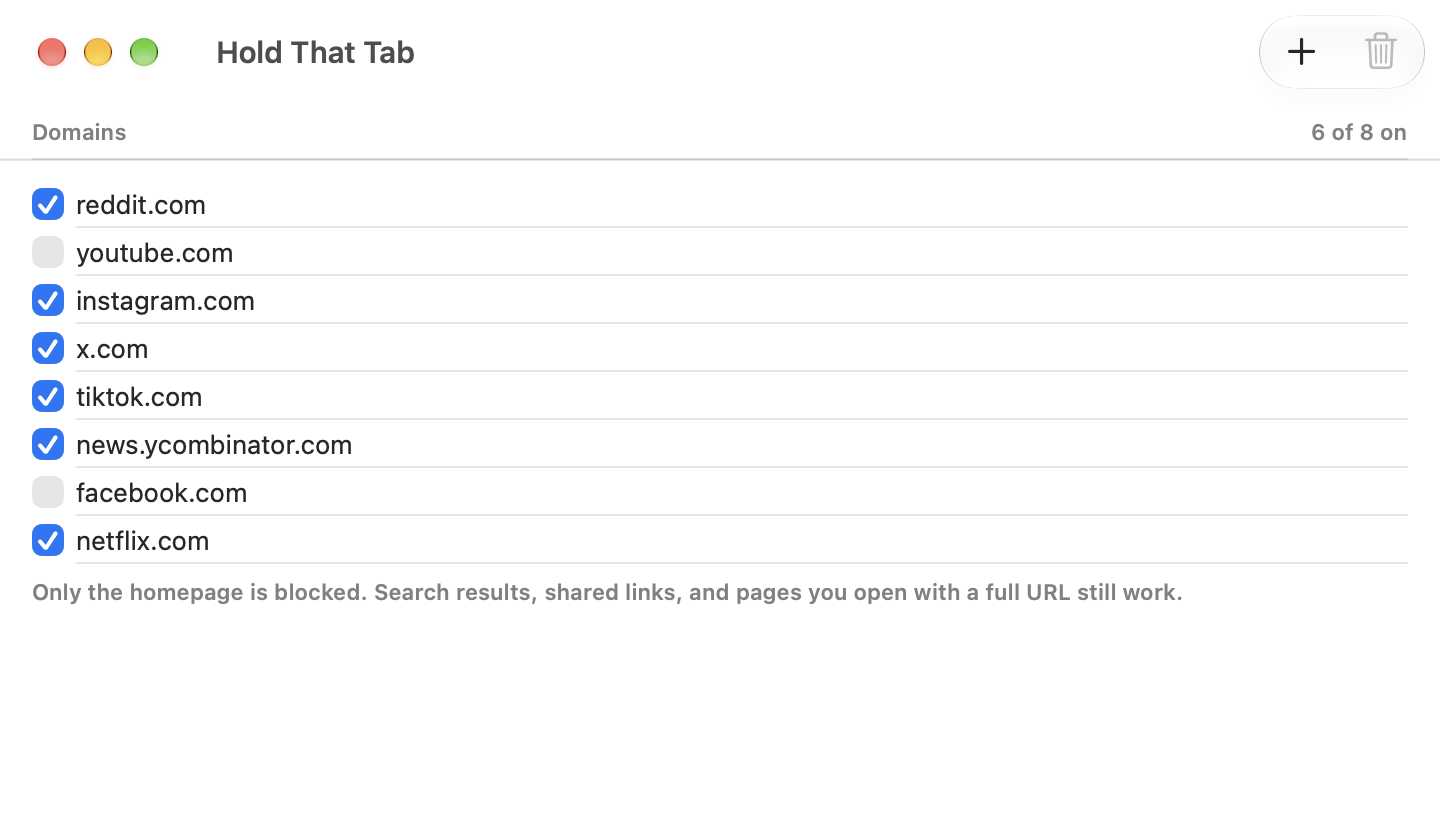
Keep a short list
Turn homepage blocking on or off for each domain.
Mac
Add a domain
Use the plus button, enter a domain and choose Add.
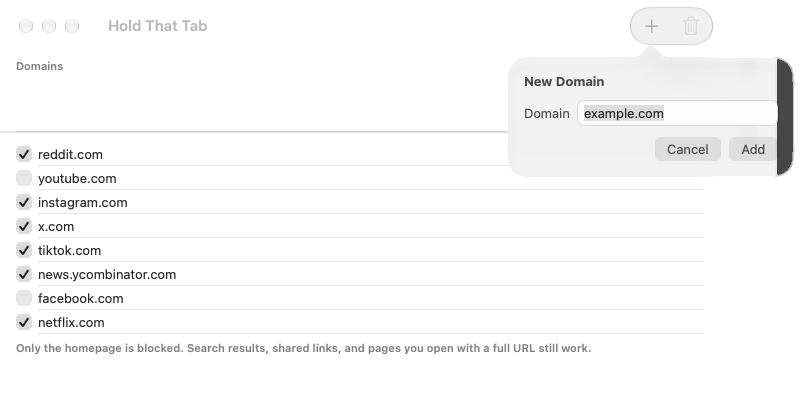
Add, pause or delete a domain
Use the plus button in the toolbar to add a domain. The app cleans the entry before adding it, so you do not need to keep a protocol or a page path in the list.
Turn an entry off to pause its blocking without deleting it. The count shows how many domains are on out of the whole list.
To remove a domain, select its row and use the trash button or Edit, Delete. Edit, Undo reverses an addition or deletion.
Know what an entry blocks
For an entry of example.com:
| Address | Result |
|---|---|
example.com or example.com/ | Homepage blocked |
www.example.com/ | Homepage blocked |
example.com/?source=bookmark | Homepage blocked |
example.com/article | Direct page allowed |
news.example.com/ | Allowed unless added separately |
The rule includes the domain’s www form. Other subdomains are separate. Adding a domain does not block the whole site or every address that contains its name.
Sync between Macs
Install Hold That Tab on each Mac and sign in to the same Apple Account for iCloud. Allow the app to use iCloud in system settings. Open it with an internet connection and give the list time to arrive.
The list syncs through your private iCloud. We cannot see your domains or browsing history. Safari setup is still needed on each Mac and in each Safari profile; a synced domain list does not by itself enable the blocker.
If iCloud is unavailable
Read the app’s iCloud warning and check the Apple Account, iCloud access, available storage and network connection in system settings. Compare lists only after both Macs have had time to sync.
If the app cannot use iCloud, do not assume another Mac has received a change. Keep the Mac with the complete list intact while checking the cause. Contact us with the warning text if it persists.
If the list is correct but blocking is not, return to the Safari setup checks.